Digital Photo Frame with Music: Add Songs to Slideshows
Add background music to your photo frame slideshow: built-in songs or your own library, with music that fades out for Live Photos and videos.

July 4, 2025 by Manuel Escrig · 3 min read
Updated October 2026
Music turns a slideshow into an occasion: a birthday, an anniversary dinner, or just a quiet evening with old photos on the TV. Digital Photo Frame App can play background music under any slideshow, from its own collection of songs or from your music library. Here's how.
As a dad of three, I'd say music is what turns a slideshow into an occasion.
- Open Background Music in the slideshow settings.
- Choose Curated Tracks (included with the app) or Apple Music Library (your own music).
- Pick a Playback Mode and turn on Shuffle if you like.
- The music fades down while a video or Live Photo plays with sound.
- Exported slideshow videos can keep the music, except copy-protected Apple Music songs.
Add music to a slideshow
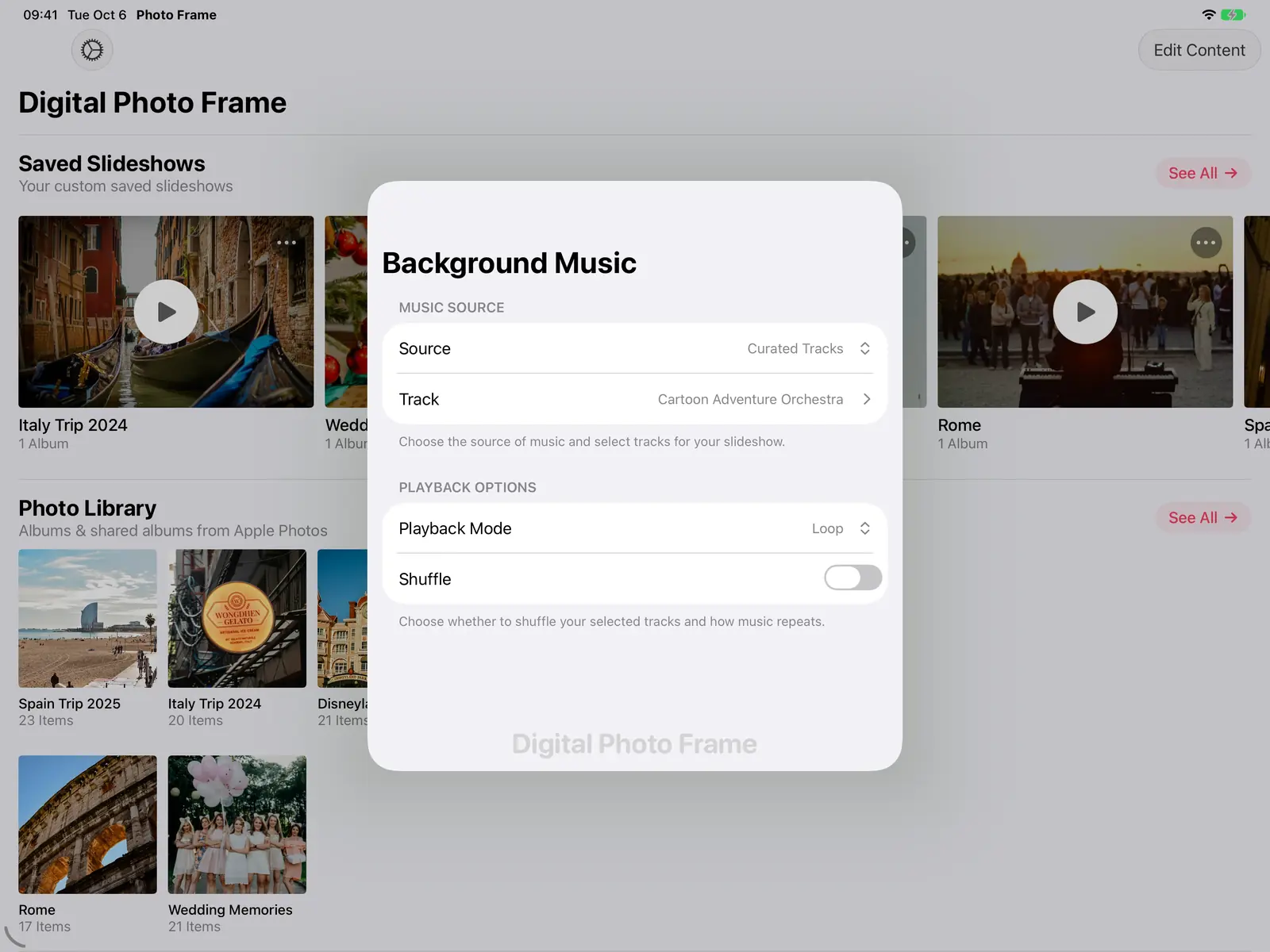
Open the slideshow settings and tap Background Music:
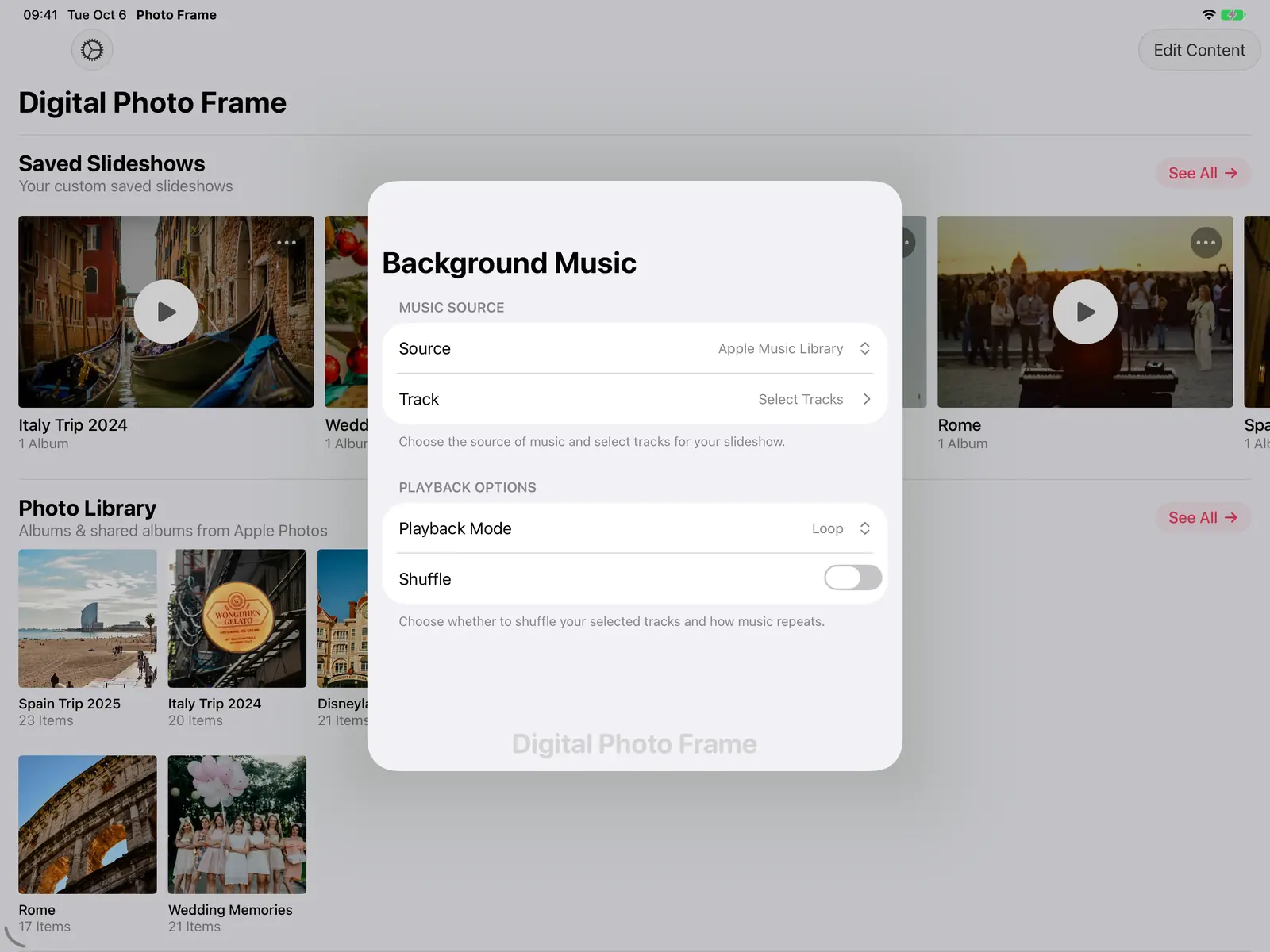
- Under Source, choose Curated Tracks (songs included with the app) or Apple Music Library (music on your device).
- Tap Track and pick one or more songs.
- Choose a Playback Mode, such as Loop, and whether to Shuffle the songs you picked.

The built-in songs
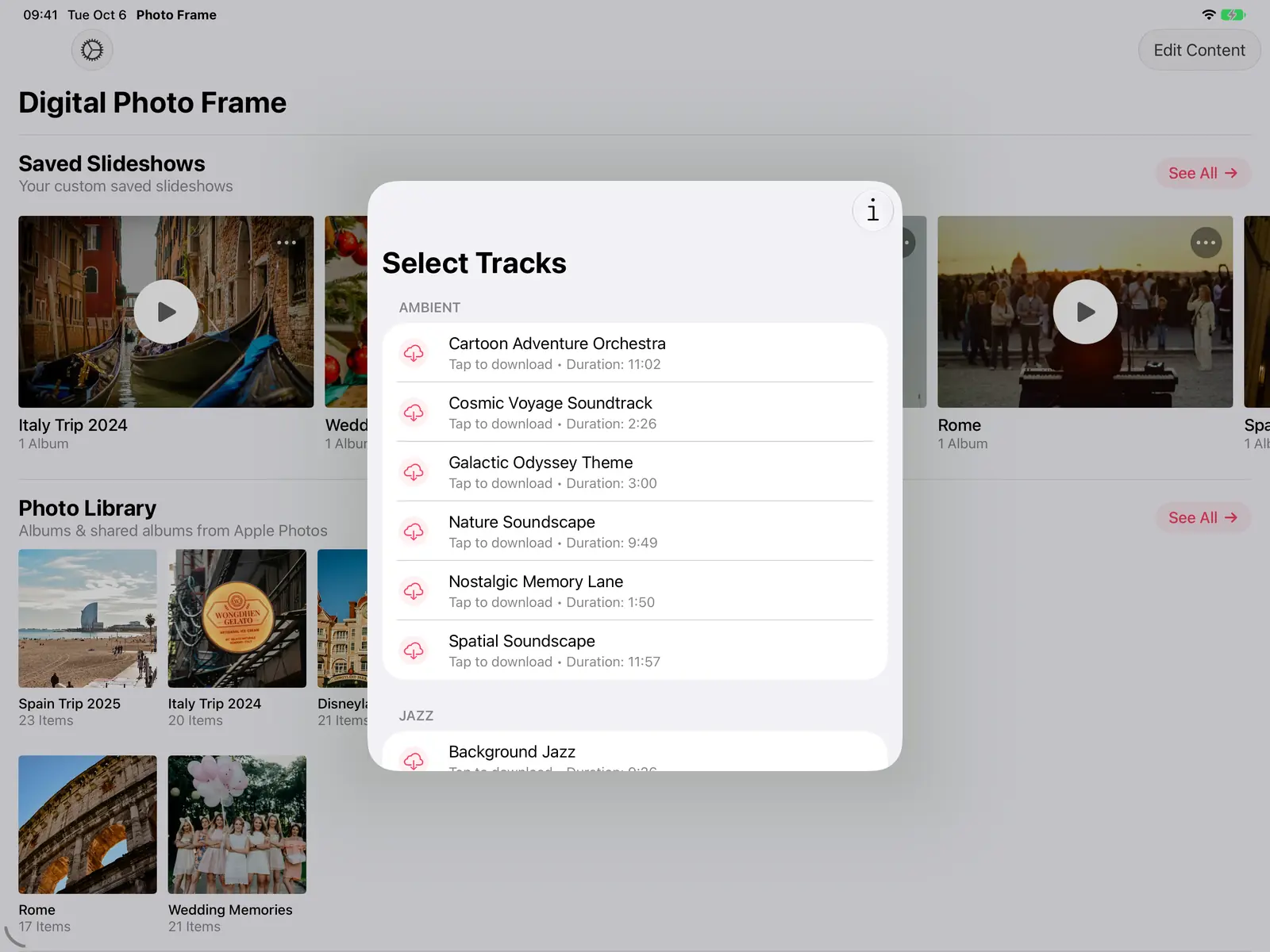
The curated tracks are grouped by mood, such as ambient and jazz, and each one shows its length. They download the first time you tap them, so they're ready to play offline afterwards.
Your own music
With Apple Music Library you can pick songs from your own library. On a Mac, the app has its own music picker with search and browsing by artist, album or playlist, and you can add a whole album or playlist at once.
Music and the sound of your videos
When a Live Photo or video plays with sound, the music fades down so you can hear the original audio, then comes back. Videos without sound don't interrupt the music. You can mute video sound at any time with the mute button while the slideshow plays. More in Live Photos and videos in a slideshow.
On Apple TV
Music works in the Apple TV app too, which makes the TV the best place for an anniversary or reunion slideshow. See Apple TV photo frame.
Share the slideshow with its music
When you export a slideshow as a video, you can keep its music, choose no music, or pick a song just for the video. Copy-protected Apple Music songs can't be added to an exported video; the app tells you when that's the case.
Tips
- Pick music by the moment. Calm instrumental tracks for a frame that plays all day; a song with meaning for an anniversary or a farewell.
- Keep the volume low for a frame in a shared room, and turn on Shuffle so long sessions don't repeat the same song in the same order.
- For an everyday frame, consider no music at all. Photos with weather and time on screen suit a kitchen better than a soundtrack. See photo frame with clock and weather.
Frequently asked questions
Can I use Apple Music songs?
Yes, from your Apple Music library on the device. Copy-protected songs play in the slideshow but can't be included in an exported video.
Does the music keep playing between photos and videos?
Yes. It fades down while a video or Live Photo with sound plays and comes back afterwards.
 Share on Facebook
 Share on X
Keep reading
All posts → Guides Photo Frame with Clock and Weather on iPad
Show the time, date, weather, air quality, UV index and your calendar over a photo slideshow on iPad, iPhone, Mac or Ap…
Guides Photo Frame with Clock and Weather on iPad
Show the time, date, weather, air quality, UV index and your calendar over a photo slideshow on iPad, iPhone, Mac or Ap…
 Guides Slideshow Transition Effects for Your Photo Frame
Every slideshow transition in Digital Photo Frame App, from a gentle fade to Origami and Page Curl, plus Ken Burns moti…
Guides Slideshow Transition Effects for Your Photo Frame
Every slideshow transition in Digital Photo Frame App, from a gentle fade to Origami and Page Curl, plus Ken Burns moti…
 Guides Live Photos and Videos in a Photo Frame Slideshow
Turn your iPad or Apple TV into a video and live photo frame: play Live Photos and videos in the slideshow, with or wit…
Guides Live Photos and Videos in a Photo Frame Slideshow
Turn your iPad or Apple TV into a video and live photo frame: play Live Photos and videos in the slideshow, with or wit…
 Download Now