Photo Frame with Clock and Weather on iPad
Show the time, date, weather, air quality, UV index and your calendar over a photo slideshow on iPad, iPhone, Mac or Apple TV, styled to suit the room.

September 08, 2025 by Manuel Escrig · 3 min read
Updated October 2026

A digital photo frame is the screen you glance at most, so it's a natural place for the time and the weather. Digital Photo Frame App can show small information boxes over your slideshow: the date and time, the weather, details about the photo on screen, and your next calendar events. Here's what each one shows and how to set them up.
With a frame like the old iPad in my parents' living room, in another country from ours, it's nice that the weather can follow any city you choose, not only the one the frame is in.
- Four boxes: date and time, weather, photo information and calendar events (calendar on iPhone, iPad and Mac).
- Turn each one on under On-Screen Information in the slideshow settings.
- The Huge clock size (iPad, Mac and Apple TV) reads from across the room.
- Weather Location shows the weather for any city.
- Customize Style and Apply to all boxes give them one look.
What you can show
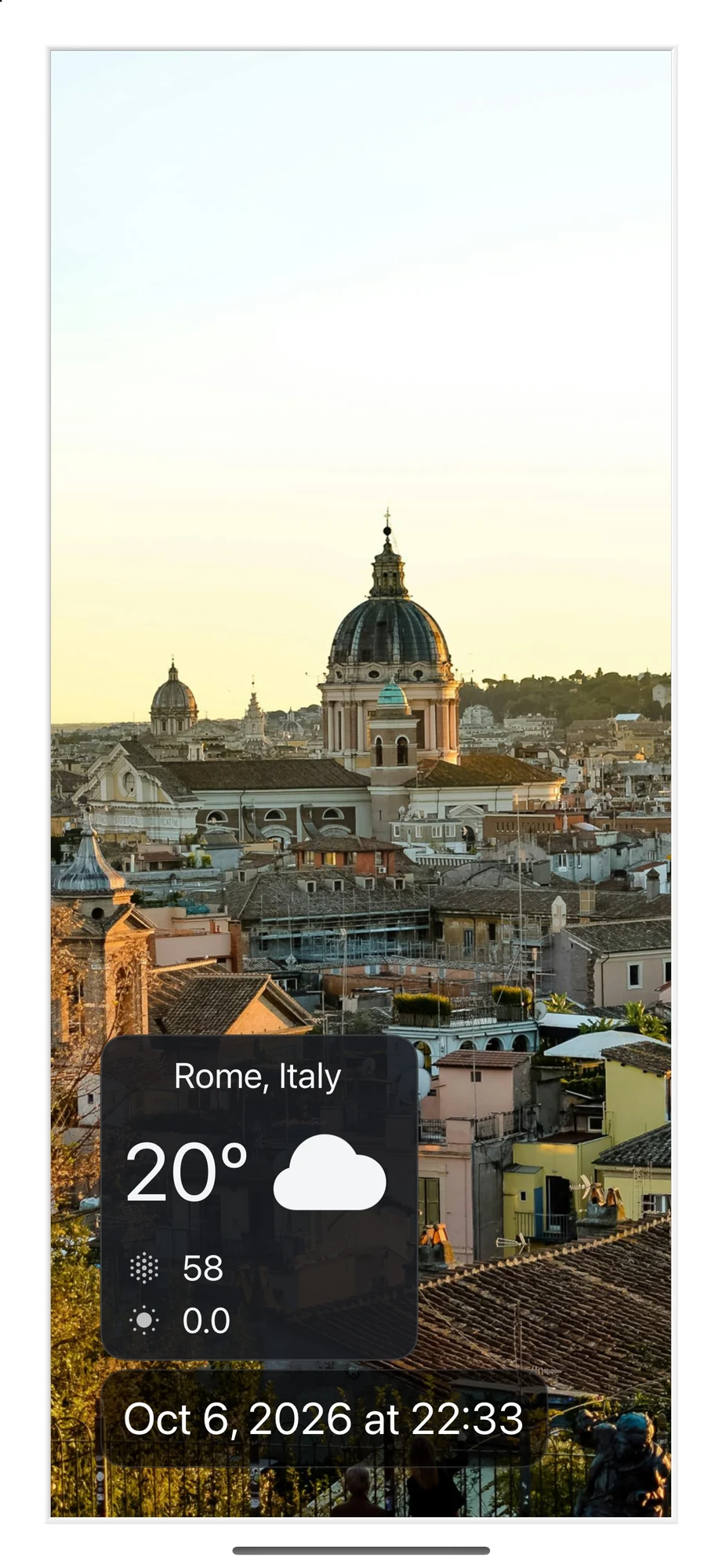
- Date and time, in the format you choose. On iPad, Mac and Apple TV it goes up to a Huge size you can read from across the room.
- Weather: the current temperature and conditions for your location or any place you pick, with optional humidity, air quality and UV index.
- Photo information: where and when a photo was taken, its caption, and the camera and lens if the photo has that information.
- Calendar events: your upcoming events from the calendars you choose.
You'll find them in the slideshow settings under On-Screen Information. Each box is turned on separately, so you can show just the clock, or everything.


A clock you can read from the sofa
The date and time box comes in several sizes. The Huge size, available on iPad, Mac and Apple TV, turns the frame into a wall clock with your photos behind it.

Weather for home, or for someone far away
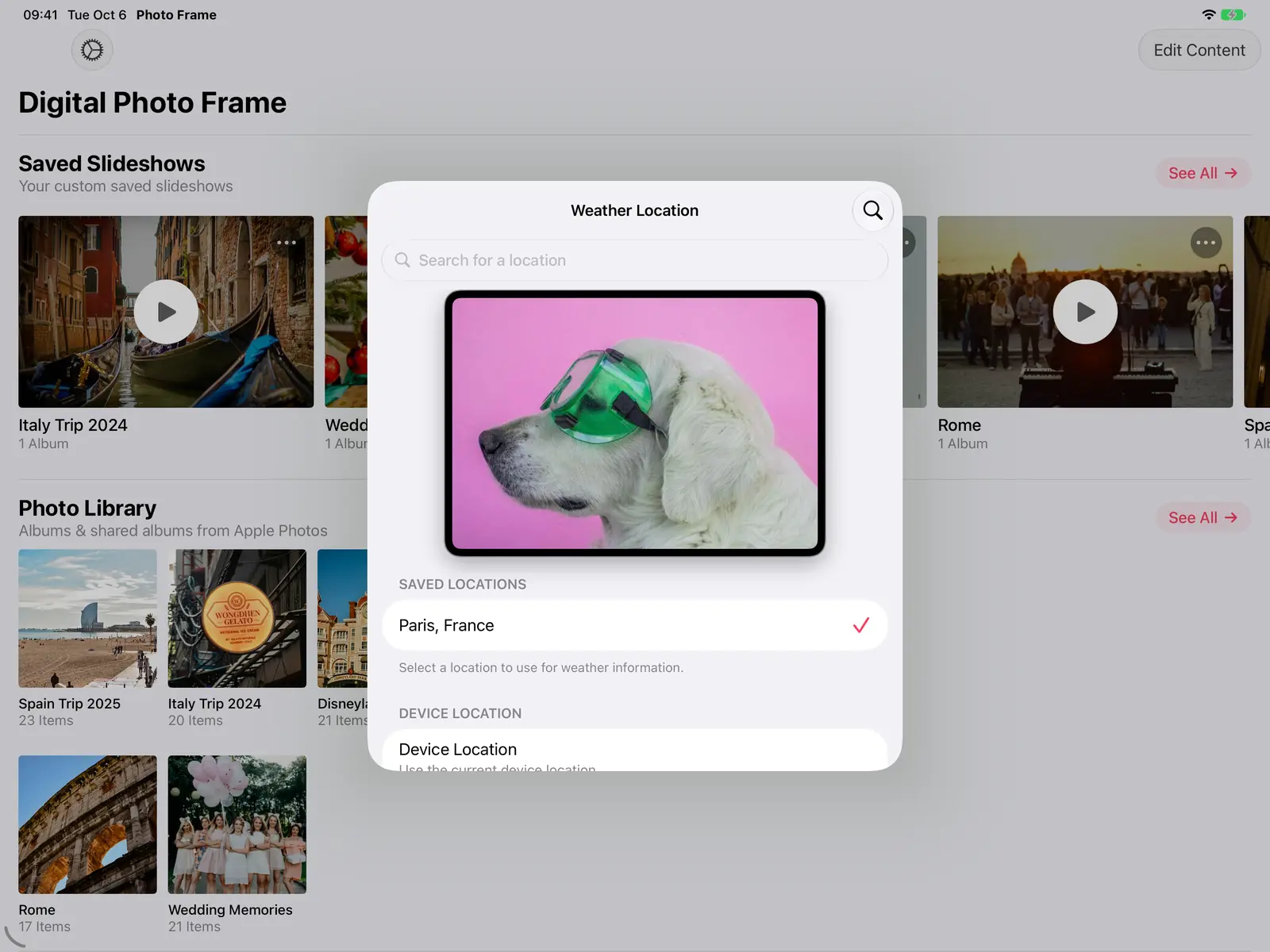
By default the weather follows the device's location. Under Weather Location you can search for any city instead: handy when the frame shows a family member's photos and you'd like to see the weather where they live.
On iOS 16 and later the app uses Apple Weather, and it falls back to other providers automatically if one isn't available.
Make the boxes match the room
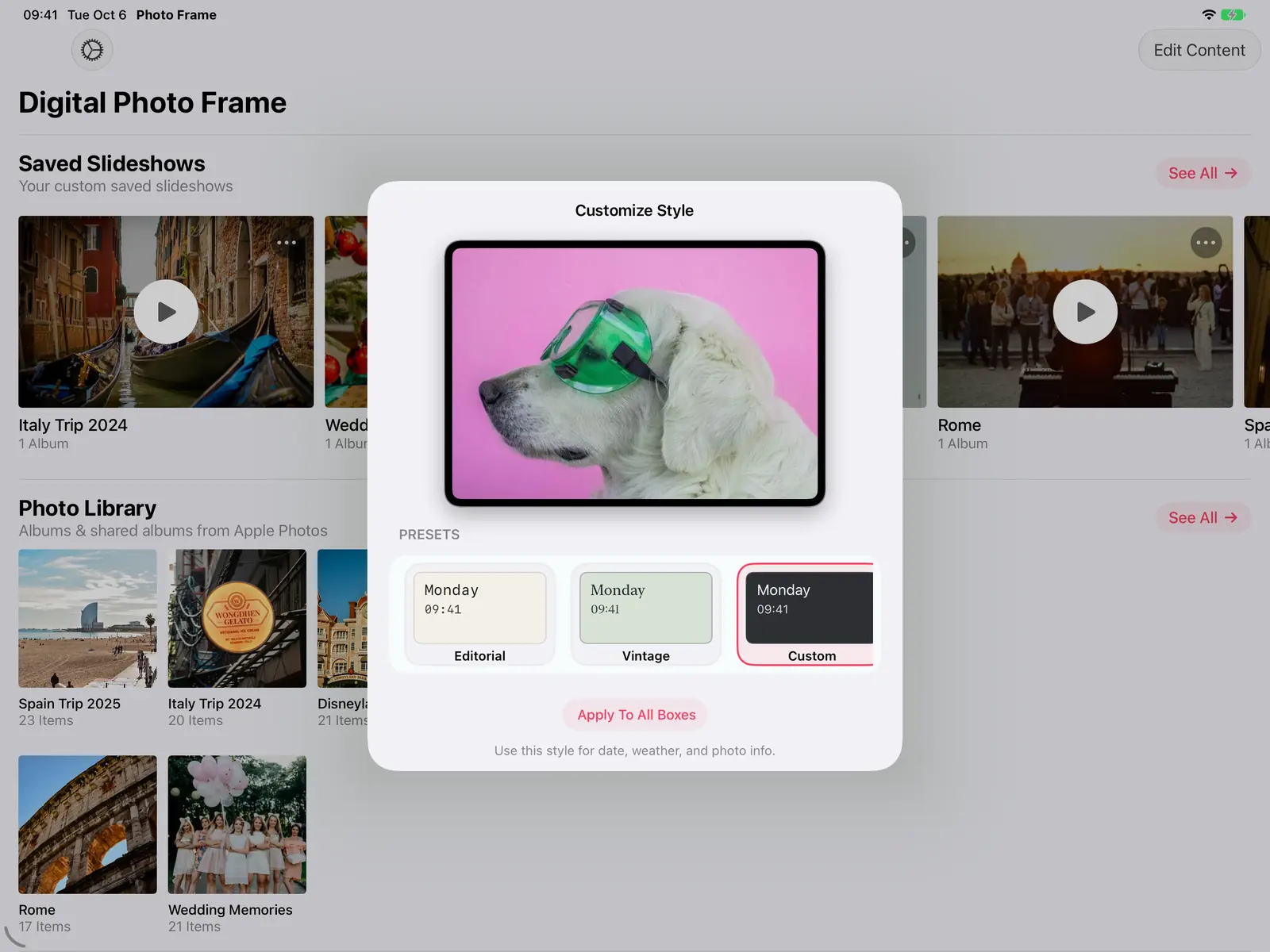
Each box can be styled. Customize Style offers presets such as Editorial and Vintage, or your own colours, and Apply to all boxes gives the date, weather and photo information the same look. You can also make the background more transparent so the photo shows through, and hold and drag a box to move it to another corner.
Tips
- Keep it simple on a small screen. On an iPad mini, the time alone often looks better than every box at once.
- Use the photo information for family frames. A place and date under each photo starts conversations; see digital photo frame for grandparents.
- Pair it with a schedule so the frame rests at night: how to turn your iPad into a digital photo frame.
Frequently asked questions
Does the weather need an internet connection?
Yes. The weather updates over Wi-Fi; the photos themselves can play offline if you've made the slideshow available offline.
Can I show the weather for a different city?
Yes. Pick any place under Weather Location.
Does it work on Apple TV?
The date and time, weather and photo information work on Apple TV too, controlled with the Siri Remote. See Apple TV photo frame.
 Share on Facebook
 Share on X
Keep reading
All posts → Guides Slideshow Transition Effects for Your Photo Frame
Every slideshow transition in Digital Photo Frame App, from a gentle fade to Origami and Page Curl, plus Ken Burns moti…
Guides Slideshow Transition Effects for Your Photo Frame
Every slideshow transition in Digital Photo Frame App, from a gentle fade to Origami and Page Curl, plus Ken Burns moti…
 Guides Live Photos and Videos in a Photo Frame Slideshow
Turn your iPad or Apple TV into a video and live photo frame: play Live Photos and videos in the slideshow, with or wit…
Guides Live Photos and Videos in a Photo Frame Slideshow
Turn your iPad or Apple TV into a video and live photo frame: play Live Photos and videos in the slideshow, with or wit…
 Guides Digital Photo Frame with Music: Add Songs to Slideshows
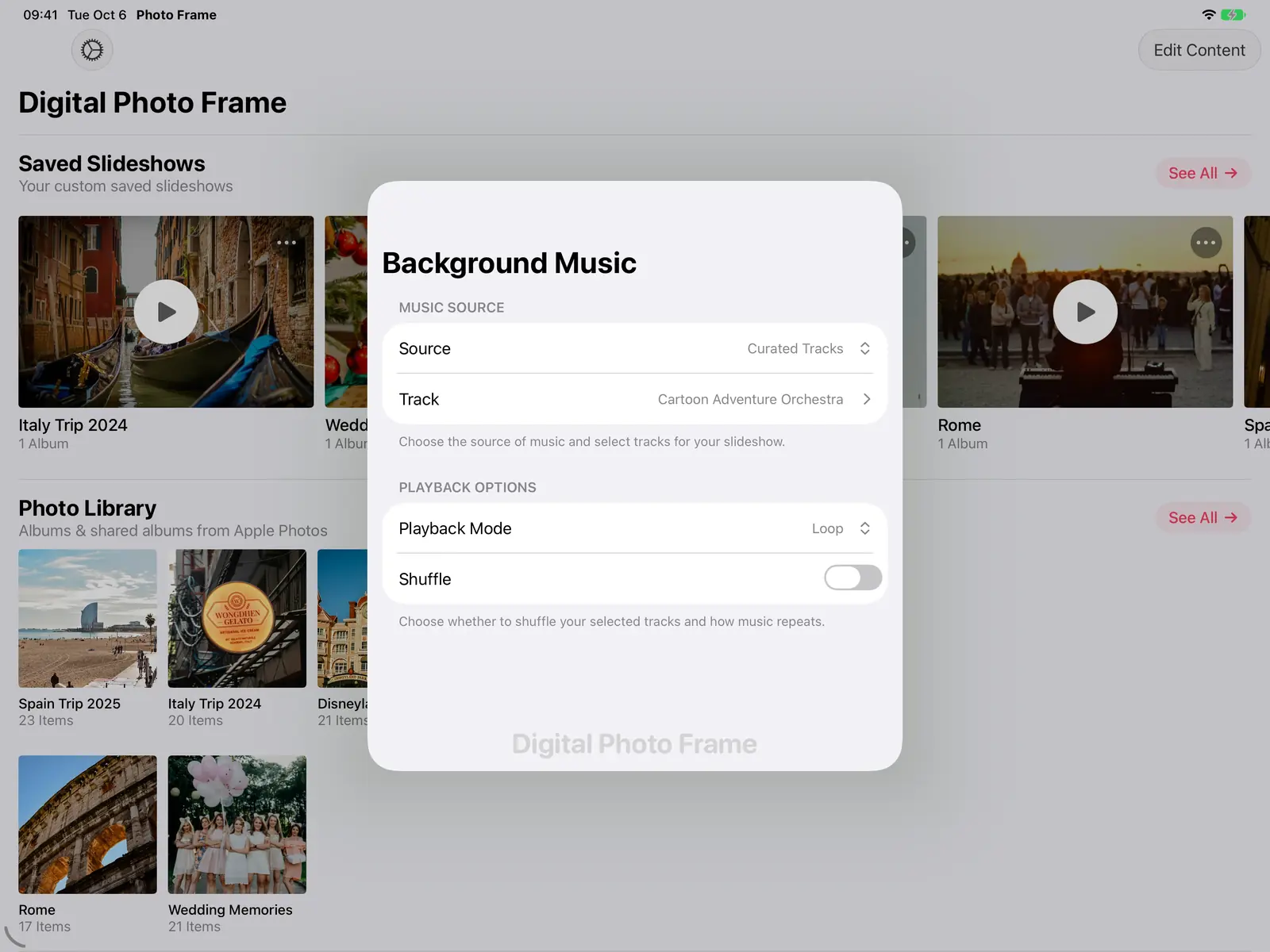
Add background music to your photo frame slideshow: built-in songs or your own library, with music that fades out for L…
Guides Digital Photo Frame with Music: Add Songs to Slideshows
Add background music to your photo frame slideshow: built-in songs or your own library, with music that fades out for L…
 Download Now