How to Lock an iPad to One App (Guided Access)
Lock an iPad or iPhone to one app with Guided Access, step by step, so kids, guests or grandparents can't leave it. Ideal for a photo frame or kiosk.

April 20, 2020 by Manuel Escrig · 3 min read
Updated October 2026
To lock an iPad to one app, turn on Guided Access in Settings, Accessibility, open the app, and triple-click the top button (or the Home button). The iPad then stays in that app until someone enters your Guided Access passcode.
- Turn on Settings, Accessibility, Guided Access and set a passcode.
- Set Display Auto-Lock to Never if the iPad is a photo frame.
- Open the app, triple-click the top or Home button, and tap Start.
- To leave, triple-click again, enter the passcode and tap End.
It works the same on iPhone, and it's built into iPadOS, so there's nothing to install. The steps below follow Apple's own guide. Many people who use my app on a frame for their parents set this up, so I've added the app settings that go with it at the end.
Set up Guided Access
- Open Settings and tap Accessibility.
- Tap Guided Access and turn it on.
- Under Passcode Settings, set a Guided Access passcode. You can also allow Face ID or Touch ID to end a session.
- Under Display Auto-Lock, choose how quickly the screen locks during a session. For a photo frame, choose Never so the screen stays on.
Lock the iPad to an app
- Open the app you want to lock, for example the photo frame app.
- If the Accessibility Shortcuts menu appears, tap Guided Access.
- Optionally circle parts of the screen that should ignore touches, or turn off touch in the options.
- Tap Start.
The iPad now stays in that app. Pressing the Home button or swiping up does nothing.
End a session
Triple-click the top button (or Home button) again, enter your Guided Access passcode or use Face ID or Touch ID, and tap End.
For a photo frame: lock inside the app too
Guided Access keeps people in the app. Digital Photo Frame App adds two settings that keep the slideshow itself from being changed by accident:
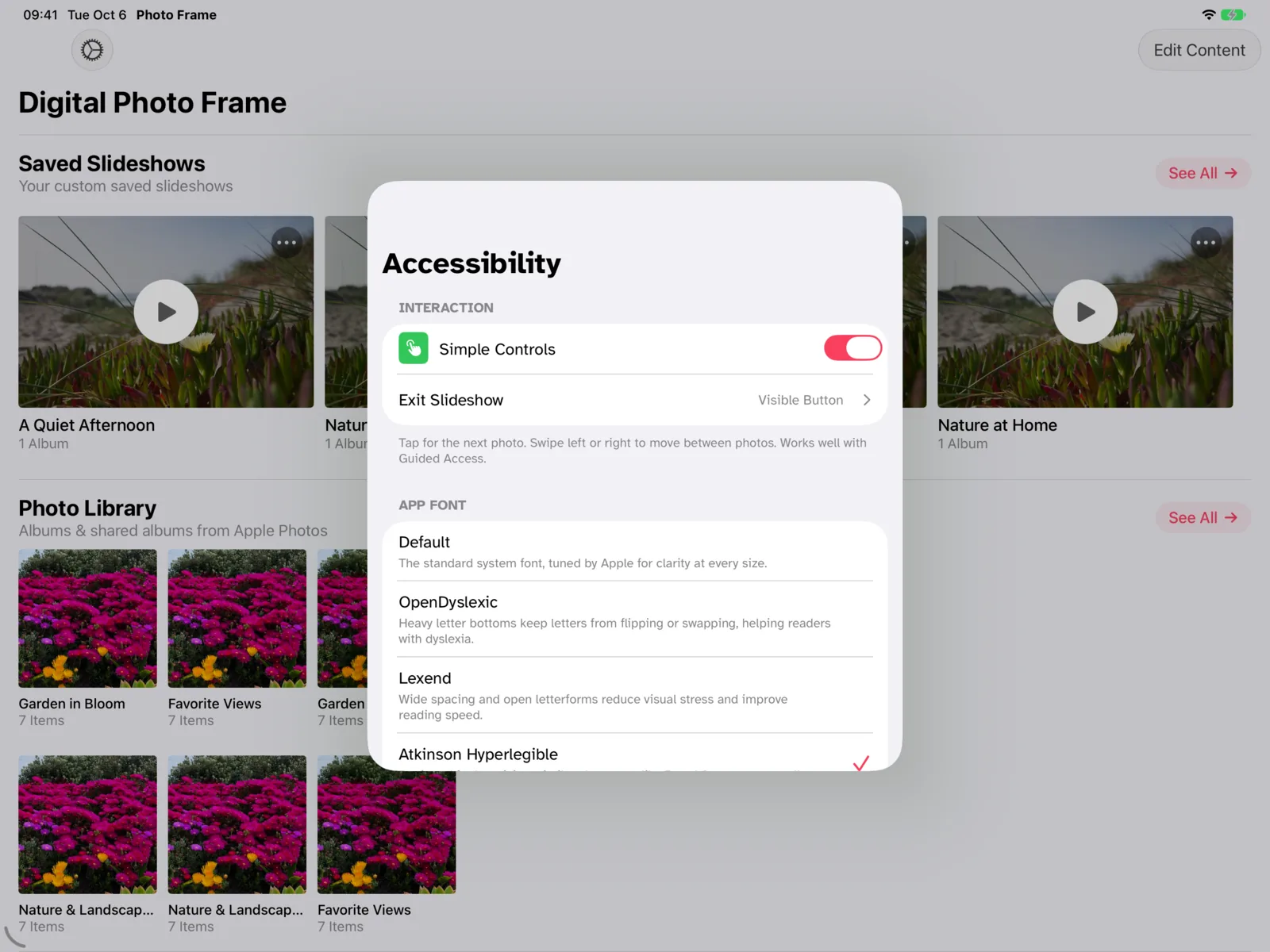
- Simple Controls (in Accessibility): a tap just shows the next photo, so nothing gets paused or changed. You choose how to leave the slideshow, for example a visible Exit Slideshow button.
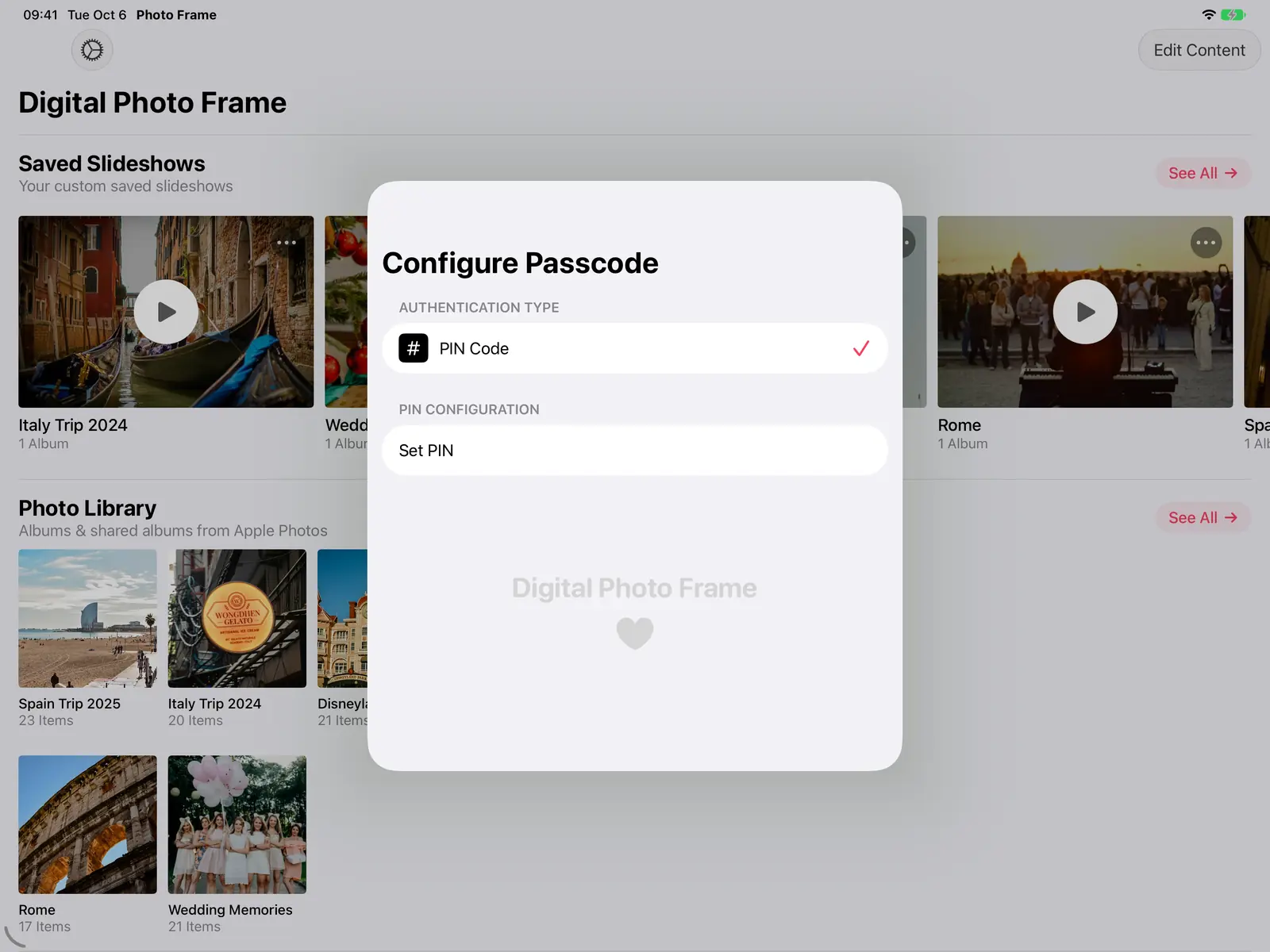
- Configure Passcode: a PIN is needed to stop the slideshow or open its settings.
Together with Guided Access, that's a frame nobody can accidentally break. The full setup is in how to turn your iPad into a digital photo frame, letting it rest at night is covered in slideshow by day, sleep at night, and the iPad page shows what else the app does.

Frequently asked questions
Does Guided Access work on old iPads?
Yes. Guided Access has been part of iOS and iPadOS for many years, so it works on older iPads too.
Will the screen stay on during Guided Access?
Set Display Auto-Lock to Never in the Guided Access settings. While a slideshow plays, Digital Photo Frame App also keeps the screen awake.
Does Guided Access work on iPhone too?
Yes. The steps are the same on iPhone: turn it on in Settings, Accessibility, then triple-click the side button in the app you want to lock.
I forgot the Guided Access passcode. What now?
If you allowed Face ID or Touch ID, use that to end the session. Apple's guide covers what to do otherwise.
 Share on Facebook
 Share on X
Keep reading
All posts → Guides How to Turn Your iPad into a Digital Photo Frame
Turn an old iPad into a digital photo frame in 10 minutes: which iPads work, the settings that matter, and how to keep …
Guides How to Turn Your iPad into a Digital Photo Frame
Turn an old iPad into a digital photo frame in 10 minutes: which iPads work, the settings that matter, and how to keep …
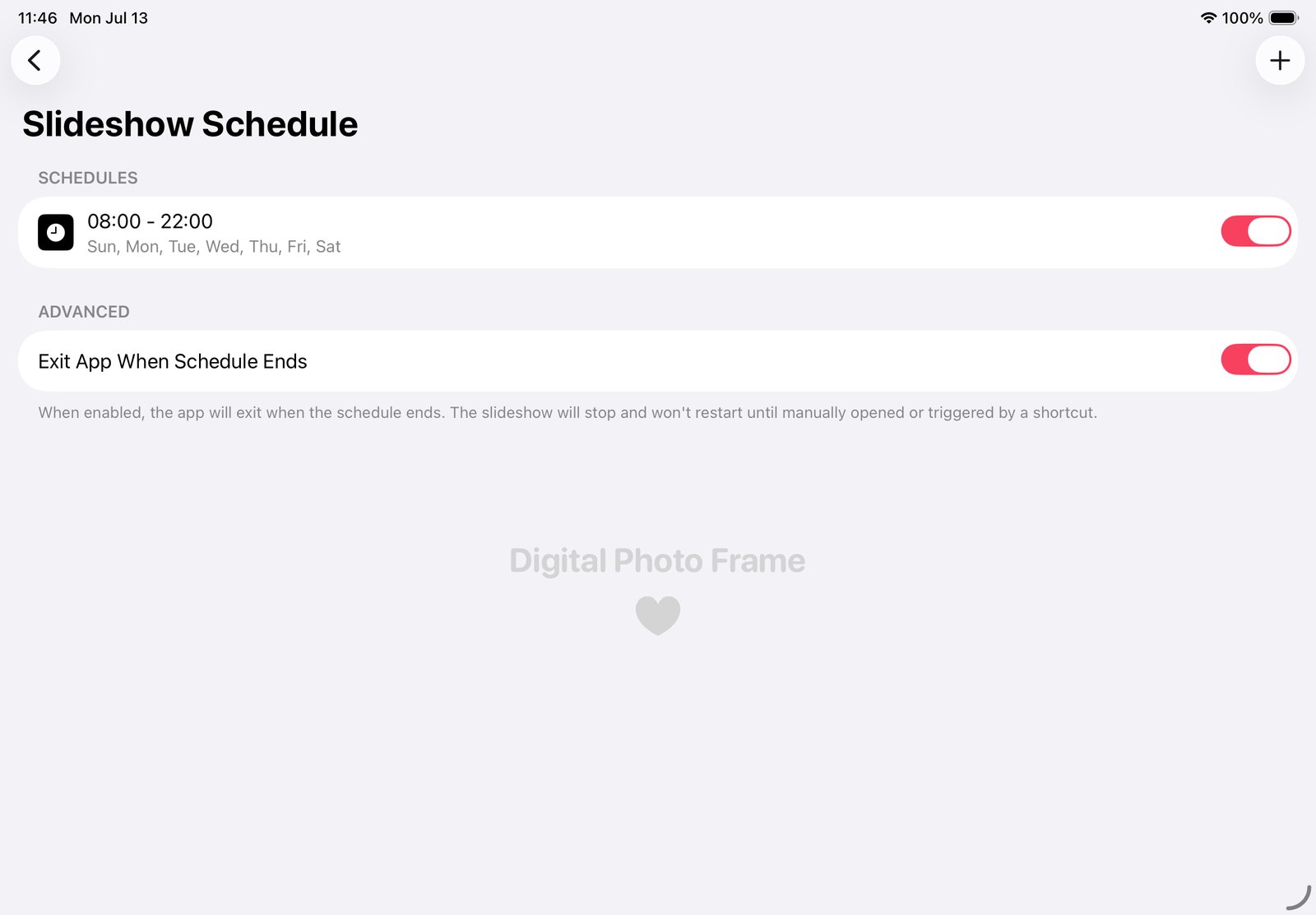 Guides iPad Photo Frame: Slideshow by Day, Sleep at Night
Make your iPad photo frame show photos by day, go dark at night and start again each morning, with the app's schedule a…
Guides iPad Photo Frame: Slideshow by Day, Sleep at Night
Make your iPad photo frame show photos by day, go dark at night and start again each morning, with the app's schedule a…
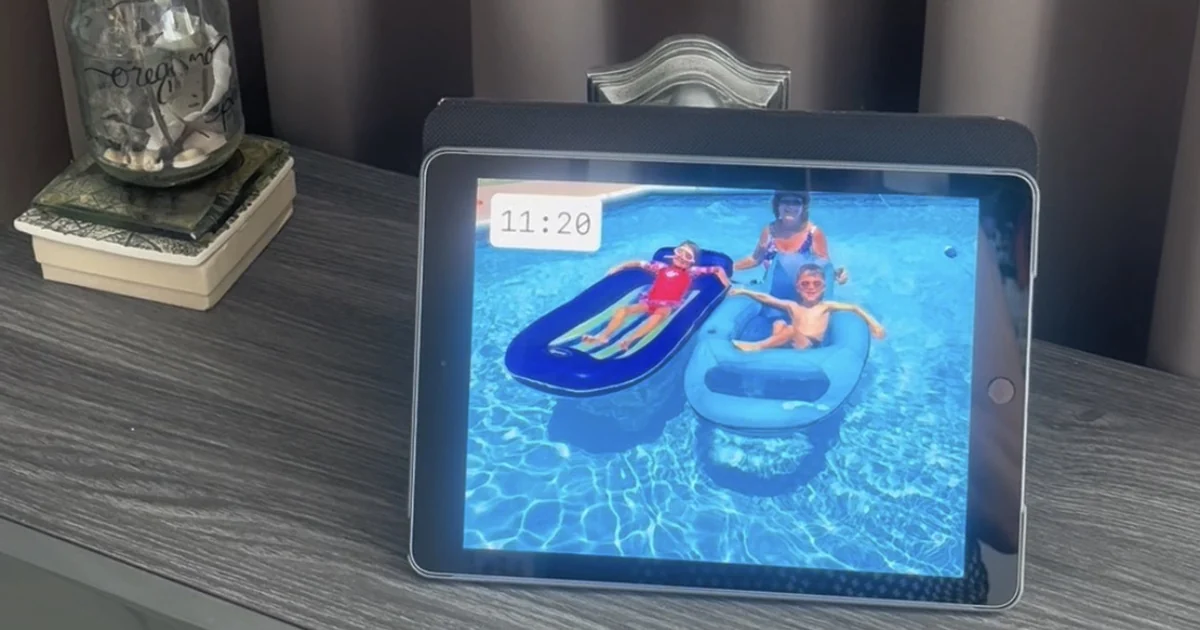 Guides 5 Clever Ways to Reuse an Old iPad
Five useful ways to reuse an old iPad: a digital photo frame, a kitchen recipe screen, a camera monitor, a reading devi…
Guides 5 Clever Ways to Reuse an Old iPad
Five useful ways to reuse an old iPad: a digital photo frame, a kitchen recipe screen, a camera monitor, a reading devi…
 Download Now