Digital Photo Frame for Grandparents: Easy iPad Setup
A digital photo frame for grandparents that updates itself: the family adds photos to a shared album and they appear on the iPad. Nothing to learn.

May 10, 2023 by Manuel Escrig · 5 min read
Updated October 2026

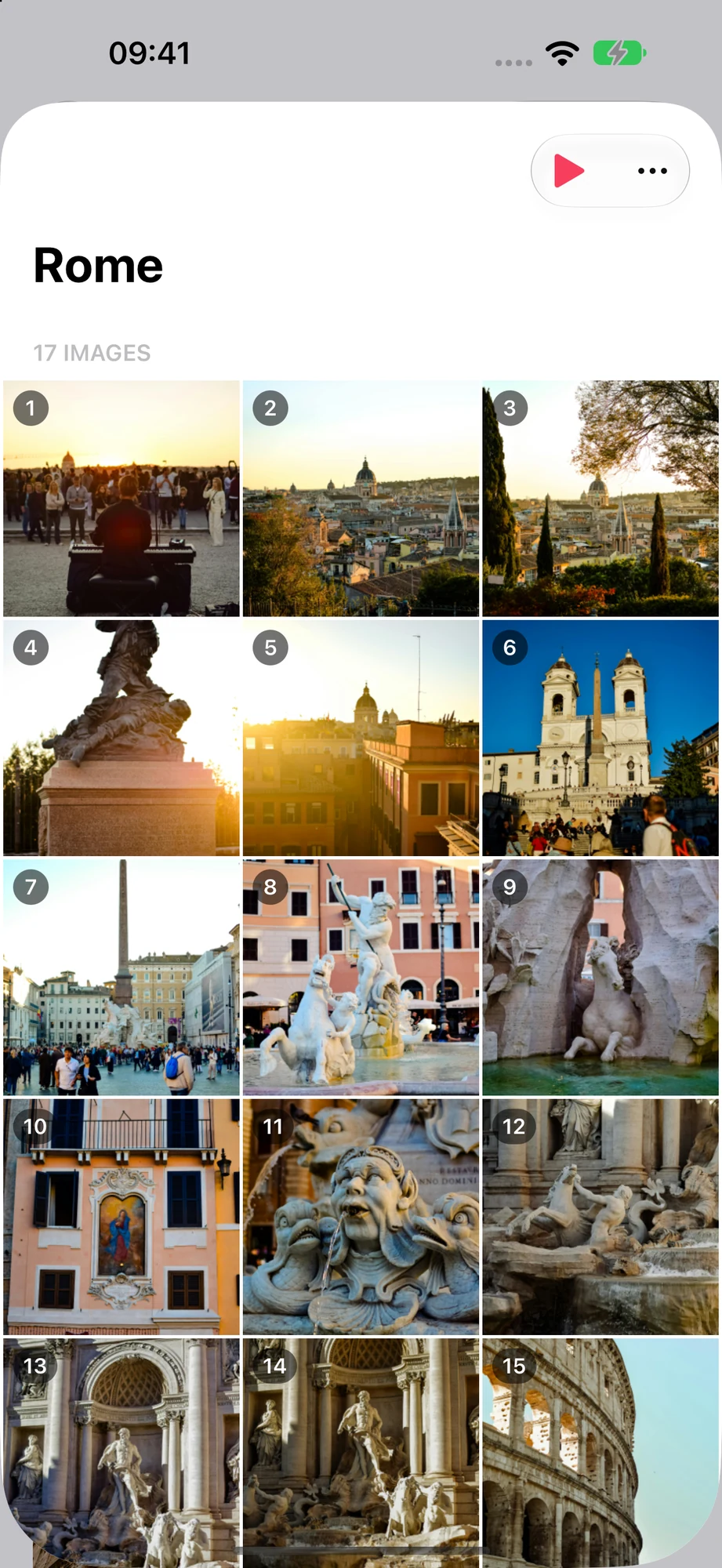
I built Digital Photo Frame App for my own parents. When our twins were born, my parents lived in another country, and I wanted them to watch the kids grow up without having to learn anything new. So I put an old iPad in their living room playing an iCloud shared album, and every photo we added from our phones appeared on it. That album now holds more than 2,000 photos, and it's still the setup I recommend.
The best digital photo frame for grandparents is one they never have to manage: the family adds photos from their phones, and the frame shows them by itself. Here's how to set that up with an iPad.
- Create an iCloud Shared Album and invite the family. Since iOS 27, relatives can even add photos from the web without an Apple device.
- Put an iPad (iPadOS 15 or later) in the grandparents' home, signed in to an Apple Account that's invited to the album.
- Play the album in Digital Photo Frame App, save it and turn on Enable Auto-Play.
- Turn on Simple Controls and a passcode, so nothing changes by accident.
How it works
1. You and the family add photos to an iCloud Shared Album from your phones. 2. The grandparents' iPad plays that album as a slideshow, all day. 3. New photos appear on the frame by themselves while the slideshow runs. Nobody at the grandparents' house has to touch anything.

What you need
- An iPad for the grandparents' home on iPadOS 15 or later (an older one is perfect), a charger and a stand.
- An iCloud Shared Album that the whole family can add to.
- Digital Photo Frame App on that iPad.
Step 1: Create the shared album
On your iPhone, open the Photos app, go to Shared Albums, tap +, give the album a name ("Family" works) and invite the family. Everyone you invite can add their own photos and videos. Apple's guide has the details: how to use Shared Albums.
Since iOS 27, Apple also lets friends and family join a shared album and add photos on the web, even without an Apple Account or an Apple device, so relatives with Android phones can contribute too.
Step 2: Set up the iPad
Before you give the iPad to the grandparents (or on your next visit):
- Sign in to the iPad with an Apple Account that is invited to the shared album, and turn on Shared Albums in the iPad's iCloud Photos settings.
- Install Digital Photo Frame App and allow access to photos.
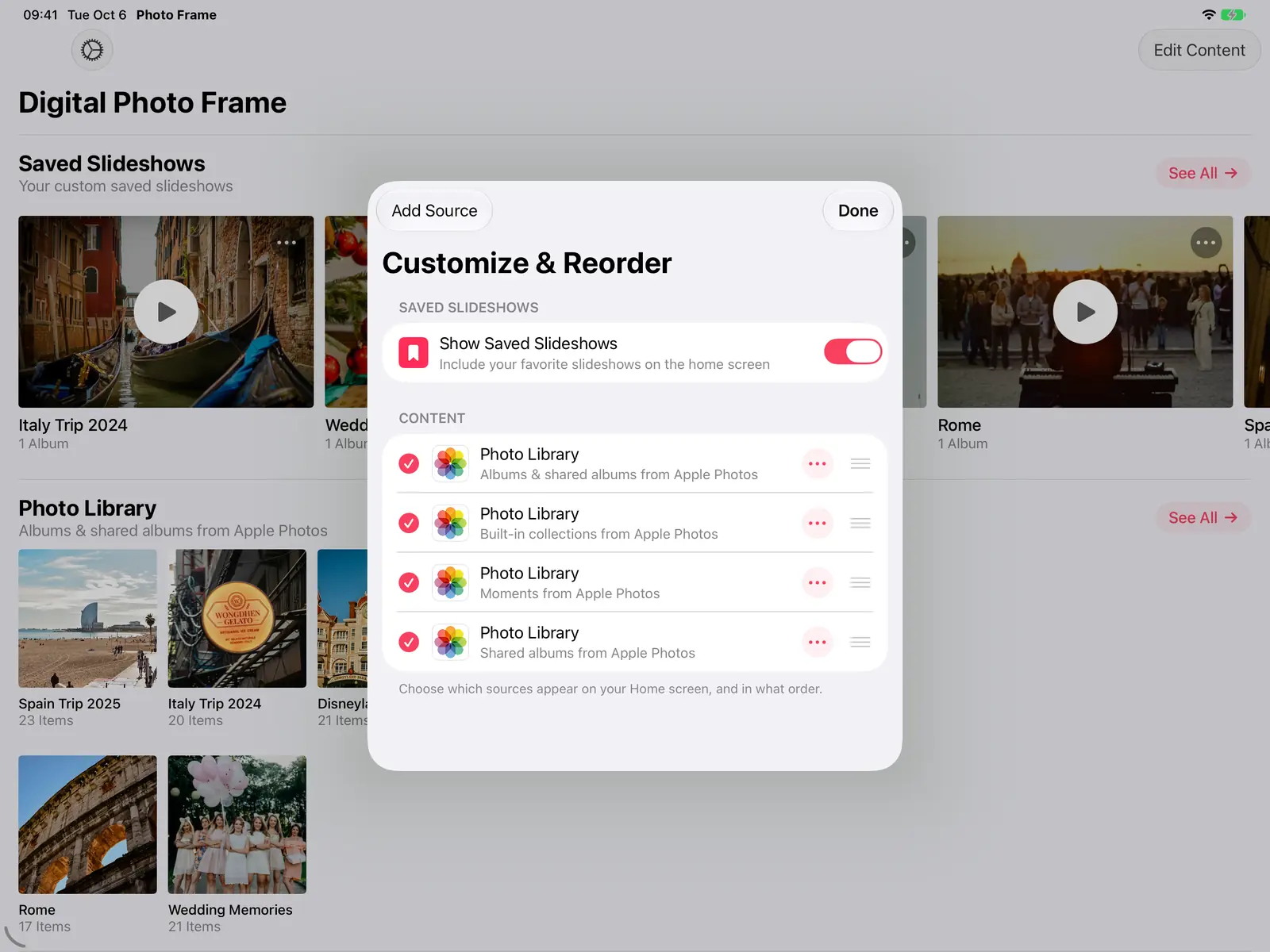
- The app shows shared albums from Apple Photos. If you only want shared albums on the home screen, use Customize & Reorder to choose which sources appear.
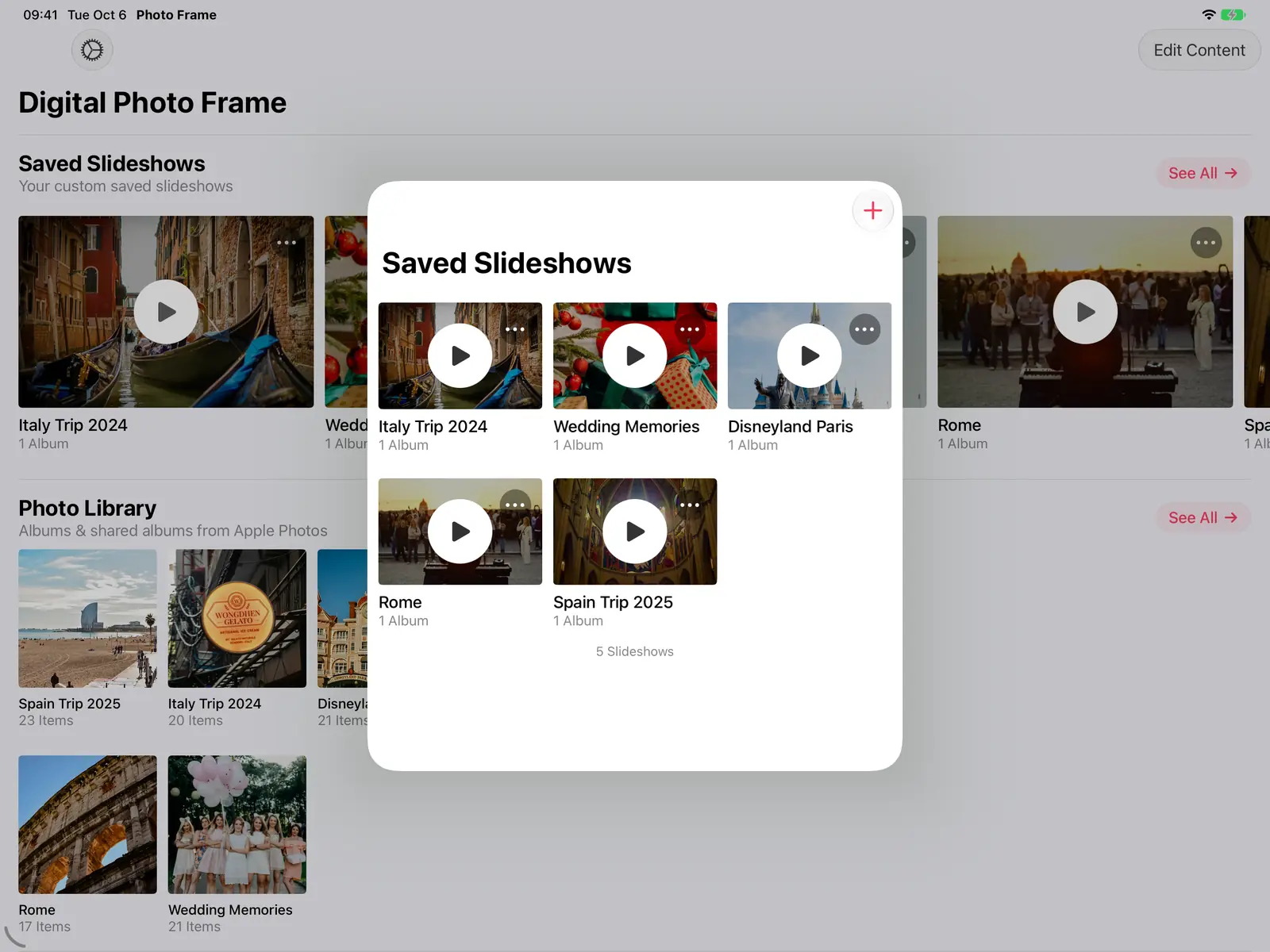
4. Play the shared album, save it as a slideshow, and choose Enable Auto-Play in its menu, so it starts whenever the app opens.
Step 3: Make it effortless for them
These settings make the frame something grandparents never have to manage:
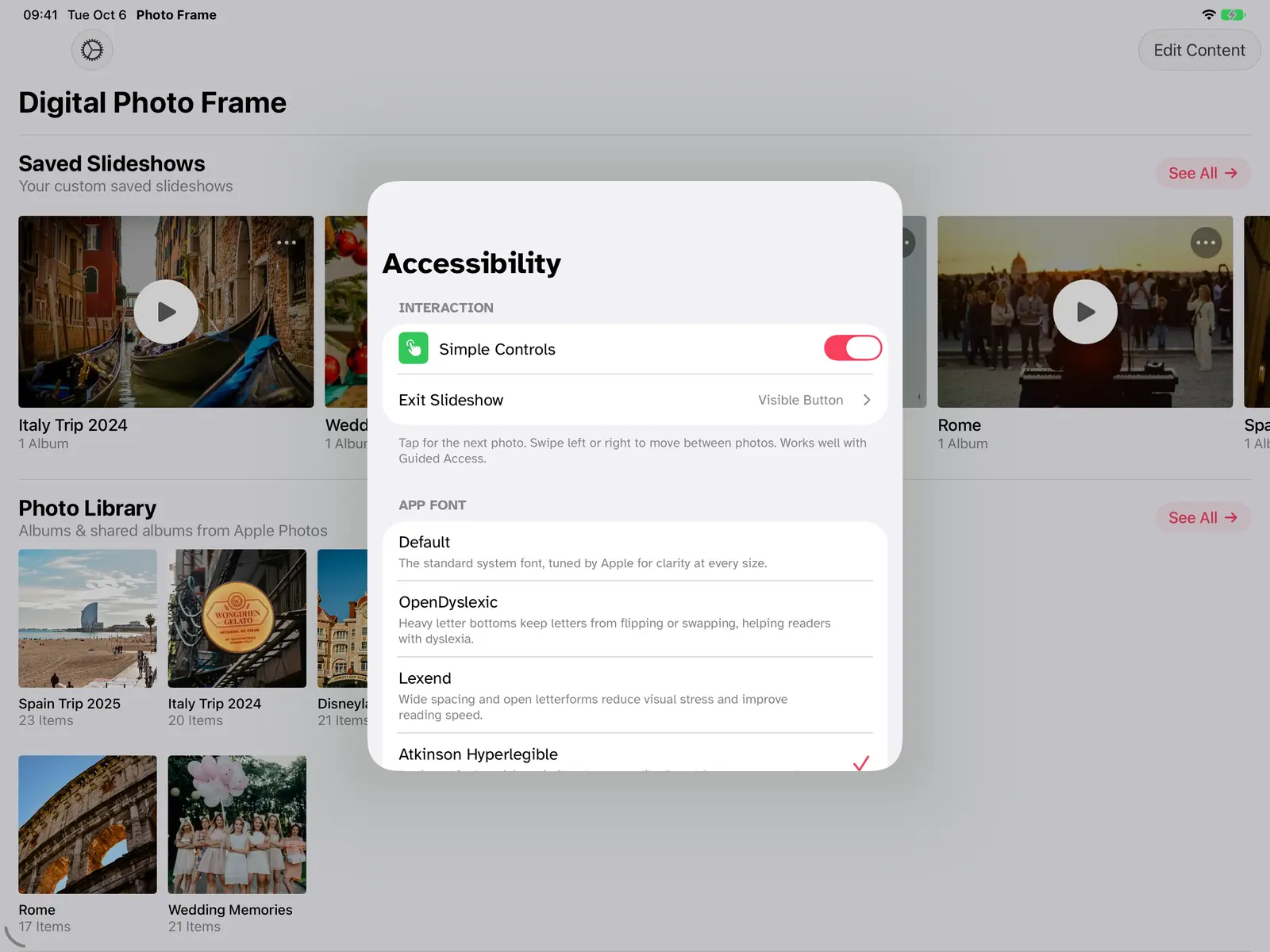
- Simple Controls (in Accessibility): a tap just shows the next photo, so nothing gets paused or changed by accident. You choose how to leave the slideshow, such as a visible Exit Slideshow button.
- Easier-to-read fonts: the same Accessibility screen offers fonts like Atkinson Hyperlegible, designed for low vision.
- A passcode so the slideshow and settings can't be changed by mistake.
- A schedule, so the frame rests at night and starts again in the morning: see slideshow by day, sleep at night. The full iPad setup is in how to turn your iPad into a digital photo frame.
Little things that help
Show where and when. A small caption with the place and date gives grandparents something to ask about on the next call.

Portrait photos side by side. Most phone photos are portrait. With Combine Photos (Collage), two portrait photos share the screen on a landscape iPad instead of leaving empty space.

Videos and Live Photos play too, so the grandkids' first steps move on screen.
Which frame is best for grandparents?
There's no single answer, so here's an honest one:
- An iPad you already own, with this app: the best screen, Live Photos and videos, and new photos from an iCloud Shared Album. Free to start. Best when someone in the family can set it up once.
- Aura: the most turnkey dedicated frame, with no subscription, and it syncs Google Photos albums. Best for Google Photos families who'd rather buy a frame.
- Skylight: relatives send photos to the frame by email, and it has a touchscreen. Best when the senders don't want to install anything.
- Frameo: the cheapest frames, and they work without Wi-Fi. Best on a tight budget.
Whichever you choose, set it up for them so they never have to touch the settings. The full comparison, with prices and sources, is in Frameo vs Aura vs Skylight.
What about Google Photos?
If your family shares photos in Google Photos, there's a catch: since Google's 2025 changes, apps like ours can only show photos you pick by hand, so new photos in a Google Photos album won't reach the frame by themselves. For a frame that updates on its own, use an iCloud Shared Album. If your family is set on Google Photos, an Aura frame syncs Google Photos albums automatically; see our fair comparison of Frameo vs Aura vs Skylight.
Frequently asked questions
Do the grandparents need to do anything?
No. Once the iPad is set up and plugged in, new photos arrive on their own and the slideshow starts by itself when the app opens.
Can relatives without an iPhone add photos?
Yes, since iOS 27: Apple lets people join a shared album and add photos on the web without an Apple Account or Apple device.
Can the frame be their TV instead of an iPad?
Yes. The app also runs on Apple TV and plays iCloud shared albums there. See Apple TV photo frame.
How much does it cost?
The app is free to download. Premium is $2.99 a month, $19.99 a year with a 7-day free trial, or $69.99 once (US prices), and it works with Family Sharing. More about the app on iPad is on the iPad page.
If you set this up for your family, I'd love to hear how it goes: write to me.
 Share on Facebook
 Share on X
Keep reading
All posts →
Guides How to Share Photos of Your Kids Privately
Private ways to share photos of your children with family, without social media: iCloud shared albums, private messagin…
 Guides How to Make a Family Photo Slideshow (with Music)
Make a family photo slideshow for a reunion, anniversary or birthday: pick photos from several albums, set the order, a…
Guides How to Make a Family Photo Slideshow (with Music)
Make a family photo slideshow for a reunion, anniversary or birthday: pick photos from several albums, set the order, a…
 Guides Immich and NAS Photo Frame for iPad and Apple TV
A self-hosted photo frame for iPad, iPhone, Mac and Apple TV: show photos from Immich, Synology, QNAP, Nextcloud or any…
Guides Immich and NAS Photo Frame for iPad and Apple TV
A self-hosted photo frame for iPad, iPhone, Mac and Apple TV: show photos from Immich, Synology, QNAP, Nextcloud or any…
 Download Now