iPad Photo Frame: Slideshow by Day, Sleep at Night
Make your iPad photo frame show photos by day, go dark at night and start again each morning, with the app's schedule and a free Shortcuts automation.

July 13, 2026 by Manuel Escrig · 5 min read
Updated October 2026

Yes, an iPad photo frame can show photos all day, go fully dark at night and start again on its own every morning. You need two things: the app's Slideshow Schedule with Exit App When Schedule Ends turned on, and a free Shortcuts automation that starts the slideshow at breakfast time.
- In Digital Photo Frame App, open Settings, Slideshow, Slideshow Schedule and set your daytime hours.
- Turn on Exit App When Schedule Ends, so the iPad locks and the screen goes dark at night.
- In the Shortcuts app, add a daily Time of Day automation with the app's Start Slideshow action.
- Keep the iPad on its charger. The whole setup takes about five minutes.
This is one of the questions I get most often as the developer of the app: "The slideshow stops at night, but the screen stays lit. If I close the app, it won't start again in the morning." Here is why that happens and how to fix it.
Why the screen stays lit at night
When a schedule ends, the slideshow stops but the app is still open on screen, and an iPad keeps its display awake while an app is in front. Apple also doesn't allow any app to put the iPad to sleep or to open itself again later.
So the fix has two parts:
- The app quits at night. With Exit App When Schedule Ends on, the app closes when your schedule finishes, and the iPad locks and goes dark like any iPad you leave alone.
- Shortcuts brings it back. A Time of Day automation opens the app and starts the slideshow every morning.
Part 1: Set the schedule and let the app quit at night
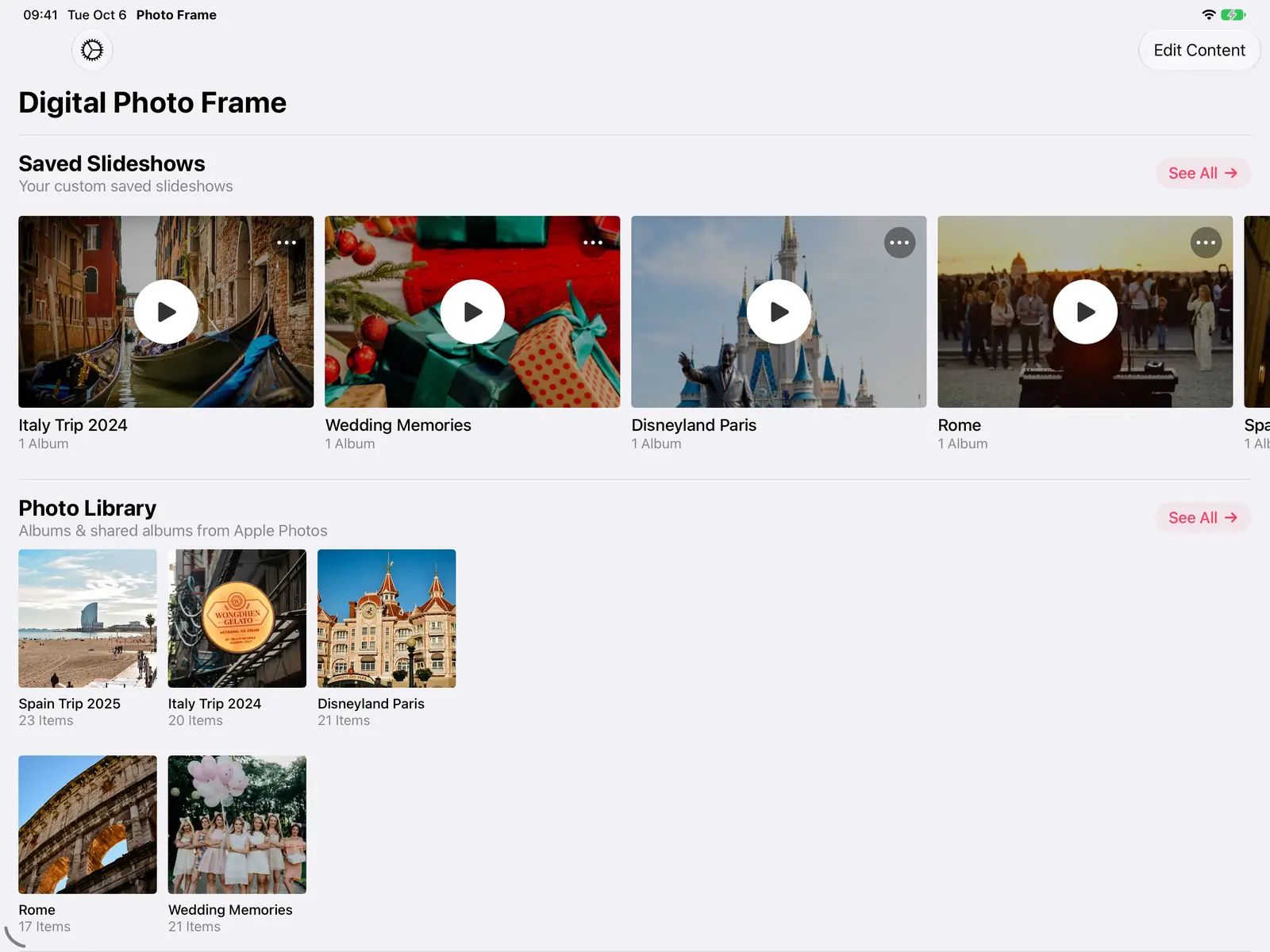
Step 1: Open Settings
On the app's home screen, tap the gear icon in the top left corner.
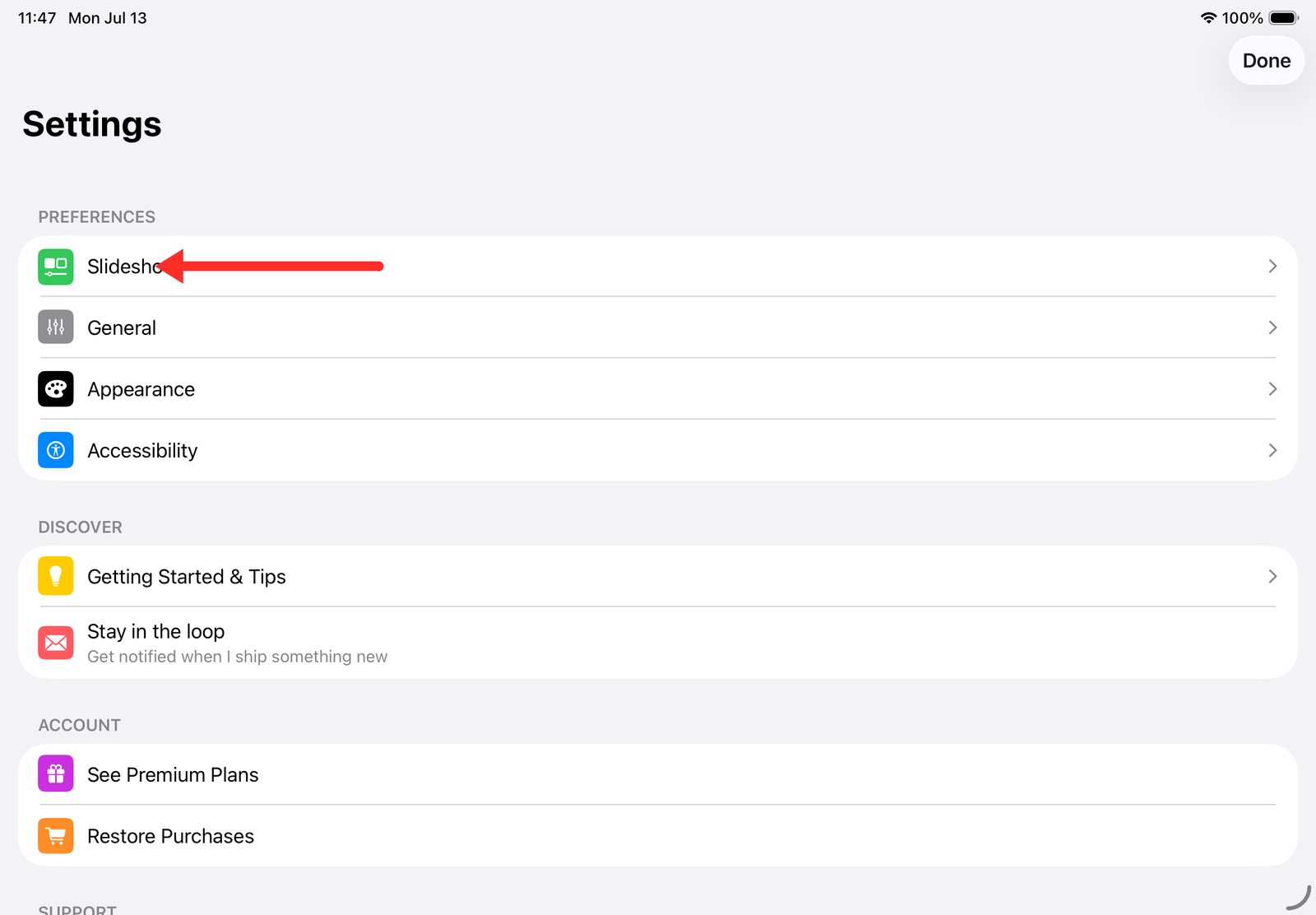
Step 2: Open Slideshow
In Settings, tap Slideshow.
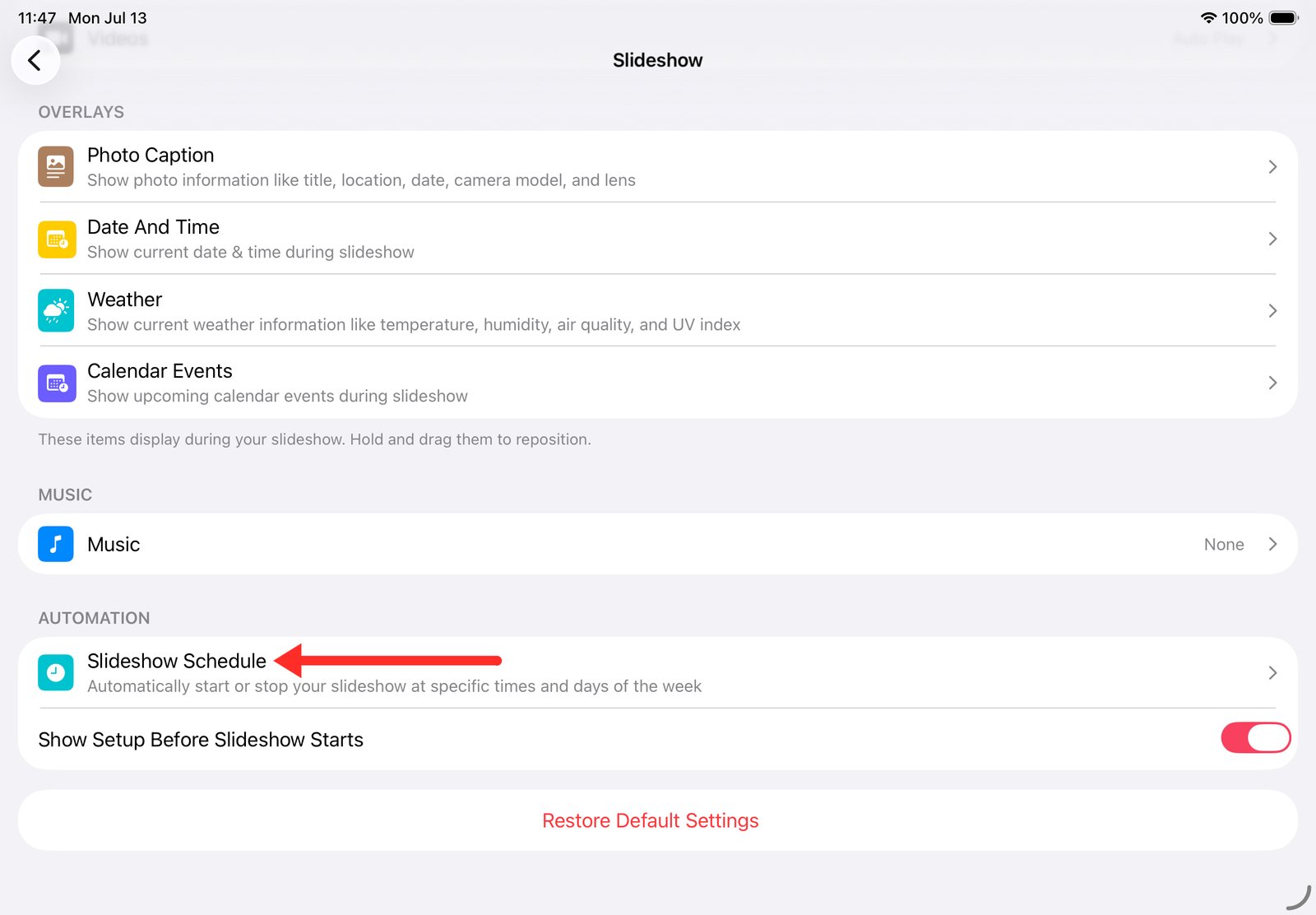
Step 3: Open Slideshow Schedule
Scroll down to Automation and tap Slideshow Schedule. It starts and stops the slideshow at the times and on the days you choose.
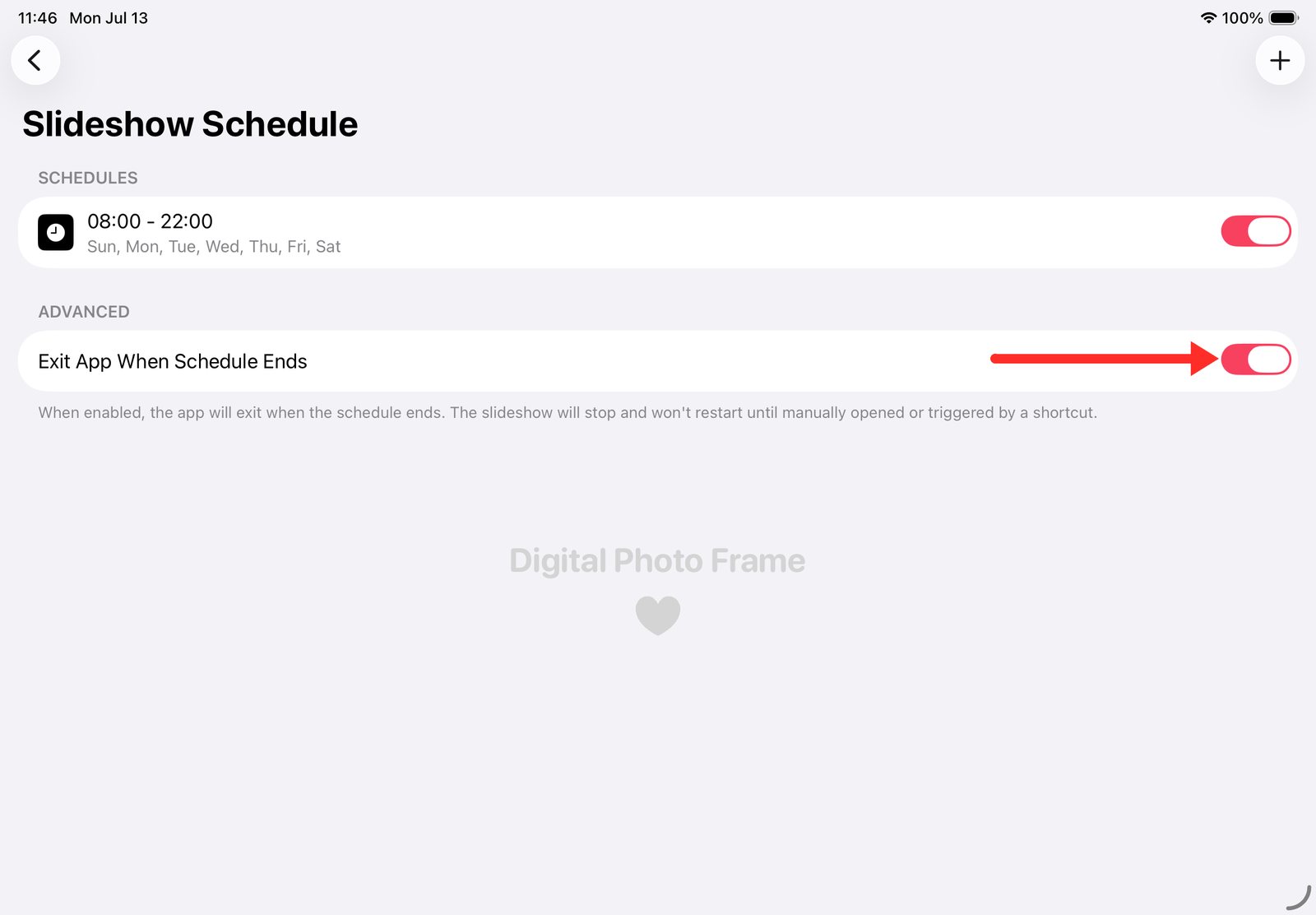
Step 4: Set your hours and turn on Exit App When Schedule Ends
Add a schedule for the hours you want photos on screen, for example 08:00 to 22:00 every day. Then turn on Exit App When Schedule Ends. This is the important switch: at the end of the schedule the app closes, the iPad locks and the screen goes fully dark.
That covers the night. Now let's make it start again in the morning.
Part 2: Start the slideshow again every morning
Apple's Shortcuts app comes with every iPad. You'll create an automation that runs at a set time each day and starts the slideshow.
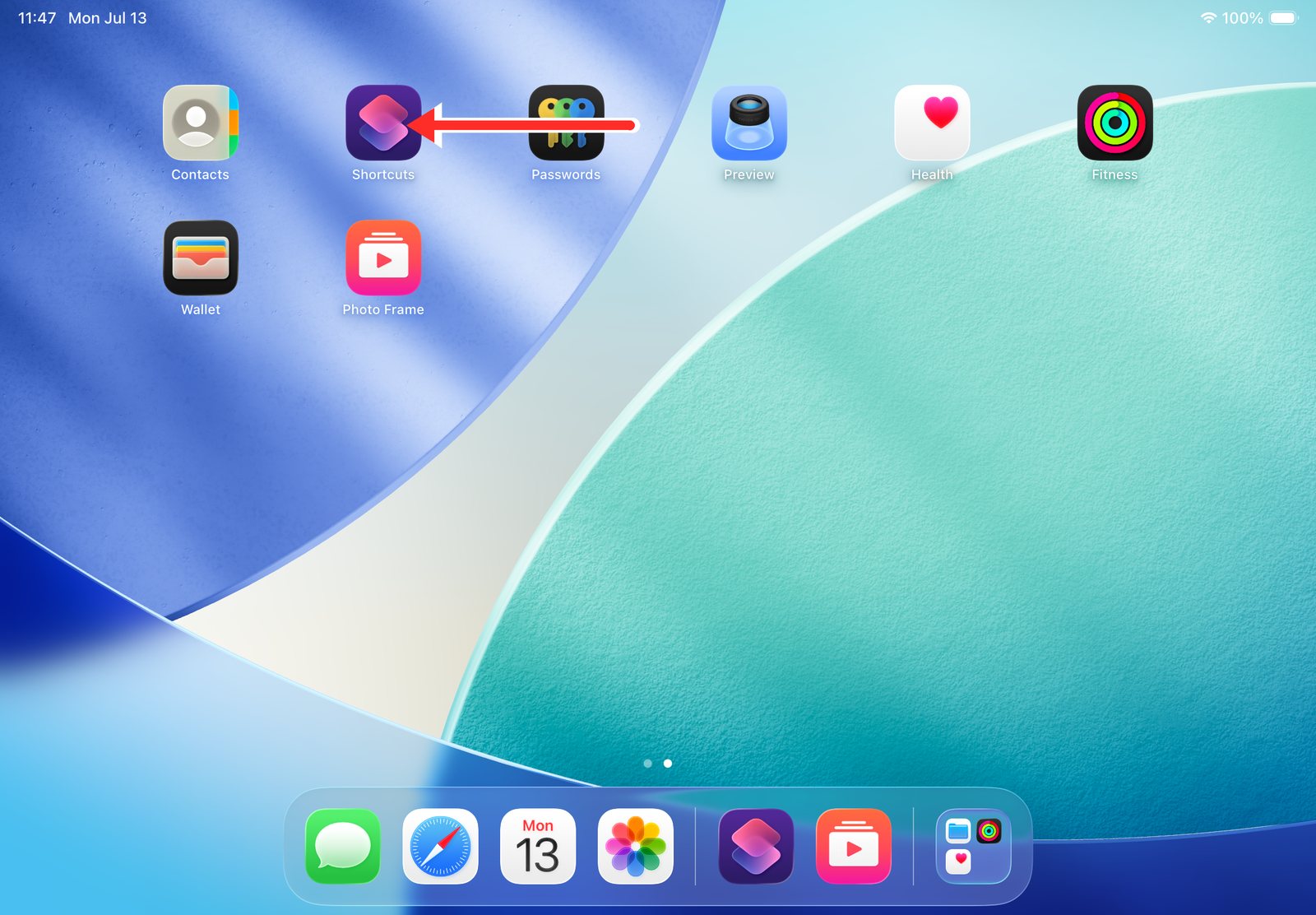
Step 5: Open Shortcuts
Open the Shortcuts app from the Home Screen.
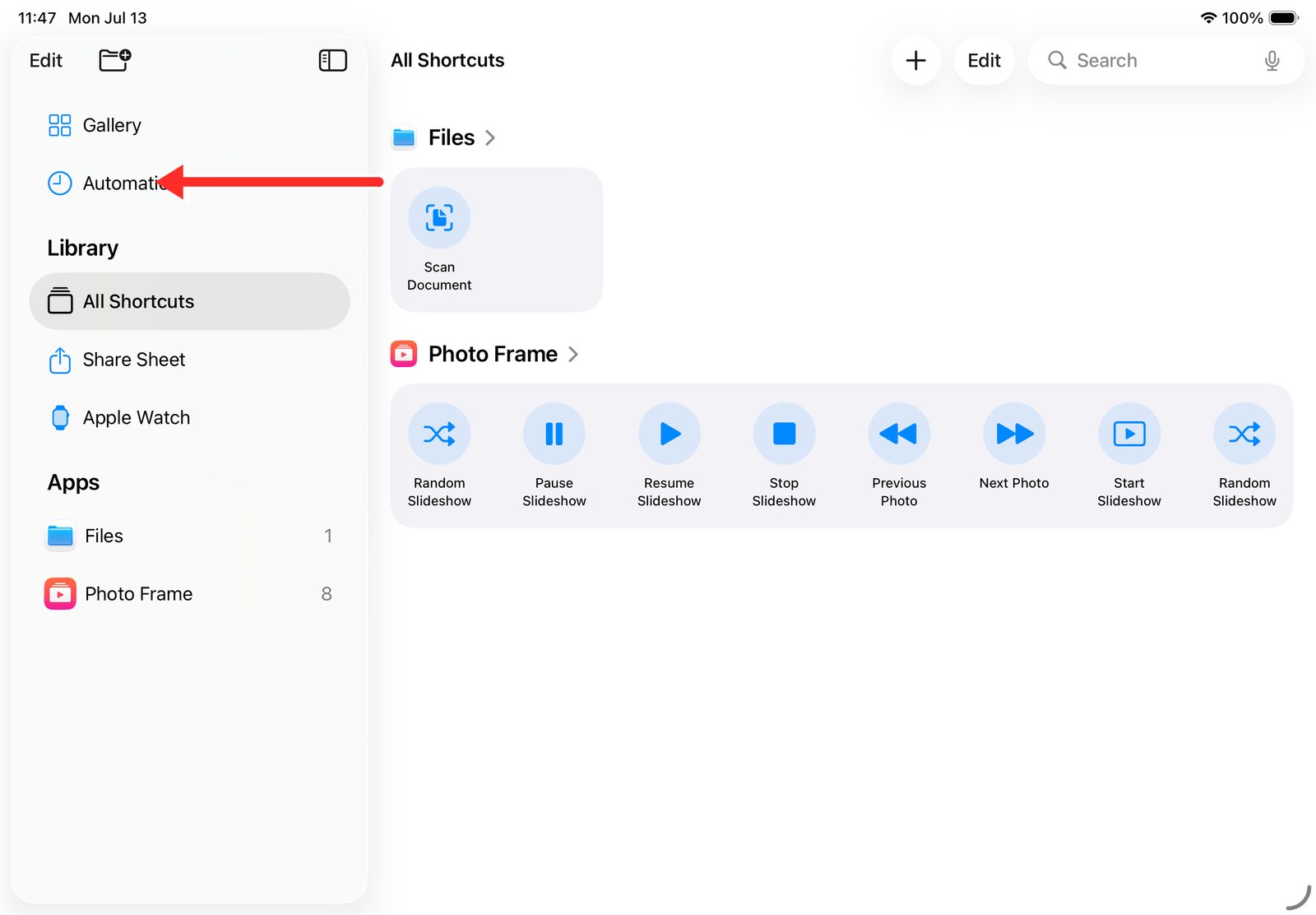
Step 6: Go to Automation
In the sidebar, tap Automation.
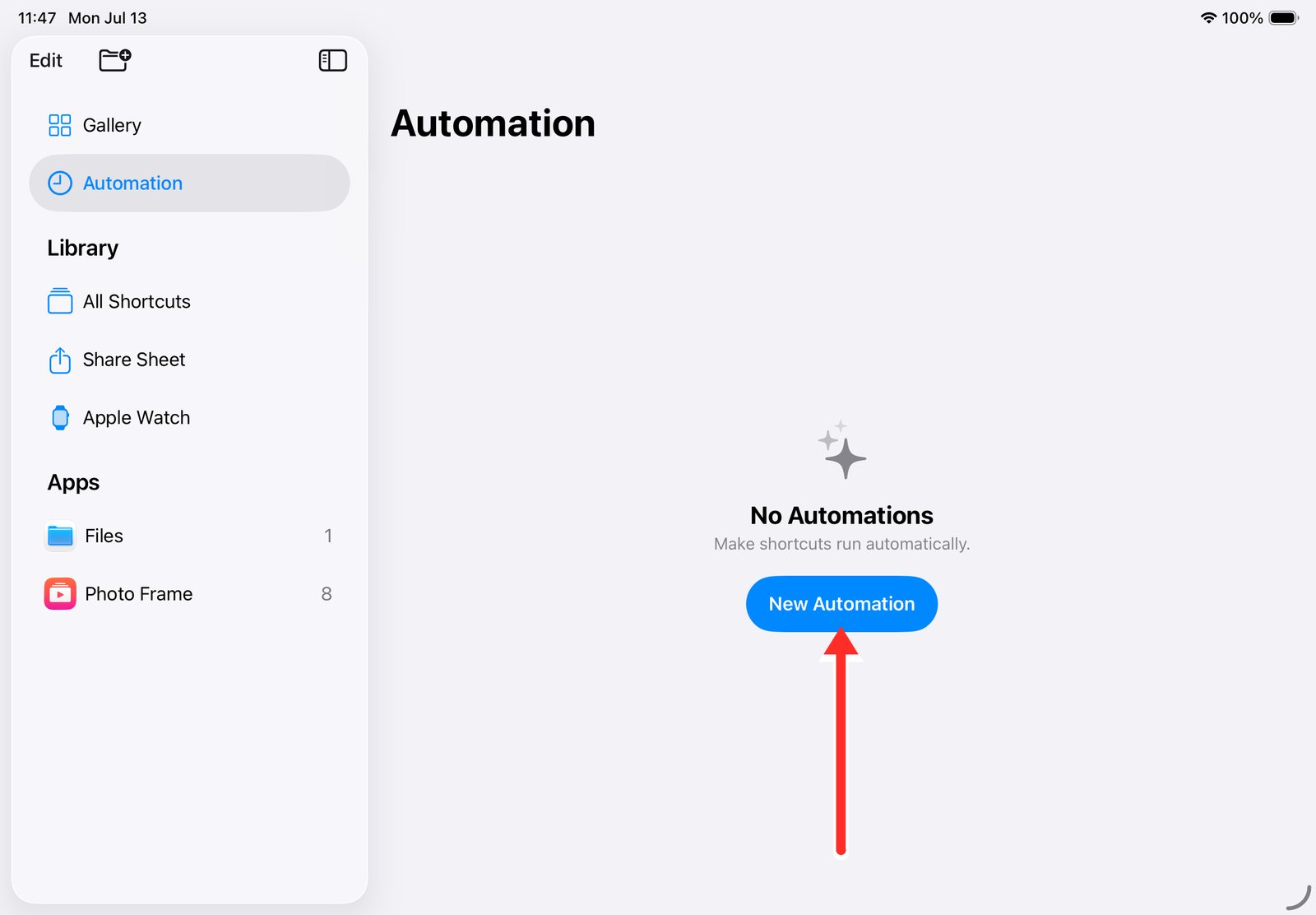
Step 7: Create a new automation
Tap New Automation.
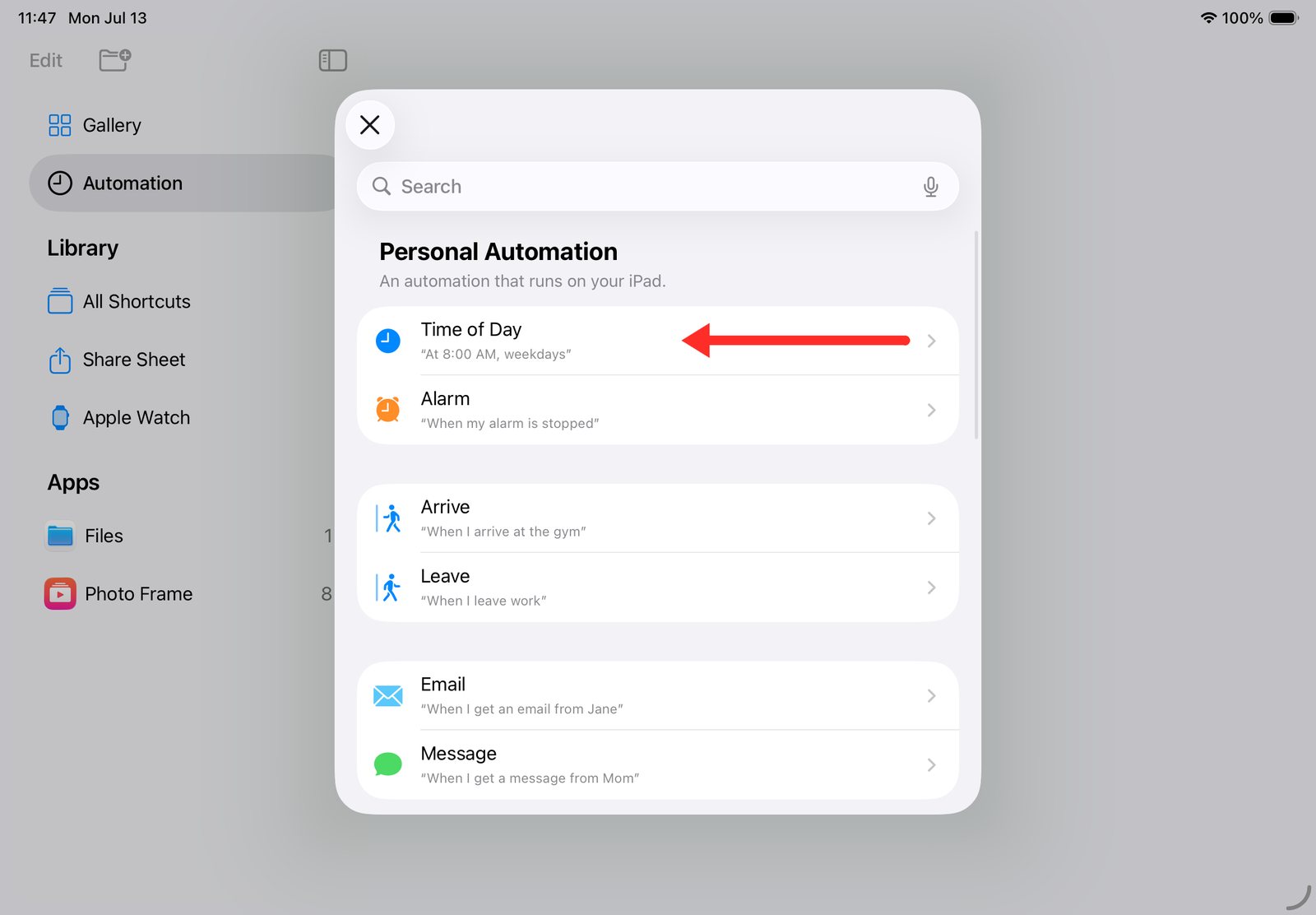
Step 8: Choose Time of Day
Pick Time of Day as the trigger, so it runs at the same time every day.
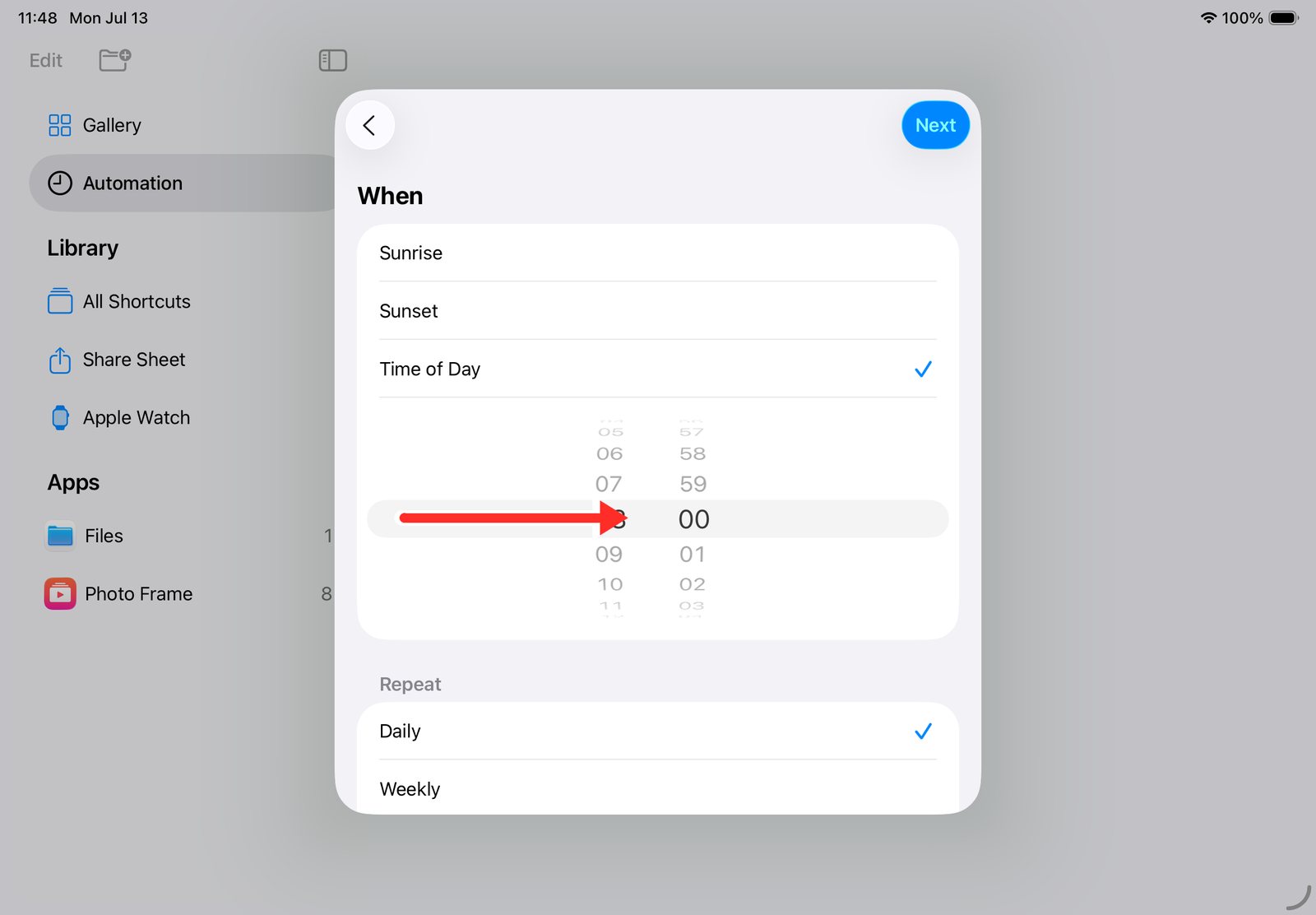
Step 9: Set the morning time
Set the time the slideshow should start. Match it to the start of your schedule, for example 08:00. Choose Daily under Repeat, then tap Next.
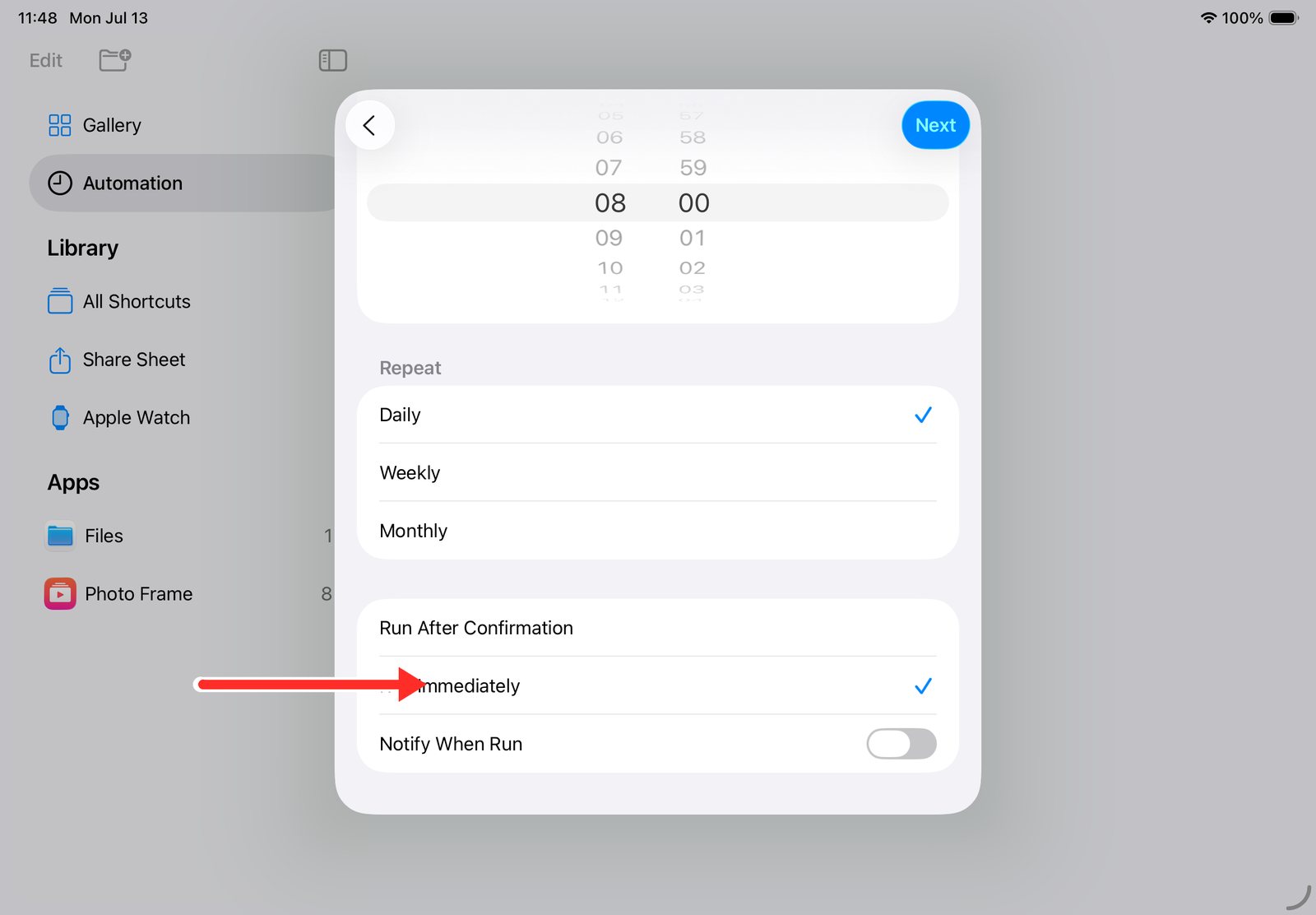
Step 10: Turn on Run Immediately
Select Run Immediately, so the automation doesn't ask for confirmation each morning. Leave Notify When Run off unless you want a daily notification. Tap Next.
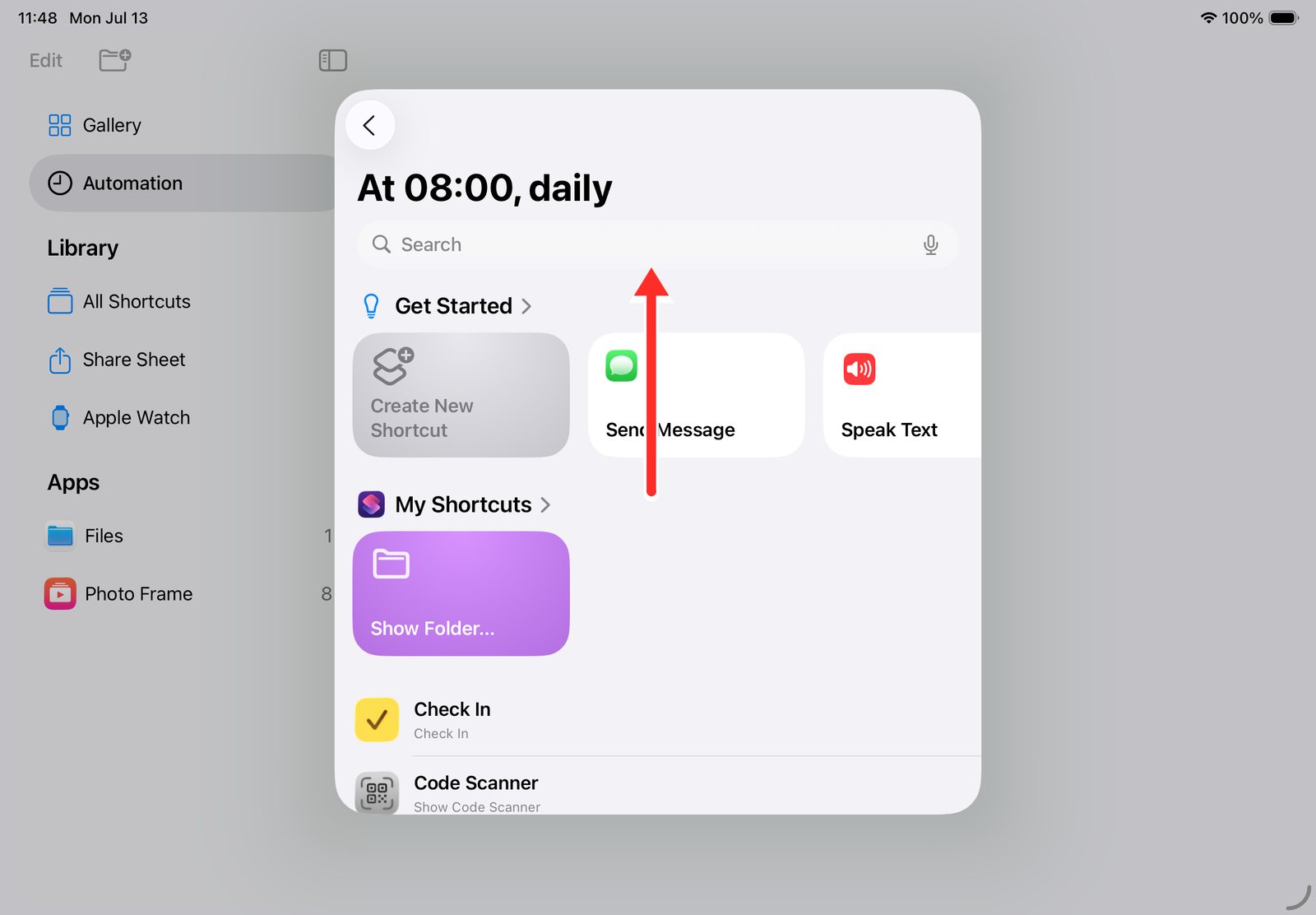
Step 11: Search for Photo Frame
In the action search box, type Photo Frame to see the app's Shortcuts actions.
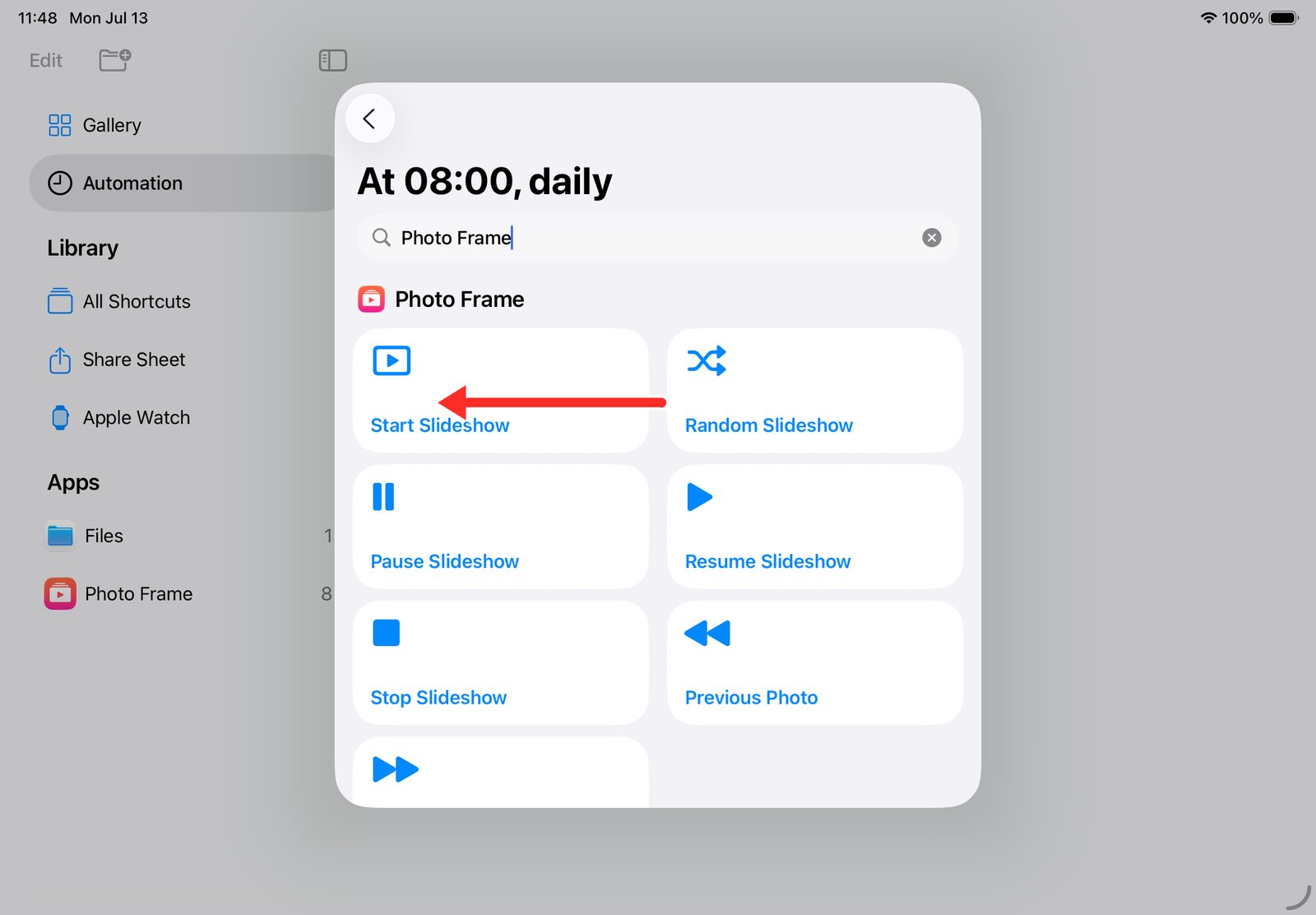
Step 12: Add Start Slideshow
Tap Start Slideshow. It opens the app and starts playing your photos. You'll also see Random Slideshow, Pause Slideshow, Resume Slideshow and more if you want something different.
Step 13: Done
The automation now reads "At 08:00, daily" with Start Slideshow. Every morning at that time, the slideshow starts by itself.
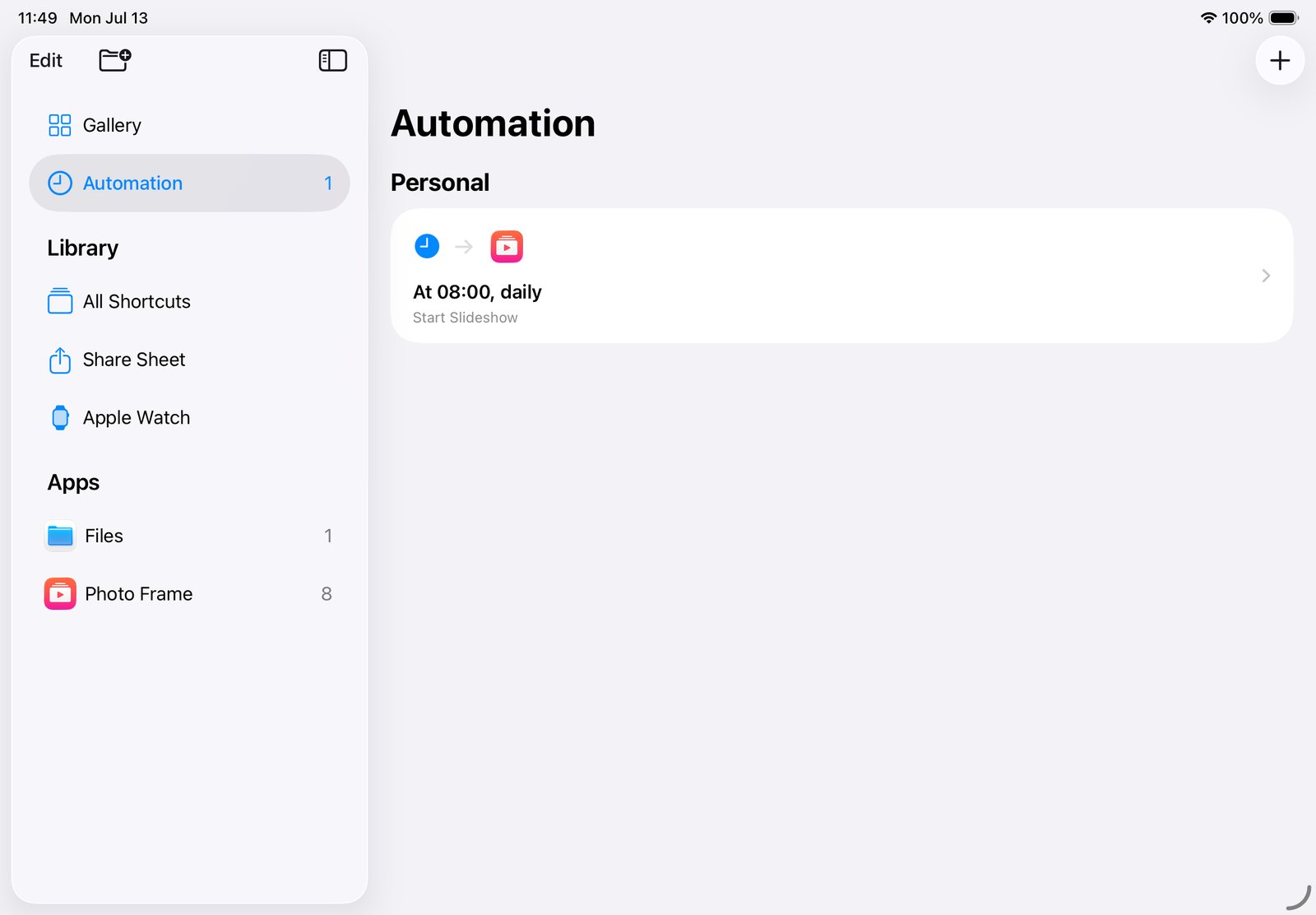
What a day looks like
- At 08:00 the Shortcuts automation opens the app and starts the slideshow.
- Your photos play all day.
- At 22:00 the schedule ends, the app quits, and the iPad locks and goes dark.
- The next morning it starts again, with nobody touching it.
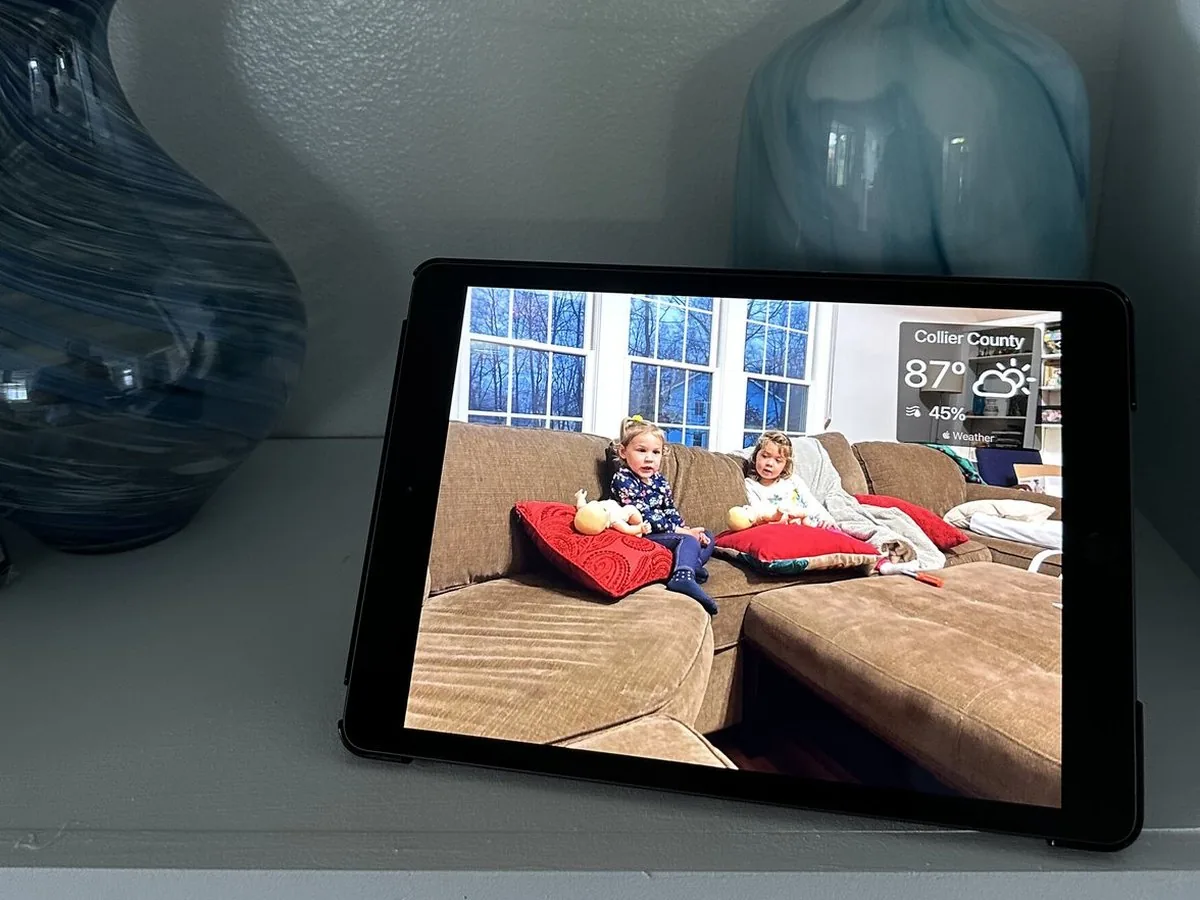
Tips
- Keep the iPad plugged in, especially on a shelf or a stand.
- Use the same time for the automation and the start of your schedule.
- Set Auto-Lock to Never in the iPad's Settings, so the screen doesn't turn off during the day.
- For a different order every day, use Random Slideshow instead of Start Slideshow.
- Weekdays and weekends on different hours? Create a second automation.
The rest of the setup, from choosing photos to locking settings with a passcode, is in how to turn your iPad into a digital photo frame. For an overview of the app on iPad, see the iPad page.
Frequently asked questions
Can an iPad photo frame turn itself off at night?
Yes. In Digital Photo Frame App, turn on Exit App When Schedule Ends in Slideshow Schedule. When the schedule ends, the app closes and the iPad locks and goes dark.
Can an app turn the iPad back on in the morning?
Not by itself, because Apple doesn't allow it. A Shortcuts Time of Day automation with the app's Start Slideshow action does it for you every day.
Why does the screen stay lit when the slideshow stops?
Because the app is still open. An iPad keeps the display on while an app is in front, so the app has to quit for the screen to go dark.
Does the iPad need to stay plugged in?
Yes. A photo frame is on most of the day, so keep the iPad on its charger.
Questions about your setup? Write to me.
 Share on Facebook
 Share on X
Keep reading
All posts →
Guides How to Turn Your iPad into a Digital Photo Frame
Turn an old iPad into a digital photo frame in 10 minutes: which iPads work, the settings that matter, and how to keep …
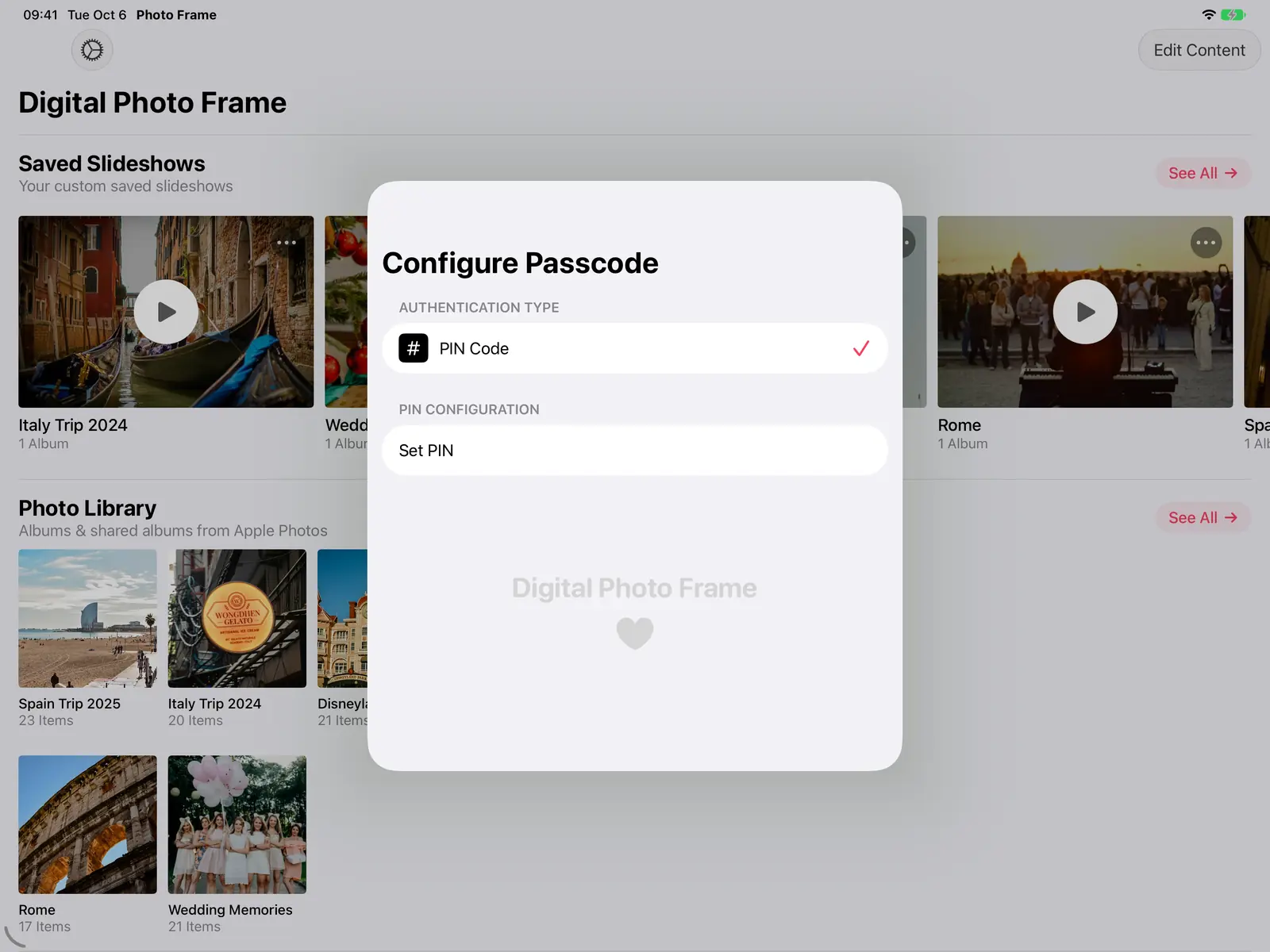 Guides How to Lock an iPad to One App (Guided Access)
Lock an iPad or iPhone to one app with Guided Access, step by step, so kids, guests or grandparents can't leave it. Ide…
Guides How to Lock an iPad to One App (Guided Access)
Lock an iPad or iPhone to one app with Guided Access, step by step, so kids, guests or grandparents can't leave it. Ide…
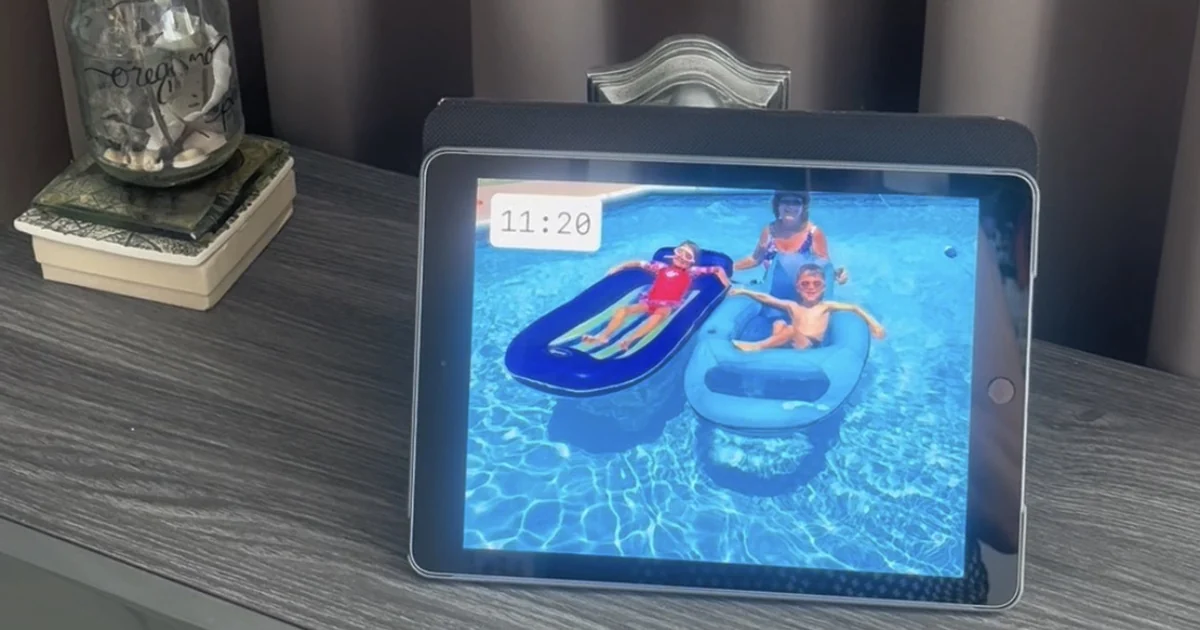 Guides 5 Clever Ways to Reuse an Old iPad
Five useful ways to reuse an old iPad: a digital photo frame, a kitchen recipe screen, a camera monitor, a reading devi…
Guides 5 Clever Ways to Reuse an Old iPad
Five useful ways to reuse an old iPad: a digital photo frame, a kitchen recipe screen, a camera monitor, a reading devi…
 Download Now