How to Display Photos on Your Apple TV
Four ways to show photos on Apple TV: AirPlay, Apple's Photos app, the screen saver and a photo frame app, with what each one can and can't do.

September 05, 2025 by Manuel Escrig · 5 min read
Updated October 2026

Your TV is the biggest screen in the house, and an Apple TV can turn it into a photo frame when nobody is watching. There are four ways to get your photos on it. They're good at different things, so here's what each one does, where it falls short, and which to use when.
- Showing a few photos to guests right now? Use AirPlay from your iPhone.
- Browsing your library on the big screen? Use Apple's Photos app on the Apple TV.
- Photos when the TV is idle, nothing to set up? Use the Apple TV screen saver.
- A photo frame that runs all day, with music, weather and photos from more places? Use a photo frame app on the Apple TV.
1. AirPlay from your iPhone, iPad or Mac
Open a photo or album on your iPhone, tap the share or AirPlay button and choose your Apple TV. Screen mirroring (from Control Center) sends whatever is on your phone's screen, so it works with any app, including Google Photos.
Good for: a quick show for visitors, or photos from an app that has no Apple TV version. Limits: your phone has to stay on and nearby, and the show stops when you use the phone for something else. It's not meant to run all day.
Our app has an AirPlay button in the slideshow menu too, so a slideshow on your iPhone or iPad can go to the TV with its transitions and music.

2. The Photos app on Apple TV
If iCloud Photos is turned on in the Apple TV's settings, the built-in Photos app shows your library and iCloud shared albums, and can play them as a slideshow.
Good for: browsing your own iCloud library on the TV, with nothing to install. Limits: it only shows iCloud Photos and shared albums, and it's made for browsing rather than as a frame: no schedule, no weather or clock, no photos from Google Photos or a NAS.
3. The Apple TV screen saver
The Apple TV's screen saver can show your own photos instead of the aerial videos when the TV has been idle for a while.
Good for: photos that appear on their own, with nothing to start. Limits: you get little control over which photos, how they look or how long they stay, and it only starts after the TV has been idle.
4. A photo frame app on Apple TV
A photo frame app runs on the Apple TV itself, so it keeps going with no phone in the room. Digital Photo Frame App is a native Apple TV app. On the TV it plays:
- your Apple TV photo library and iCloud shared albums (new photos family members add appear while the slideshow runs),
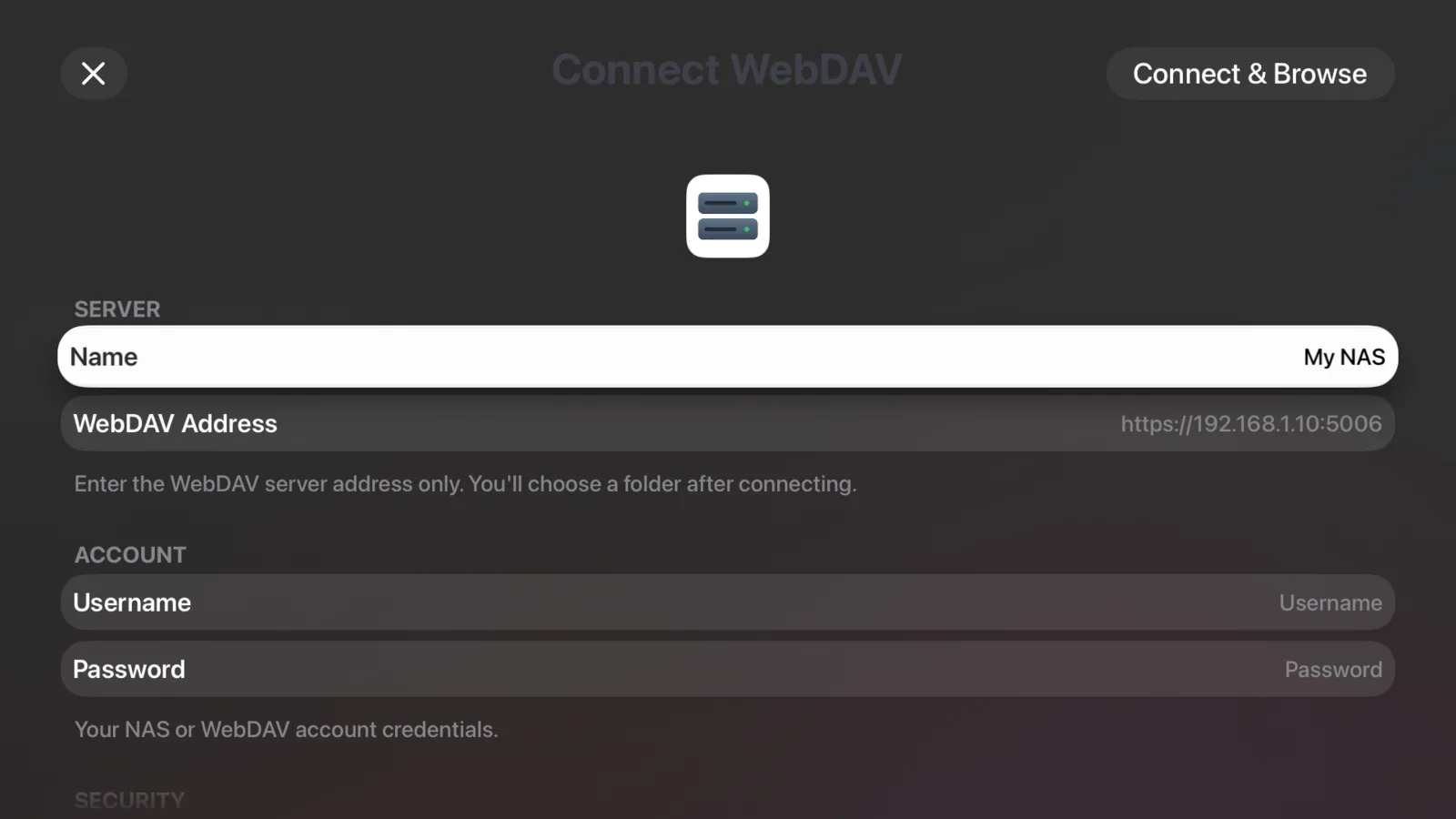
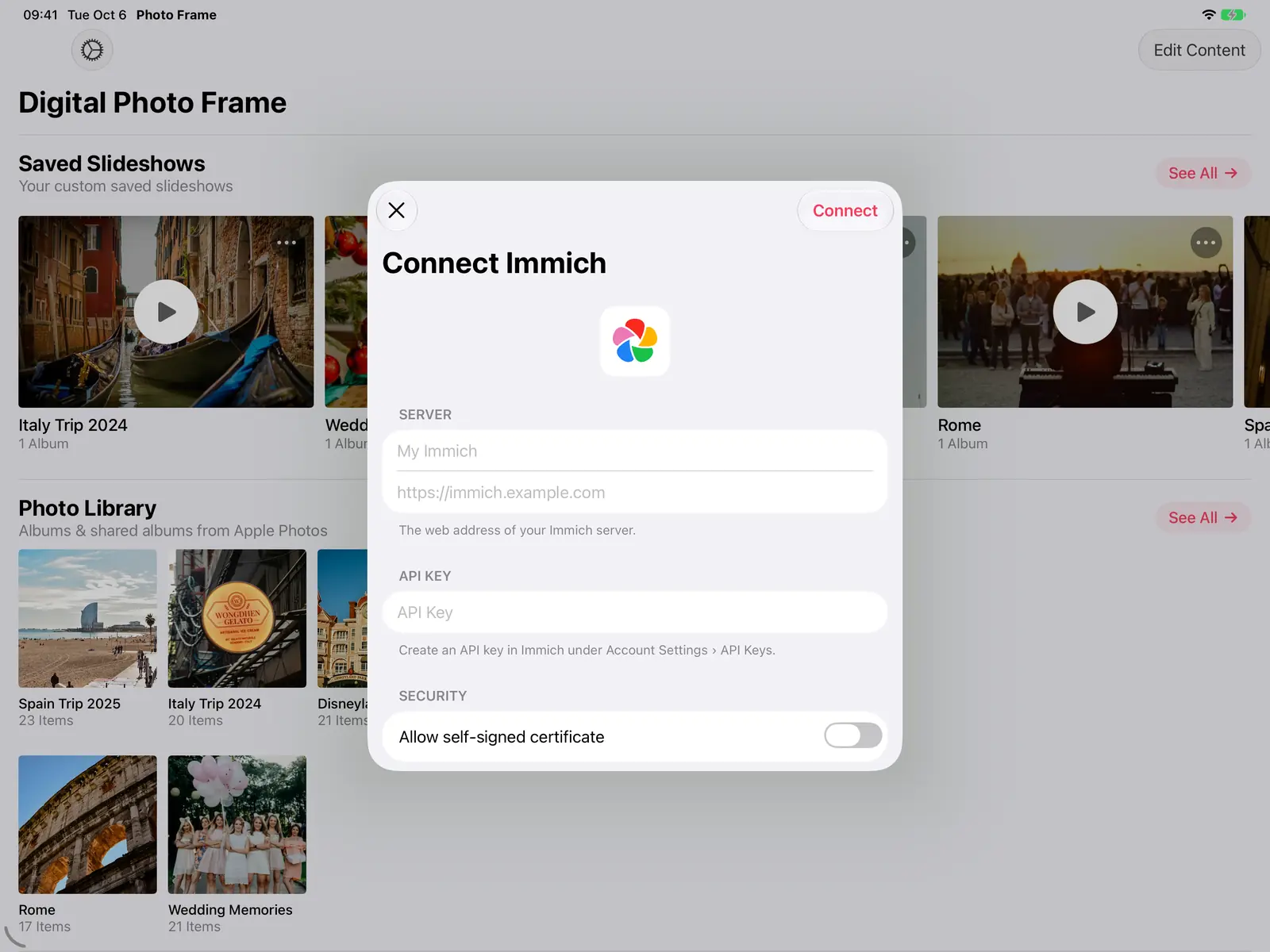
- photos from an Immich server or a NAS / WebDAV server (Synology, QNAP, Nextcloud), streamed from your server,
- Flickr, Unsplash and curated art collections.
I make Digital Photo Frame App, so weigh this section with that in mind. I built it for exactly this job: a frame that runs on the TV all day without a phone in the room. It needs tvOS 17.6 or later, which covers the Apple TV HD and every Apple TV 4K.
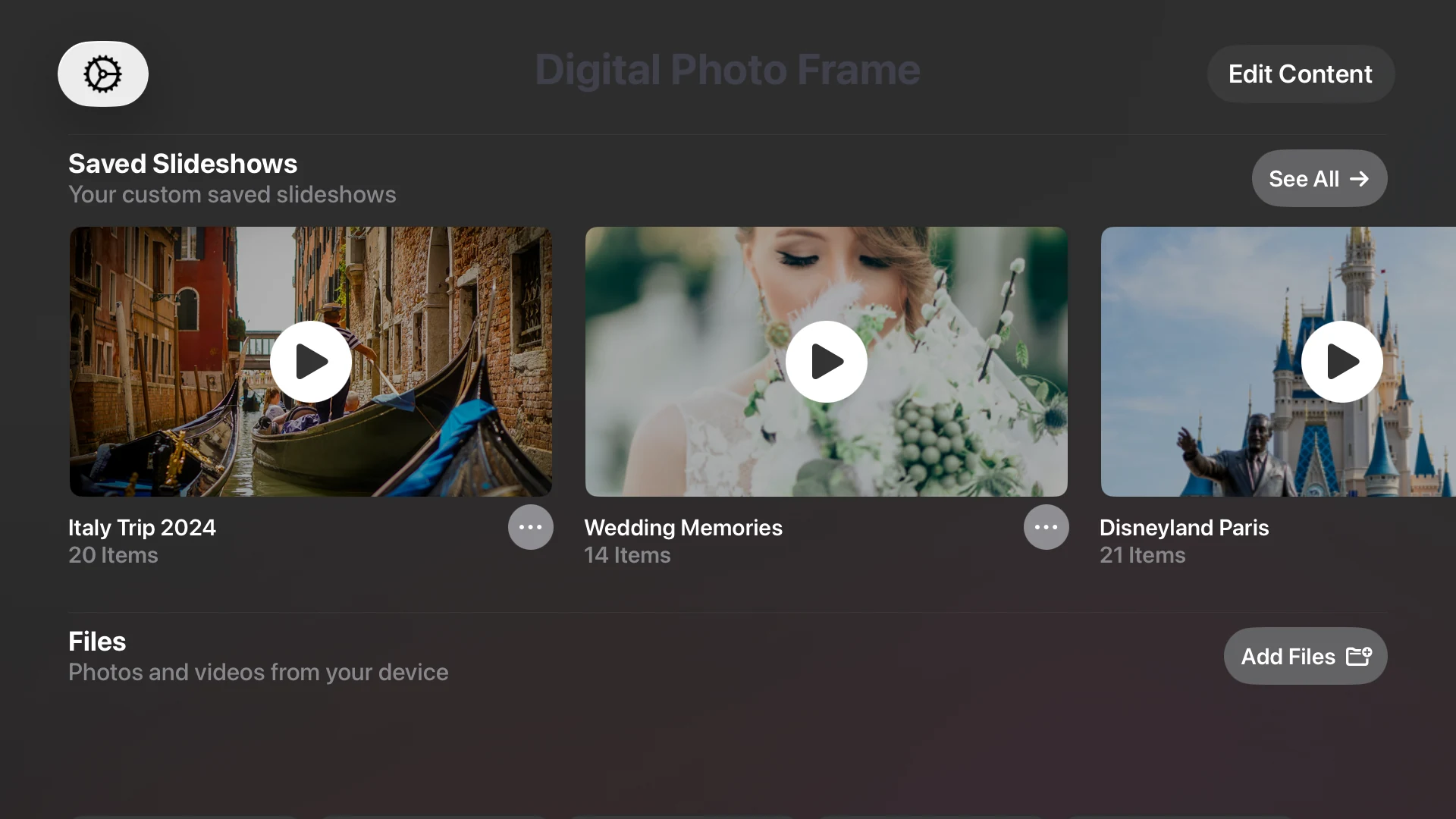
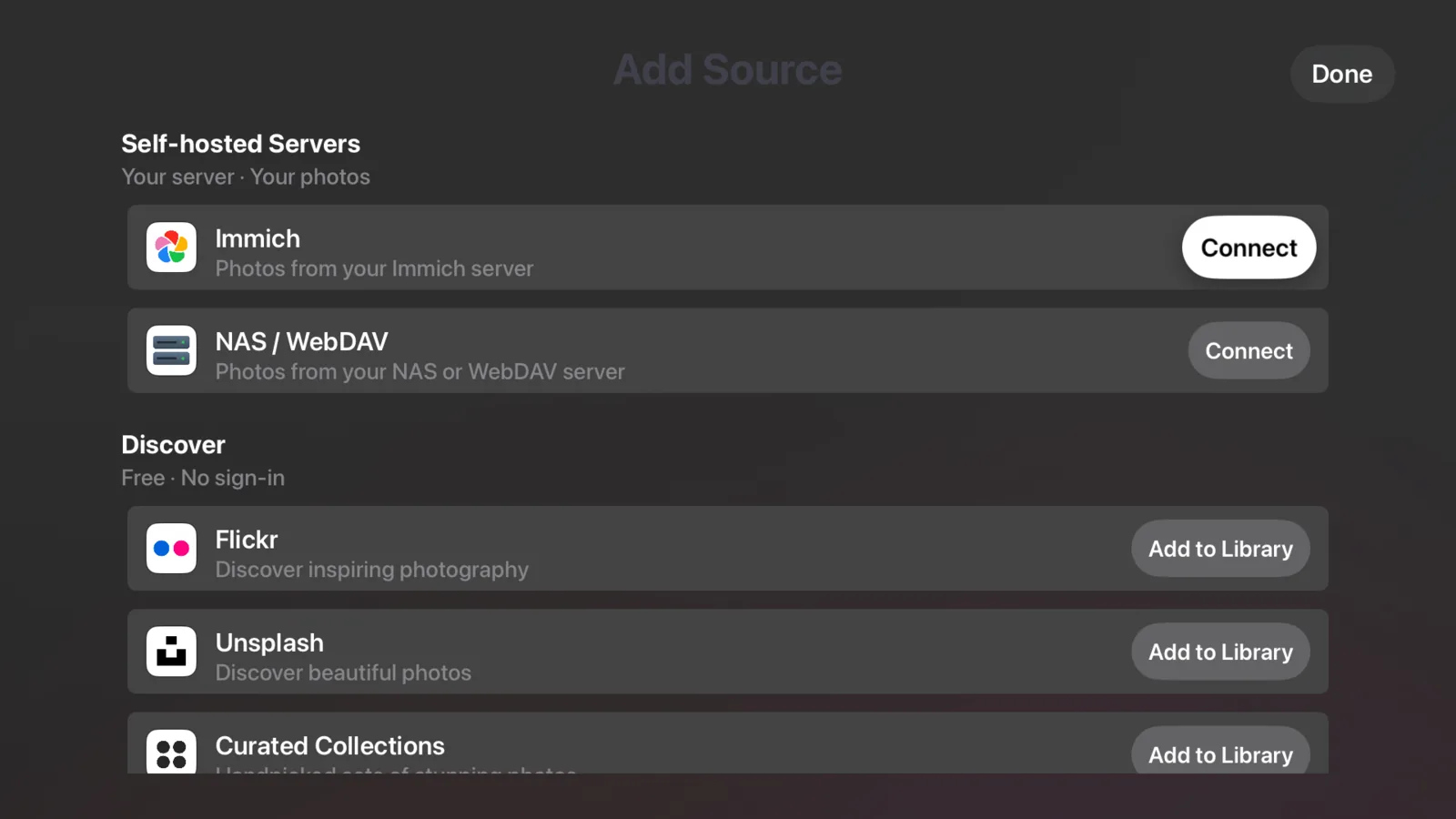
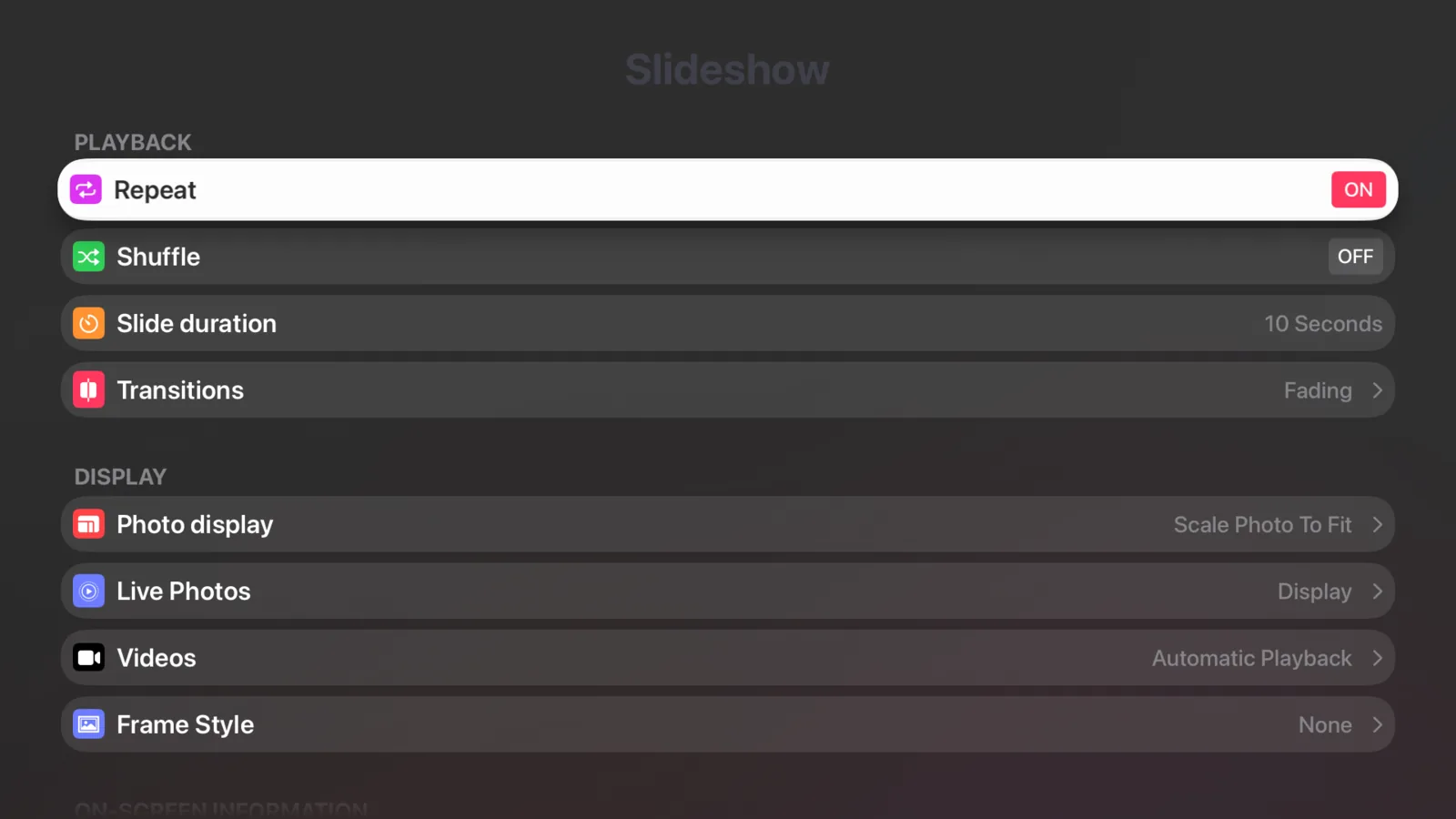
You get the same settings as on iPad: how long each photo stays, transitions, Live Photos and videos, a mat board, background music, and on-screen weather, date and time. Everything is controlled with the Siri Remote.
Connecting a NAS or Immich server happens right on the TV, with a keyboard made for the remote:
Portrait photos look small on a wide TV. Combine Photos (Collage) shows two of them side by side, so the whole screen is used.



Good for: a frame that runs all day, music and weather on screen, and photos from your own server. Limits: Google Photos and the Files app (Dropbox, OneDrive, Google Drive) aren't available on Apple TV; use the app on iPad, iPhone or Mac for those, or AirPlay. Slideshows are set up on the Apple TV itself rather than synced from your iPhone.
More on the TV app: Digital Photo Frame for Apple TV.
Side by side
| AirPlay | Photos app | Screen saver | Photo frame app | |
|---|---|---|---|---|
| Needs your phone nearby | Yes | No | No | No |
| Made to run all day | No | No | Only when idle | Yes |
| iCloud shared albums | Yes | Yes | Limited choice | Yes, they update while playing |
| Google Photos | Yes, by mirroring | No | No | No (iPad, iPhone and Mac only) |
| Immich or NAS | Through another app | No | No | Yes |
| Music, weather, clock | Depends on the app | No | No | Yes |
Frequently asked questions
Which Apple TV models does Digital Photo Frame App support?
Any Apple TV on tvOS 17.6 or later: the Apple TV HD and every Apple TV 4K.
Why do my photos have black bars on the TV?
TVs are 16:9, while photos from an iPhone are 4:3 and from most cameras 3:2, so showing the whole photo leaves bars at the sides. Filling the screen removes the bars but cuts off the top and bottom. The aspect ratio calculator shows exactly how much for your photos and your TV.
Can I show Google Photos on Apple TV?
Google Photos has no Apple TV app, so the simplest way is screen mirroring from the Google Photos app on your iPhone. Our app supports Google Photos on iPad, iPhone and Mac, not on Apple TV.
How do I show photos on Apple TV without my phone?
Use the Photos app or the screen saver on the Apple TV for iCloud photos, or a photo frame app for a slideshow that runs all day.
Can family add photos to the TV from far away?
Yes, with an iCloud Shared Album: photos they add appear in the slideshow on the Apple TV while it runs.
 Share on Facebook
 Share on X
Keep reading
All posts → Guides Photo Gifts for Grandparents: 10 Ideas
10 honest photo gift ideas for grandparents, from photo books and calendars to frames that keep updating, with effort, …
Guides Photo Gifts for Grandparents: 10 Ideas
10 honest photo gift ideas for grandparents, from photo books and calendars to frames that keep updating, with effort, …
 Guides Large Digital Photo Frame: Should You Use an iPad or TV?
Want a large digital photo frame? Compare an iPad, a TV with Apple TV, and a dedicated frame by screen size, placement,…
Guides Large Digital Photo Frame: Should You Use an iPad or TV?
Want a large digital photo frame? Compare an iPad, a TV with Apple TV, and a dedicated frame by screen size, placement,…
 Guides Immich and NAS Photo Frame for iPad and Apple TV
A self-hosted photo frame for iPad, iPhone, Mac and Apple TV: show photos from Immich, Synology, QNAP, Nextcloud or any…
Guides Immich and NAS Photo Frame for iPad and Apple TV
A self-hosted photo frame for iPad, iPhone, Mac and Apple TV: show photos from Immich, Synology, QNAP, Nextcloud or any…
 Download Now