iPhone Can't Download Full Resolution Photos? 7 Fixes
Seeing "This iPhone was not able to download full resolution photos and videos"? Seven fixes, from free space and Wi-Fi to forcing the download.

March 9, 2024 by Manuel Escrig · 5 min read
Updated October 2026
"This iPhone was not able to download full resolution photos and videos" means the Photos app tried to fetch the original from iCloud and couldn't. It is almost always one of three things: not enough free space, a connection that is weak or paused, or a sync that got stuck, and each takes a few minutes to fix.
- Free up a few gigabytes in Settings, General, iPhone Storage.
- Use solid Wi-Fi and turn off Low Data Mode and Low Power Mode: both pause iCloud Photos.
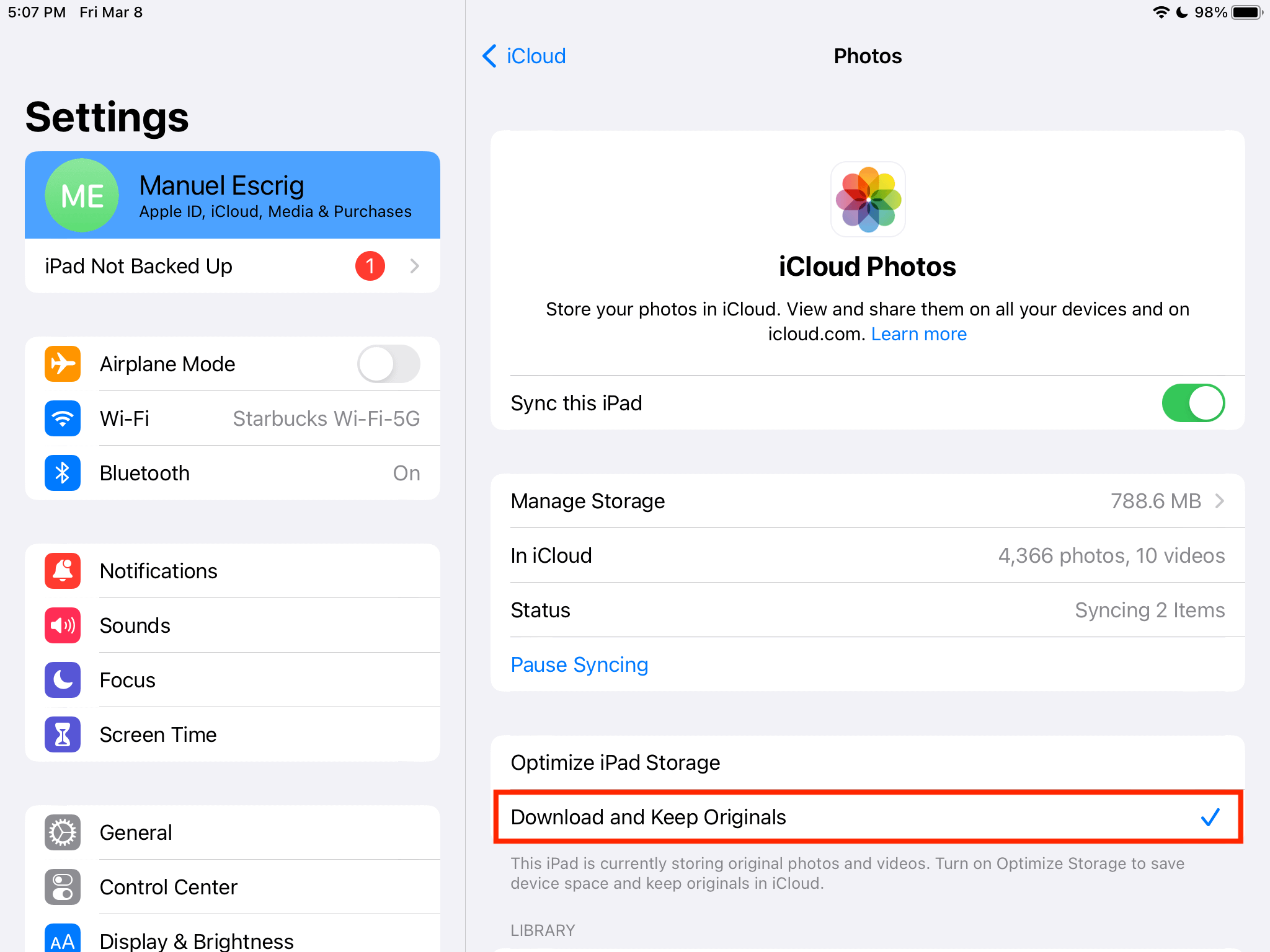
- For every photo on the device in full quality, choose Download and Keep Originals in iCloud Photos settings.
- If one photo is stuck, open it and wait, or tap Edit and then Cancel to make it download.
- Still stuck? Restart, update iOS, then sign out of iCloud and back in.
What the message means
With iCloud Photos, your originals live in iCloud. If Optimize iPhone Storage is on, the iPhone keeps smaller versions and downloads the original when you open or share a photo. The message appears when that download fails. Your photos are not lost: the originals are still in iCloud, the iPhone just couldn't get them right now.
I make an app that plays iCloud photos on iPads and TVs, so how iOS stores originals matters to me a lot. Here are the fixes in the order I'd try them.
1. Free up storage
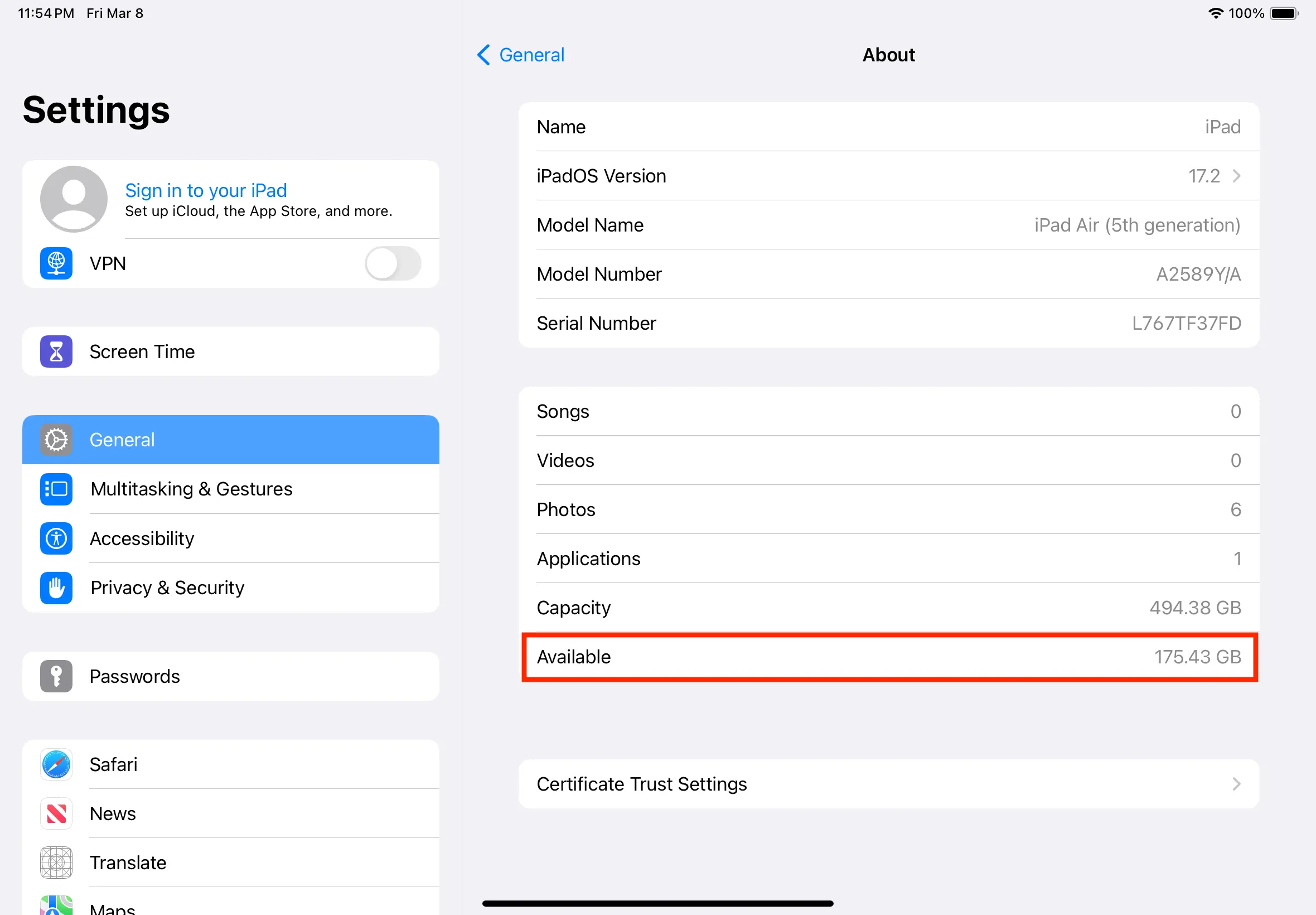
iOS needs room to download originals, and it quietly stops when the device is nearly full. Open Settings, General, iPhone Storage (iPad Storage on an iPad) and make sure a few gigabytes are free. Offloading an app you rarely use is the quickest way to get space back.
2. Use solid Wi-Fi and turn off Low Data Mode
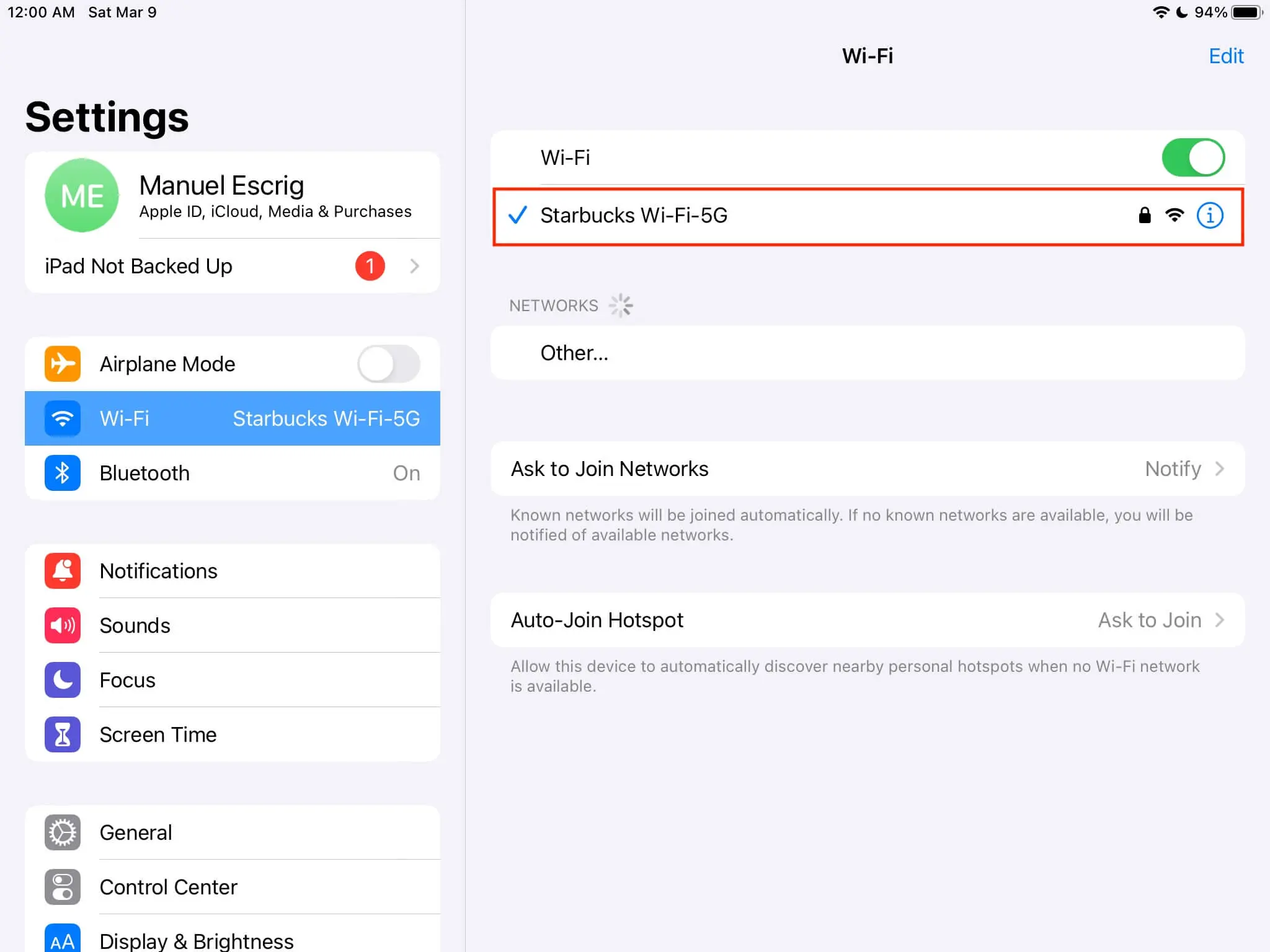
Large photos and videos download over Wi-Fi far more reliably than over cellular. Apple's Low Data Mode also pauses iCloud Photos updates, and it can be switched on for a Wi-Fi network without you noticing. Go to Settings, Wi-Fi, tap the ⓘ next to your network and turn off Low Data Mode.
3. Turn off Low Power Mode and plug in
Low Power Mode pauses iCloud Photos temporarily, according to Apple. Turn it off in Settings, Battery, then leave the device on the charger and on Wi-Fi. Overnight is when big libraries usually catch up.
4. Choose Download and Keep Originals
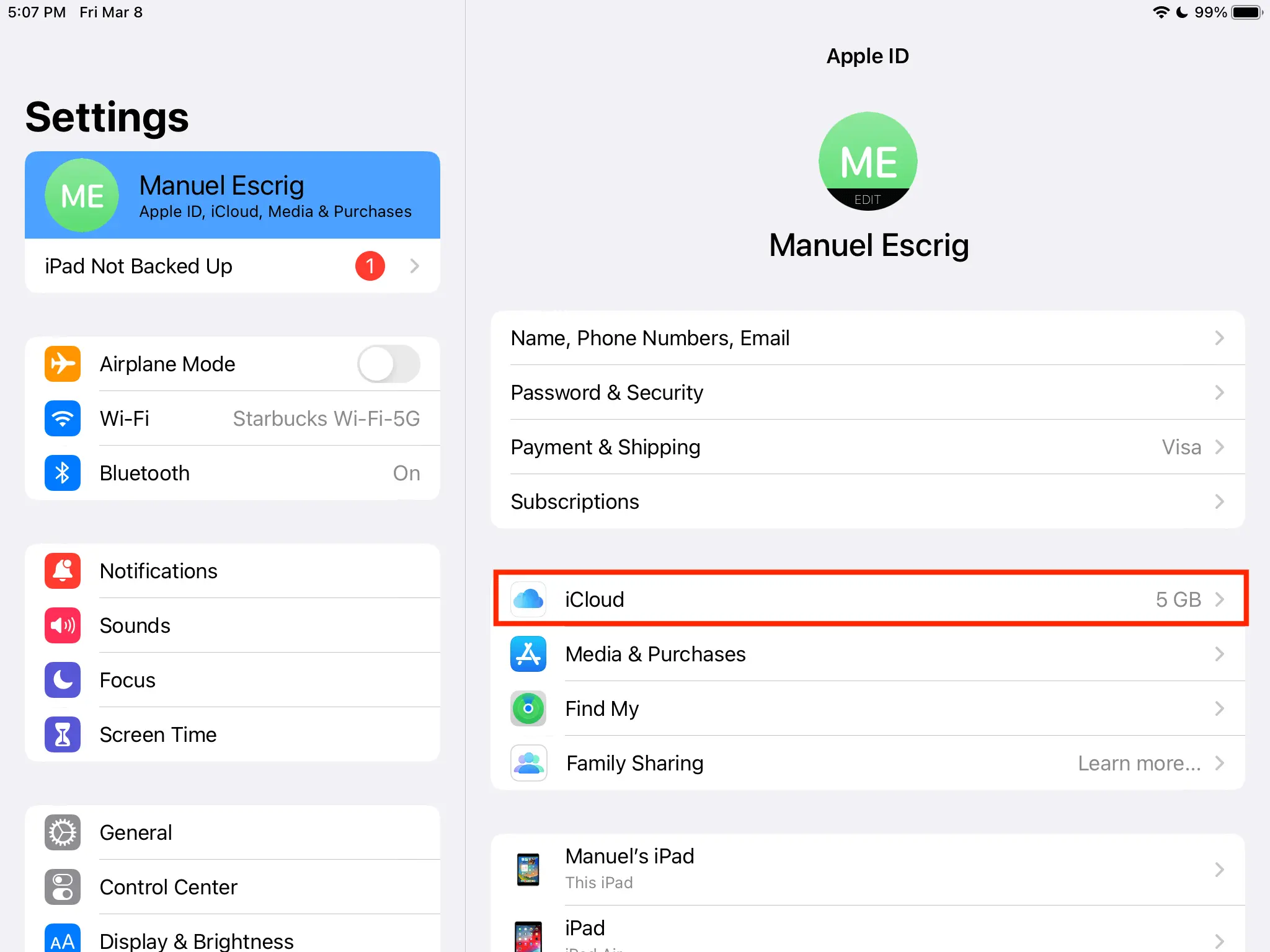
This is the permanent fix if you want every photo on the device in full quality. Go to Settings, tap your name, then iCloud, Photos, and choose Download and Keep Originals. The device needs enough free space for your whole library, and a large one can take hours or longer to download.
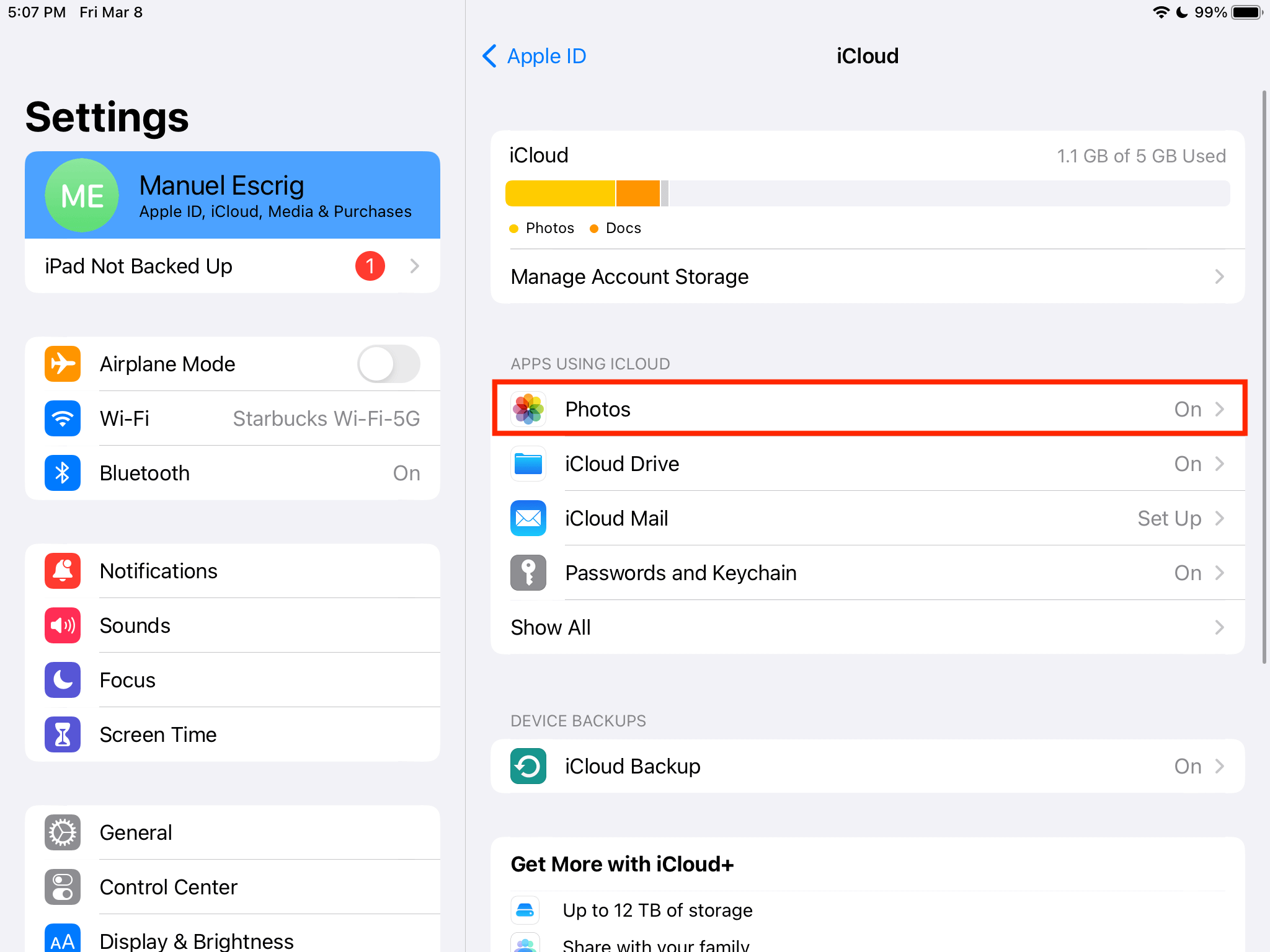
5. Force one photo to download
If a single photo or video is stuck, open it in the Photos app while on Wi-Fi and give it a moment. A trick many people report on Apple's forums: tap Edit, wait for the photo to download, then tap Cancel. Opening the editor makes Photos fetch the original.
6. Force a whole album to download
Another workaround reported on Apple's forums, for when a set of photos refuses to download:
- In the Photos app, put the photos into an album.
- Open the album, tap ⋯ and choose to share the photos.
- Choose Add to Shared Album and wait while the photos are prepared.
- Tap Cancel. Preparing them made Photos download the originals.
7. Restart, update, and sign in again
Restart the device and install any pending iOS update, since iCloud Photos bugs are fixed in updates. If nothing else works, sign out of iCloud (Settings, your name, Sign Out) and back in. Your photos stay in iCloud while you do this, though a large library needs time to show up again.
How a photo frame handles this
If you show your photos on an iPad frame, you don't need every original on the device. Digital Photo Frame App asks iCloud for each photo at the size the screen needs, so on good Wi-Fi it works even with Optimize iPhone Storage on. For a frame on weak Wi-Fi, a saved slideshow can be set to Make Available Offline, which downloads its photos ahead of time. The full setup is in how to turn your iPad into a digital photo frame.
Frequently asked questions
Will I lose photos if I see this message?
No. The originals are in iCloud. The message only means this device couldn't download a copy at that moment.
Do I need space for my whole library with Download and Keep Originals?
Yes. The device keeps every original, so it needs room for your entire photo and video library.
How long does it take to download all originals?
It depends on the size of your library and your connection. Keep the device on Wi-Fi and the charger, with Low Power Mode off.
Why do some photos still look blurry?
They haven't finished downloading. Check free space, Wi-Fi and Low Power Mode, then open the photo again. Our checklist for iCloud photos not downloading covers the stubborn cases.
What does Optimize iPhone Storage actually do?
It keeps smaller versions on the device and the originals in iCloud. Here's the full explanation: what Optimize iPhone Storage does.
Sources
- Apple: Set up and use iCloud Photos
- Apple: Use Low Power Mode (pauses iCloud Photos temporarily)
- Apple: Use Low Data Mode (pauses iCloud Photos updates)
- Apple Community: How to force download of full res photos onto iOS
- Apple Community: Can't download full resolution photos on iPhone
Manuel Escrig
 Share on Facebook
 Share on X
Keep reading
All posts →
Guides iCloud Photos Not Downloading to iPhone or iPad? 8 Fixes
iCloud photos not downloading to your iPhone or iPad? Eight fixes in the order that solves most cases, from free space …
Guides What Does Optimize iPhone Storage Do to Your Photos?
What Optimize iPhone Storage does to your photos, when it helps, when it hurts, and how to get your full-resolution ori…
 Guides Photo Gifts for Grandparents: 10 Ideas
10 honest photo gift ideas for grandparents, from photo books and calendars to frames that keep updating, with effort, …
Guides Photo Gifts for Grandparents: 10 Ideas
10 honest photo gift ideas for grandparents, from photo books and calendars to frames that keep updating, with effort, …
 Download Now