What Does Optimize iPhone Storage Do to Your Photos?
What Optimize iPhone Storage does to your photos, when it helps, when it hurts, and how to get your full-resolution originals back on the device.

July 7, 2026 by Manuel Escrig · 4 min read
Updated October 2026
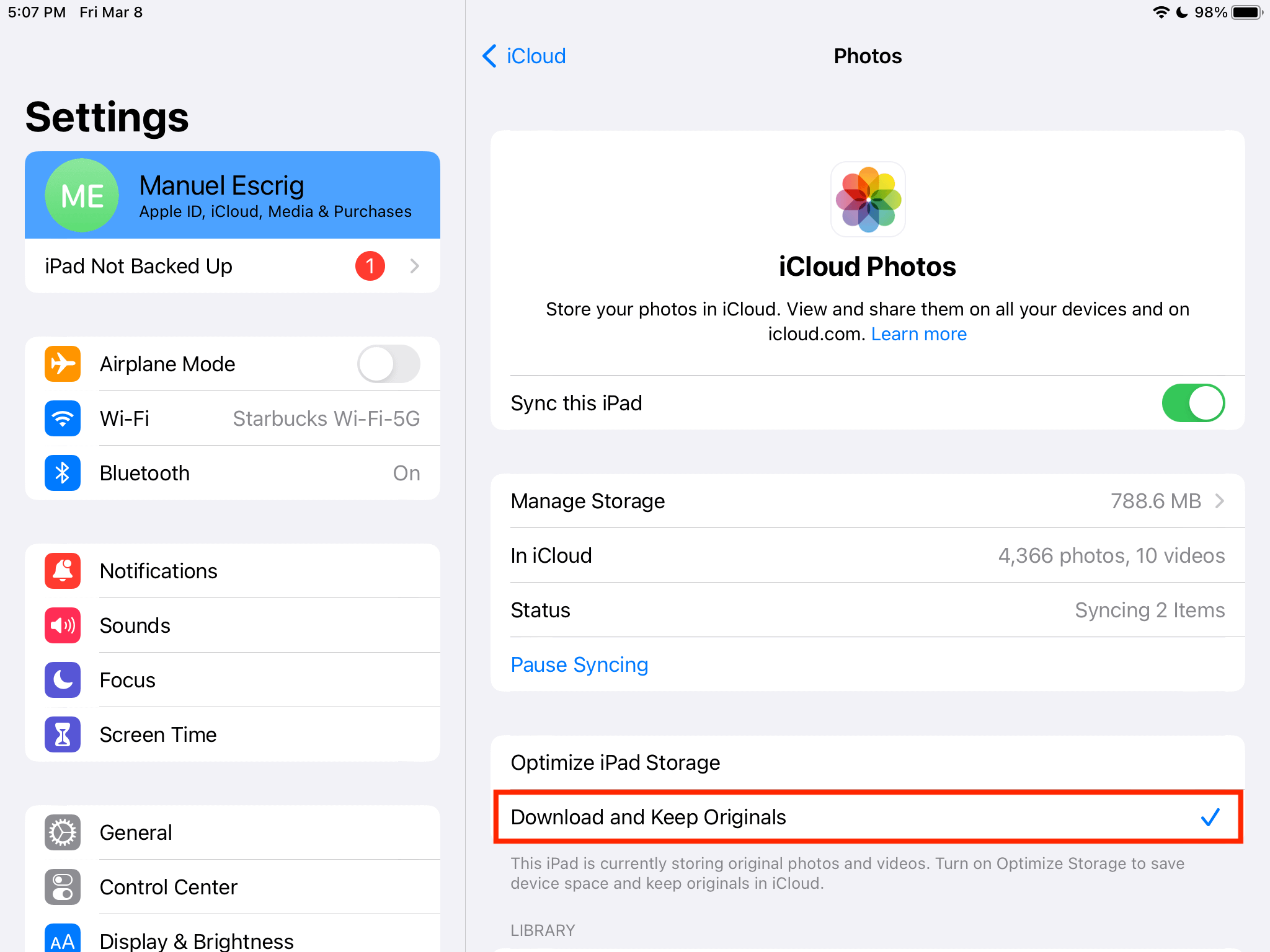
Optimize iPhone Storage keeps your full-resolution photos and videos in iCloud and stores smaller versions on the device, downloading the original when you need it. It saves a lot of space, and the only catch is that every original needs a connection to iCloud before you can use it.
- Optimize iPhone Storage: originals in iCloud, smaller versions on the device, originals downloaded when needed.
- Download and Keep Originals: every original on the device, which needs space for your whole library.
- Your photos are never deleted by Optimize; the originals are always in iCloud.
- Trouble starts on weak Wi-Fi or a nearly full device, when downloads fail.
- Change it under Settings, your name, iCloud, Photos.
Where to find it
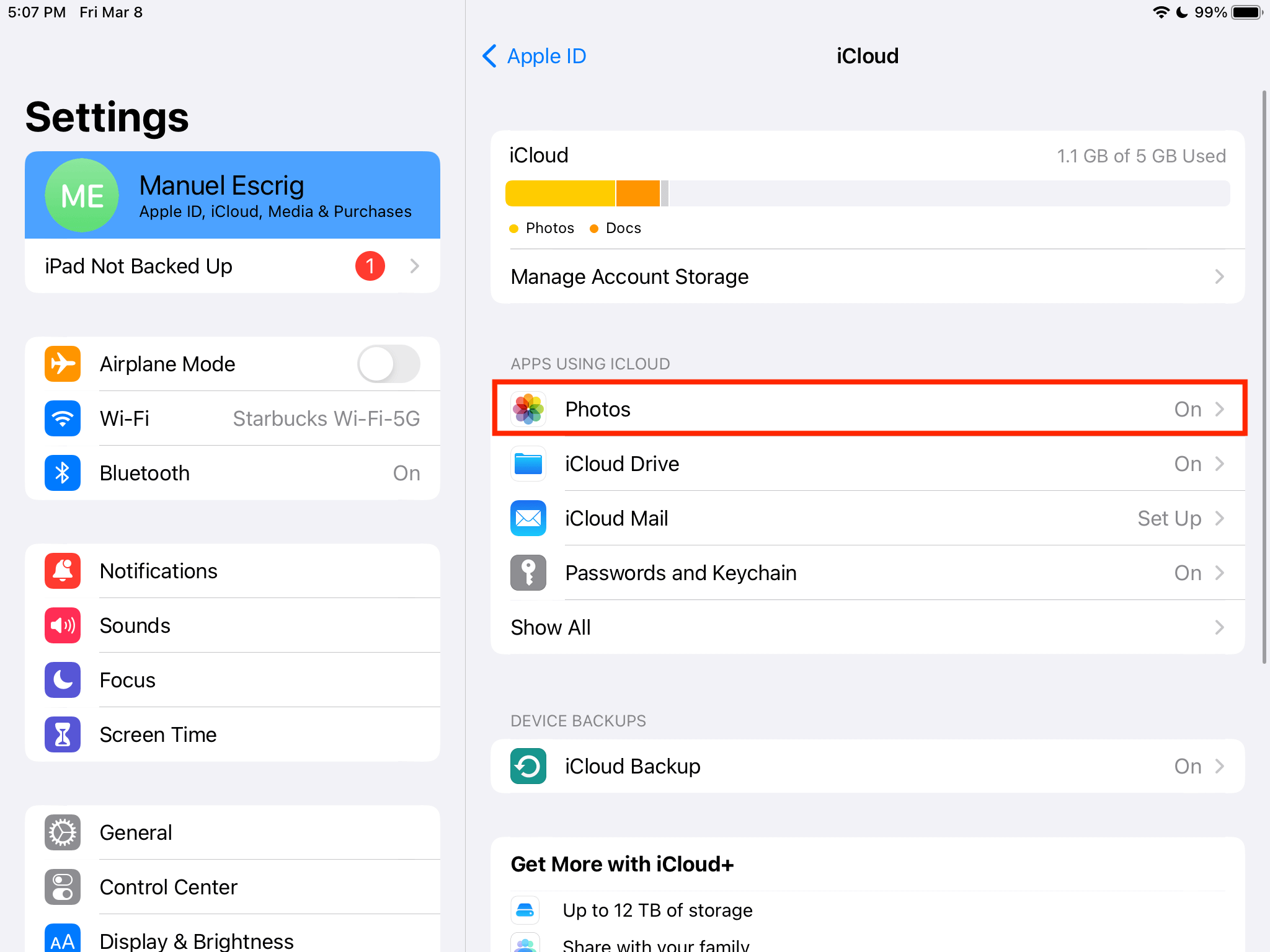
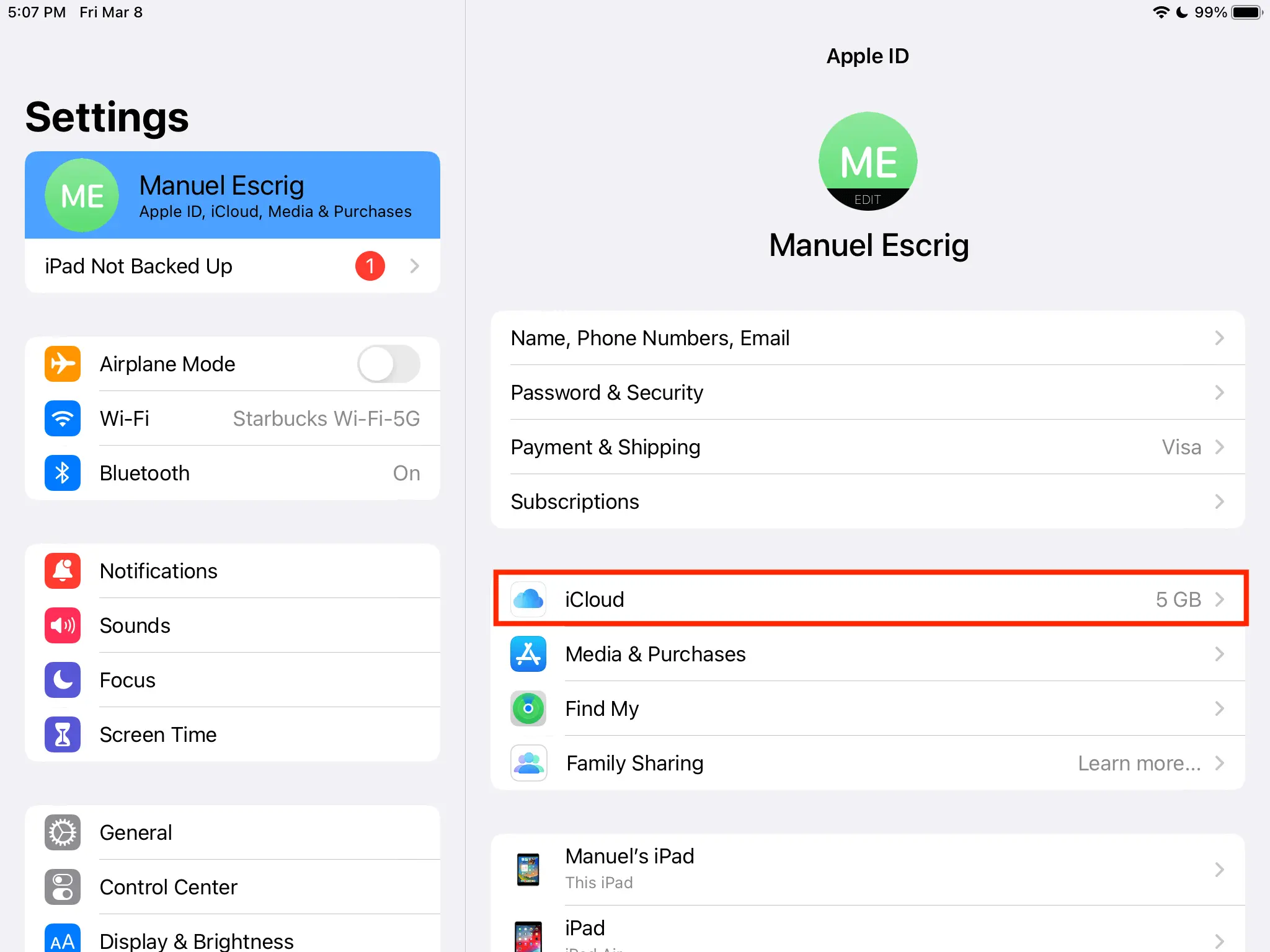
Go to Settings, tap your name, then iCloud, Photos. With Sync this iPhone on, you choose between Optimize iPhone Storage and Download and Keep Originals. On an iPad it says Optimize iPad Storage.
What Optimize actually does
Apple describes it simply: the device keeps compressed versions while iCloud keeps the full-resolution originals, and less-used items are removed from the device when space is needed. When you open, edit or share a photo, iOS downloads the original from iCloud first.
You never see a switch flip. The photos look the same in your library; some of them just aren't fully on the device.
When it helps
- Your iPhone has little storage and years of photos and 4K video.
- You're usually on good Wi-Fi, so originals arrive in a second or two.
- You rarely edit or export full-size photos.
For most people's phones, it's a sensible default.
When it gets in the way
- Weak or paused connections. If the download fails, you get the "This iPhone was not able to download full resolution photos and videos" message. Low Data Mode and Low Power Mode both pause iCloud Photos.
- A nearly full device. iOS needs room to download originals.
- Exporting or backing up to a computer. Tools that copy files need the original, so they wait for the download or fail on a bad connection.
- Travel without internet. Photos you haven't opened recently may not be fully on the device.
How to tell if a photo is on the device
There is no label. The sign is a short spinner or a sharpening moment when you open a photo: that's iOS fetching the original.
Getting your originals back
Choose Download and Keep Originals, keep the device on Wi-Fi and the charger with Low Power Mode off, and let it work. You'll need free space for the whole library, and a large one can take hours or a day.
If downloads stall, how to force full-resolution downloads on iOS has the fixes, and iCloud photos not downloading handles the stubborn cases.
What it means for a photo frame
I make a photo frame app, so here's what this setting means for a frame. Digital Photo Frame App asks iCloud for each photo at the size the screen needs, so it works with Optimize on, as long as the frame has decent Wi-Fi. For a frame on weak Wi-Fi, a saved slideshow can be set to Make Available Offline so its photos are downloaded in advance. See how to turn your iPad into a digital photo frame.
Frequently asked questions
Does Optimize iPhone Storage delete my photos?
No. The full-resolution originals stay in iCloud. Only the copies on the device are smaller.
Does Optimize iPhone Storage lower photo quality?
Only for the copies kept on the device. When you open, edit or share a photo, iOS downloads the original, so what you see in full is full quality.
Should I turn Optimize iPhone Storage off?
Only if you have space for your whole library and want every original available offline. Otherwise leave it on.
How much space do I need for Download and Keep Originals?
As much as your photo library uses in iCloud, plus room to spare. You can see the size in Settings under your name, iCloud.
Sources
- Apple: Set up and use iCloud Photos
- Apple: Use Low Power Mode
- Apple: Use Low Data Mode
Manuel Escrig
 Share on Facebook
  Share on X
 Keep reading
All posts →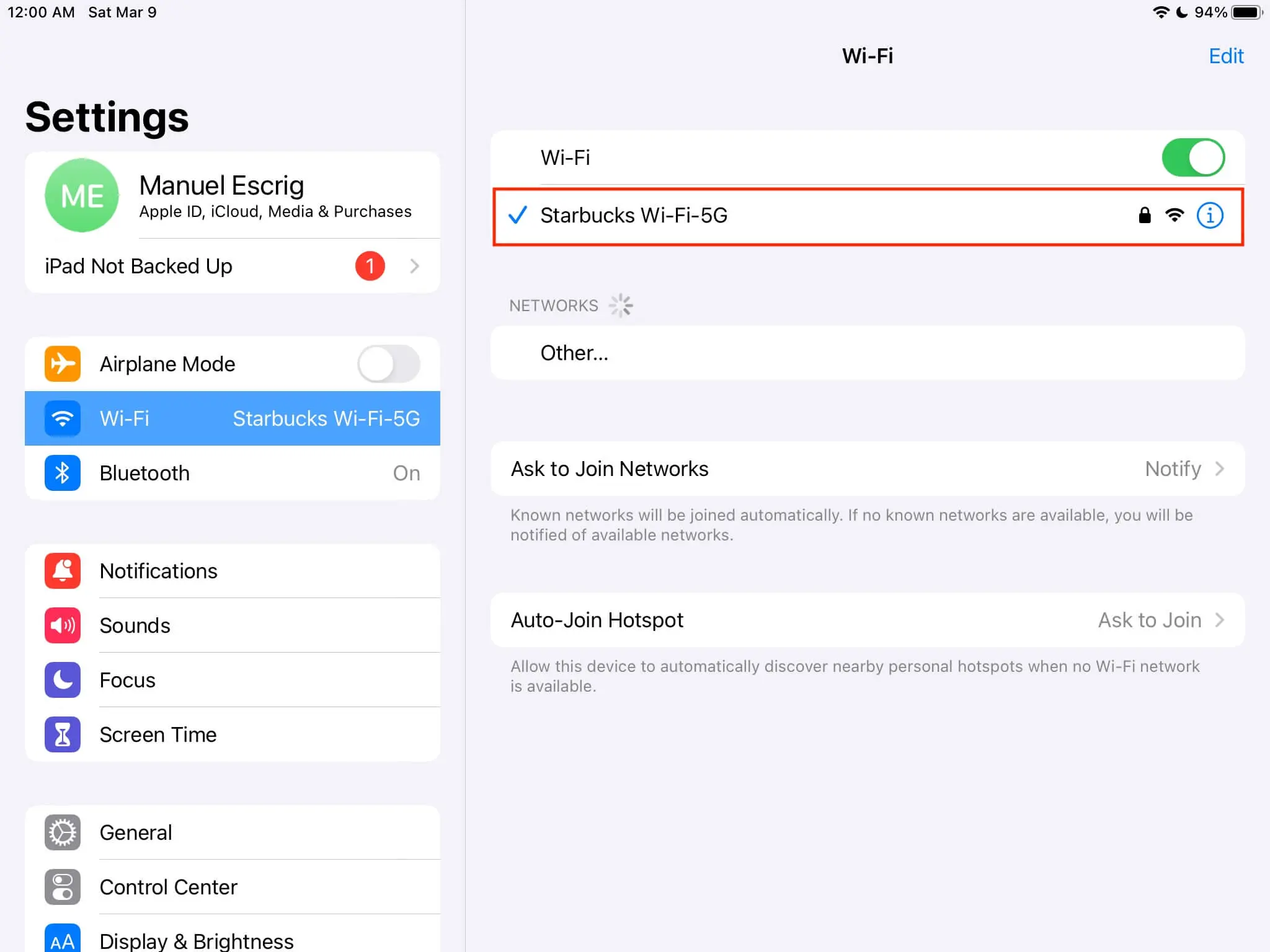 Guides How to Download Full Resolution Photos from iCloud
Get full resolution photos from iCloud on iPhone, iPad, Mac or PC, and fix "This iPhone was not able to download full r…
Guides How to Download Full Resolution Photos from iCloud
Get full resolution photos from iCloud on iPhone, iPad, Mac or PC, and fix "This iPhone was not able to download full r…
 Guides iCloud Photos Not Downloading to iPhone or iPad? 8 Fixes
iCloud photos not downloading to your iPhone or iPad? Eight fixes in the order that solves most cases, from free space …
Guides iCloud Photos Not Downloading to iPhone or iPad? 8 Fixes
iCloud photos not downloading to your iPhone or iPad? Eight fixes in the order that solves most cases, from free space …
 Guides Photo Gifts for Grandparents: 10 Ideas
10 honest photo gift ideas for grandparents, from photo books and calendars to frames that keep updating, with effort, …
Guides Photo Gifts for Grandparents: 10 Ideas
10 honest photo gift ideas for grandparents, from photo books and calendars to frames that keep updating, with effort, …
 Download Now