iCloud Photos Not Downloading to iPhone or iPad? 8 Fixes
iCloud photos not downloading to your iPhone or iPad? Eight fixes in the order that solves most cases, from free space to Low Data Mode.

June 30, 2026 by Manuel Escrig · 5 min read
Updated October 2026
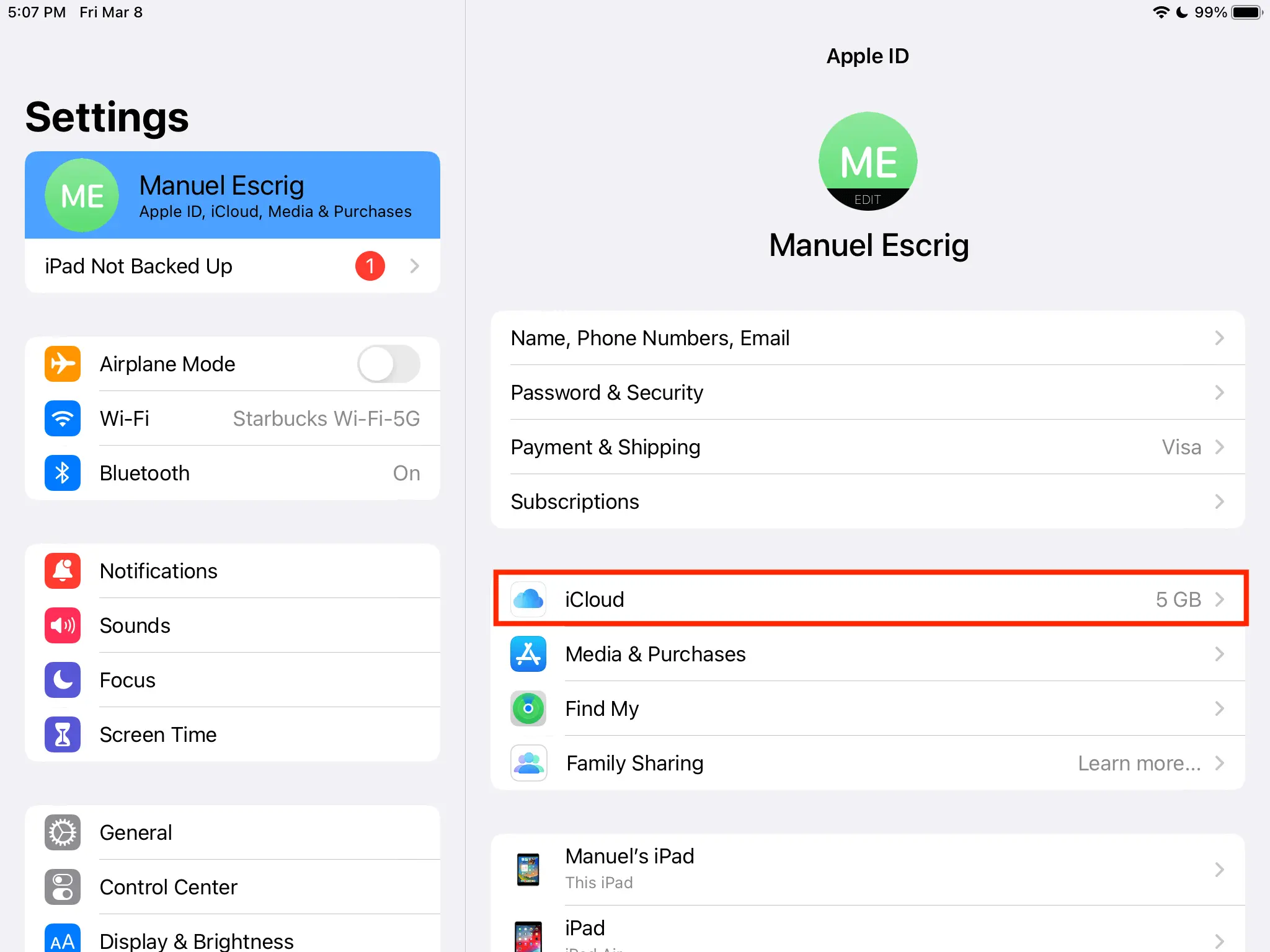
When iCloud photos won't download, the cause is nearly always free space, a paused connection, or iCloud Photos being turned off on that device. Work through the fixes below in order: the first four solve most cases in a few minutes.
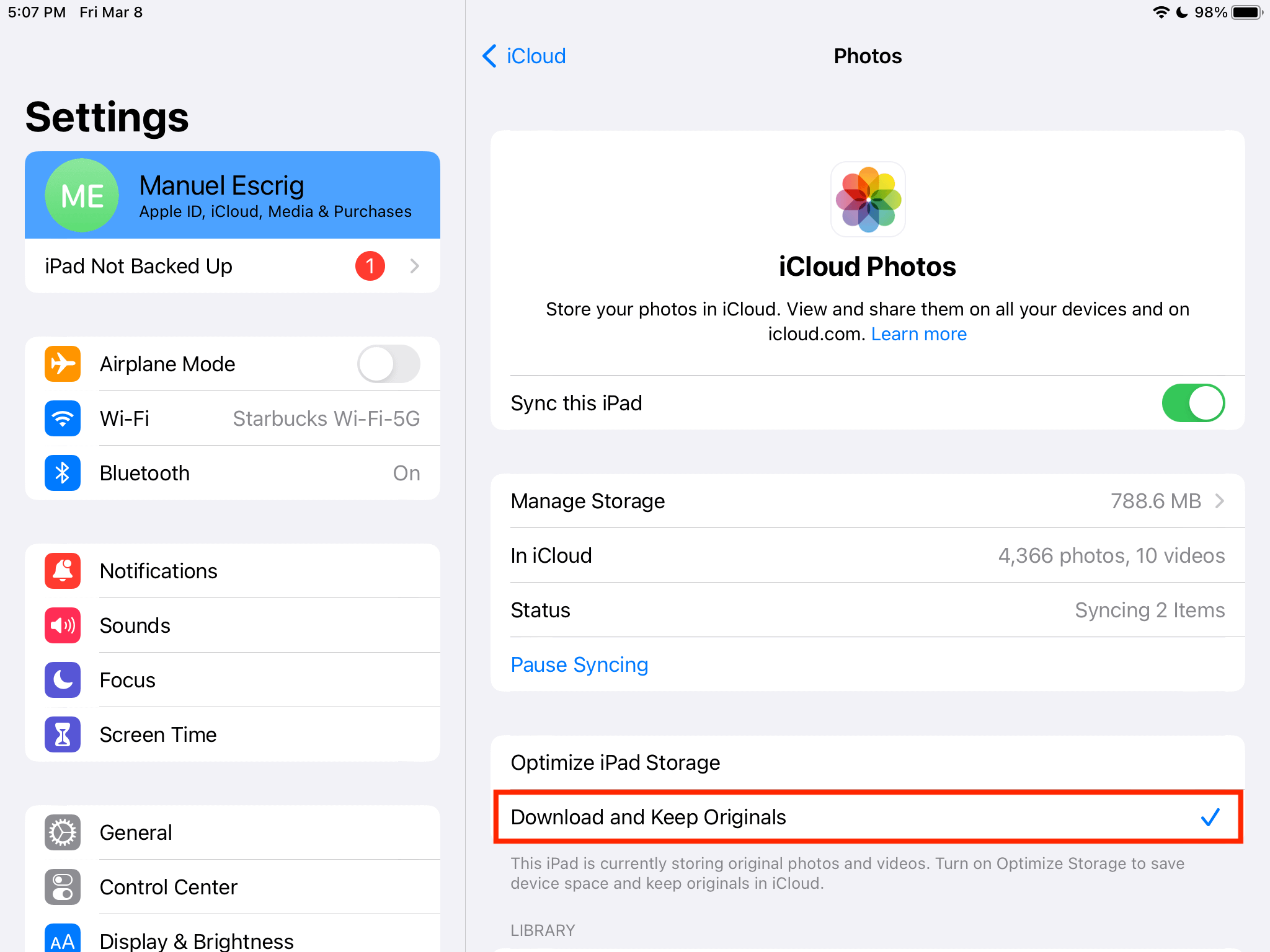
- Make sure Sync this iPhone is on under Settings, your name, iCloud, Photos.
- Check both device storage and iCloud storage; either one can stop progress.
- Turn off Low Data Mode for your Wi-Fi and Low Power Mode: Apple says both pause iCloud Photos.
- Leave the device on Wi-Fi and the charger overnight for big libraries.
- Still stuck? Read the library status in Photos, check Apple's System Status, update iOS, and look for an Unable to Upload album.
1. Check that iCloud Photos is on
Go to Settings, tap your name, then iCloud, Photos, and make sure Sync this iPhone (or Sync this iPad) is on. If it's off, this device and iCloud are two separate libraries, and nothing downloads no matter what else you try.
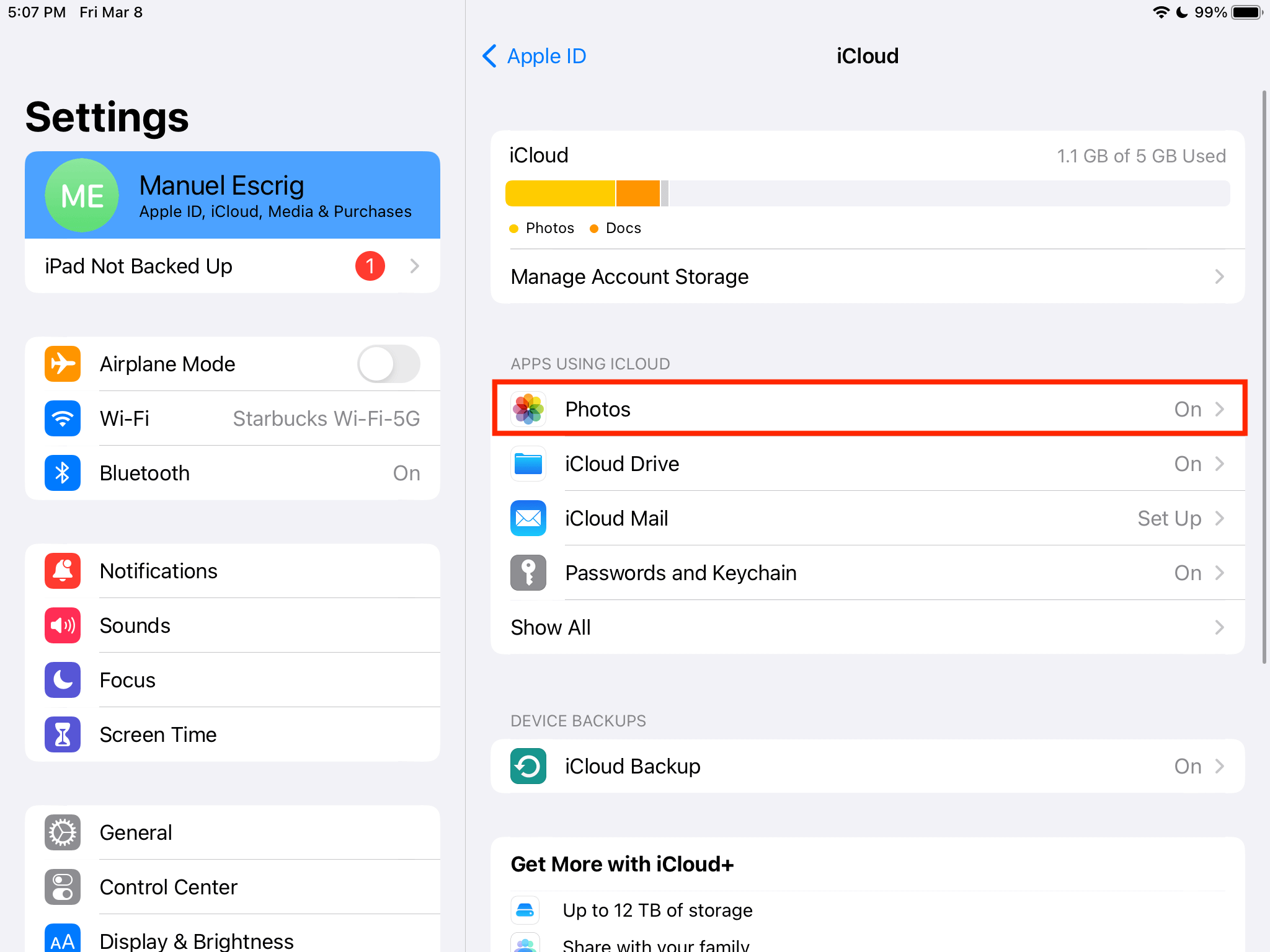
2. Read the library status in Photos
Open Photos, tap Collections, then tap your profile button in the top corner. The status under your name and photo count usually explains the pause: Low Power Mode, Low Data Mode, a poor connection, low battery, a warm device, or full iCloud storage.
Follow the message before changing other settings. If Sync Now appears, tap it after connecting to power and reliable Wi-Fi.
3. Check device storage and iCloud storage
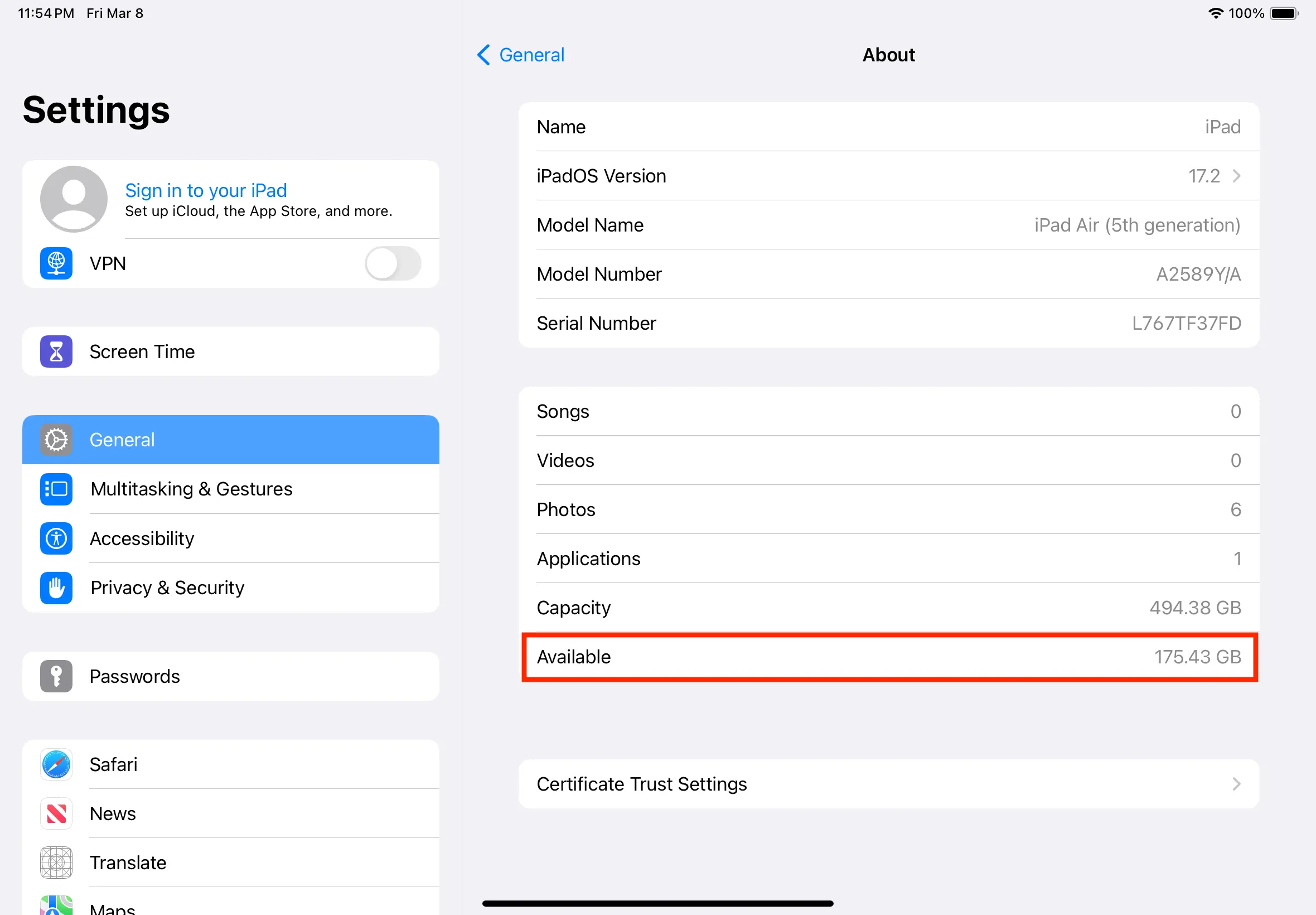
iOS stops downloading originals when the device is nearly full. Open Settings, General, iPhone Storage (iPad Storage on an iPad) and make sure a few gigabytes are free. Offloading an app you rarely use frees space quickly without deleting its data.
Uploading can also stop when your iCloud storage is full. Open Settings, tap your name, then iCloud to check the account storage. Freeing space on the phone does not fix a full iCloud account, and buying more iCloud storage does not create more space on the phone; check both separately.
4. Turn off Low Data Mode and Low Power Mode
Low Data Mode pauses iCloud Photos updates, and it can be on for a single Wi-Fi network. Go to Settings, Wi-Fi, tap the ⓘ next to your network and turn off Low Data Mode. On cellular, it's under Settings, Cellular, Cellular Data Options.
Low Power Mode also pauses iCloud Photos temporarily. Turn it off in Settings, Battery and connect the device to power.
5. Leave the device on Wi-Fi and power
A large library is not instant. Apple recommends leaving the device connected to power and Wi-Fi overnight. Keep Photos syncing uninterrupted rather than repeatedly restarting the process.
6. Check Apple's System Status
Now and then the problem is on Apple's side. Open Apple's System Status page and look at iCloud Photos. If there's an issue, wait and try again later.
7. Restart and update
Restart the device and install any pending iOS update. iCloud Photos bugs are often fixed in point releases.
8. Check for items that cannot upload
In Photos, look for an album named Unable to Upload. If it exists, Apple recommends editing the affected photo or video and checking whether it uploads, or exporting and reimporting the items. Unsupported or damaged files can hold up a small part of the library even while everything else syncs.
Do not turn off iCloud Photos just to force a restart. Apple's current guidance says this restarts the syncing process and can make recovery take longer.
Only some photos look blurry?
If photos download but look soft, the device is probably keeping smaller versions to save space. That's Optimize iPhone Storage: what Optimize iPhone Storage does explains it, and how to force full-resolution downloads covers the "not able to download full resolution photos" message.
When it's working again
I built Digital Photo Frame App so my parents could watch our twins grow up through an iCloud shared album on an old iPad, so iCloud downloads are close to my heart. The app asks iCloud for each photo at the size the screen needs while the slideshow plays, and a saved slideshow can be set to Make Available Offline for a frame on weak Wi-Fi. If you have an iPad in a drawer, here's how to turn it into a digital photo frame.
Frequently asked questions
Why are my iCloud photos not downloading to my new iPhone?
A new device has to download your whole library. Keep it on Wi-Fi and the charger with Low Power Mode off, and check that it has enough free space. Large libraries can take a day or more.
Does Low Power Mode stop iCloud Photos?
Yes. Apple says Low Power Mode pauses iCloud Photos temporarily. Low Data Mode also pauses iCloud Photos updates.
Will signing out of iCloud delete my photos?
Photos already uploaded remain in iCloud, but signing out can remove optimized copies from the device and forces another sync later. It is not a recommended first-line fix. Confirm your library is uploaded at iCloud.com/photos before changing account settings.
Why do photos download on my iPhone but not my iPad?
The settings are per device. Check Sync this iPad, free space, Low Data Mode and Low Power Mode on the iPad itself.
Sources
- Apple: Set up and use iCloud Photos
- Apple: If your iCloud Photos aren't syncing
- Apple: Use Low Power Mode
- Apple: Use Low Data Mode
- Apple: System Status
Manuel Escrig
 Share on Facebook
  Share on X
 Keep reading
All posts →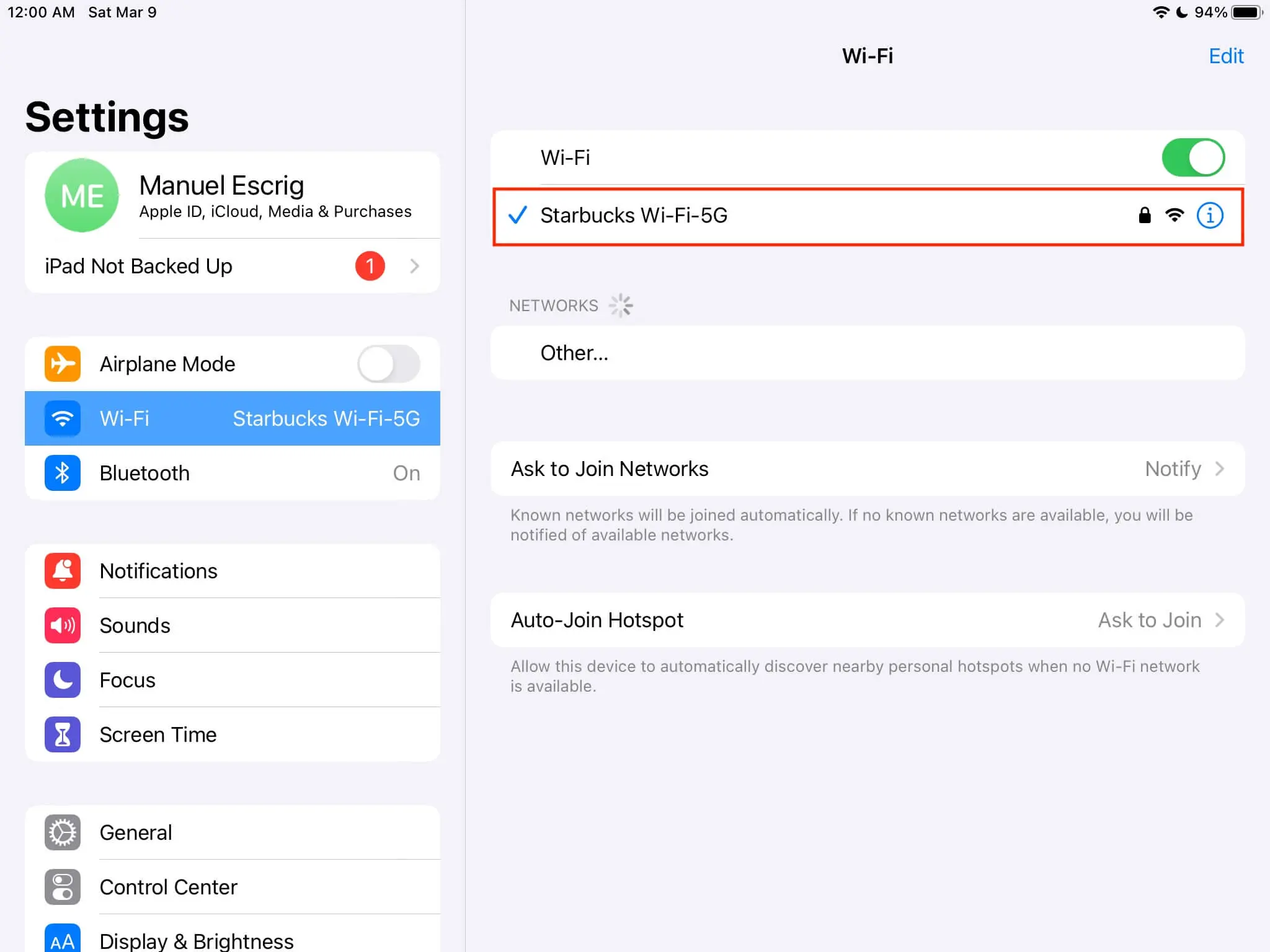 Guides How to Download Full Resolution Photos from iCloud
Get full resolution photos from iCloud on iPhone, iPad, Mac or PC, and fix "This iPhone was not able to download full r…
Guides How to Download Full Resolution Photos from iCloud
Get full resolution photos from iCloud on iPhone, iPad, Mac or PC, and fix "This iPhone was not able to download full r…
 Guides What Does Optimize iPhone Storage Do to Your Photos?
What Optimize iPhone Storage does to your photos, when it helps, when it hurts, and how to get your full-resolution ori…
Guides What Does Optimize iPhone Storage Do to Your Photos?
What Optimize iPhone Storage does to your photos, when it helps, when it hurts, and how to get your full-resolution ori…
 Guides Photo Gifts for Grandparents: 10 Ideas
10 honest photo gift ideas for grandparents, from photo books and calendars to frames that keep updating, with effort, …
Guides Photo Gifts for Grandparents: 10 Ideas
10 honest photo gift ideas for grandparents, from photo books and calendars to frames that keep updating, with effort, …
 Download Now