Turn Your iPhone Into a Photo Frame With StandBy
Charge your iPhone on its side and your own photos change on their own. How to add the Rotating Photos widget to StandBy, and the settings worth changing.

November 26, 2026 by Manuel Escrig · 3 min read
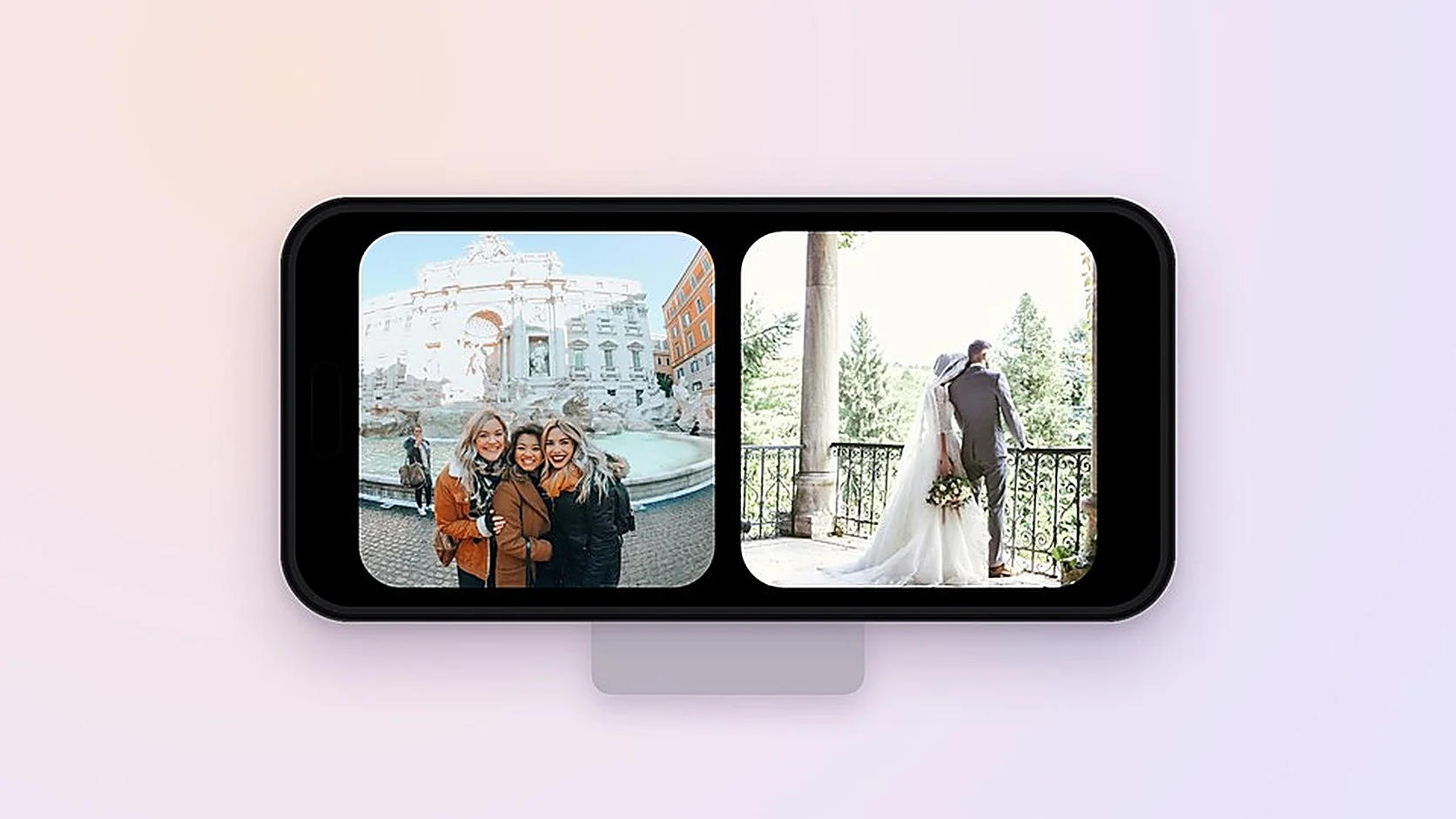
Your iPhone already sits on a charger every night. With StandBy and the new Rotating Photos widget in Digital Photo Frame, that time turns into a small photo frame on your nightstand or kitchen counter: lay the iPhone on its side while it charges and your photos change on their own.
- Start StandBy: on the Lock Screen, connect your iPhone to a charger and set it down on its side.
- Add the widget: in StandBy, touch and hold the widgets, tap +, choose Digital Photo Frame, then Rotating Photos.
- Pick what it shows: touch and hold the widget to edit it, then choose a slideshow (or Random to mix them all), how often the photo changes, the order and the fit.
- At night: keep or hide your photos when StandBy switches to its dim red Night Mode.
I make Digital Photo Frame. An iPhone on its charger is a good screen with nothing to do, so this widget gives it your photos.
What you need
- An iPhone with StandBy (iOS 17 or later) and Digital Photo Frame 6.35.0 or later.
- At least one slideshow in the app. The widget uses its photos, up to 20 per slideshow, so the widget stays light on memory.
Step 1: Start StandBy
On the Lock Screen, connect your iPhone to a charger and set it down on its side, keeping it still. StandBy fills the screen with large widgets, photos or a clock. Swipe left or right to move between them.
Step 2: Add the Rotating Photos widget
Touch and hold one of the widget stacks, tap +, search for Digital Photo Frame and choose Rotating Photos. You can put one on each side to show two slideshows at once.
Step 3: Choose your photos and how they change
Touch and hold the widget to edit it (on the Home Screen, touch and hold it and tap Edit Widget). You can change:
- Choose Slideshow: any of your slideshows, or Random to mix them all.
- Change Photo: every 5, 10, 15 or 30 minutes, or every hour.
- Photo Order: Shuffle or In Order.
- Photo Fit: Fill the Frame, or Show Whole Photo.
- At Night: Keep Showing Photos, or Hide Photos when StandBy turns red at night.
- Show Slideshow Name on the widget, and Play on Tap to open the full slideshow when you tap it.
If the widget asks you to open the app, open Digital Photo Frame once so it can prepare the photos.
It works on the Home Screen too
The same widget works on your iPhone and iPad Home Screen, so a spare iPad on a stand can show a changing photo next to your other widgets. For a full-screen frame with music, transitions and videos, play a slideshow in the app instead.
Does the screen stay on?
On iPhones with an Always-On display, StandBy can stay visible. On other iPhones the screen turns off after a while, depending on Display in Settings, StandBy, and you tap the screen to wake it. In low light, StandBy dims and turns red so it doesn't light up the room.
That's it. The next time you put your iPhone down for the night, the people you love are right there next to it.
Manuel
FAQ
Which photos does the widget show?
Photos from the slideshow you pick, up to 20 per slideshow. Choose Random to mix photos from all your slideshows.
Can I hide photos at night?
Yes. In the widget's settings, set At Night to Hide Photos.
Does it work on iPad?
StandBy is an iPhone feature, but the Rotating Photos widget also works on the iPad Home Screen.
Do I need to keep the app open?
No. The widget changes photos on its own. If it asks you to open the app, open it once so it can prepare the photos.
Sources
- Apple: Use StandBy on iPhone
- Digital Photo Frame: Release notes (version 6.35.0)
 Share on Facebook
 Share on X
Keep reading
All posts → Guides Photo Gifts for Grandparents: 10 Ideas
10 photo gift ideas for grandparents this Christmas, from photo books and calendars to frames that keep updating, with …
 Guides Large Digital Photo Frame: Should You Use an iPad or TV?
Want a large digital photo frame? Compare an iPad, a TV with Apple TV, and a dedicated frame by screen size, placement,…
 Guides Immich and NAS Photo Frame for iPad and Apple TV
A self-hosted photo frame for iPad, iPhone, Mac and Apple TV: show photos from Immich, Synology, QNAP, Nextcloud or any…
 Download Now