Use an iPad as a Digital Menu Board for Your Food Truck
Turn an iPad into a simple digital menu board for a food truck or small shop: menu images as a slideshow, the right timing and no accidental changes.

October 13, 2024 by Manuel Escrig · 3 min read
Updated October 2026
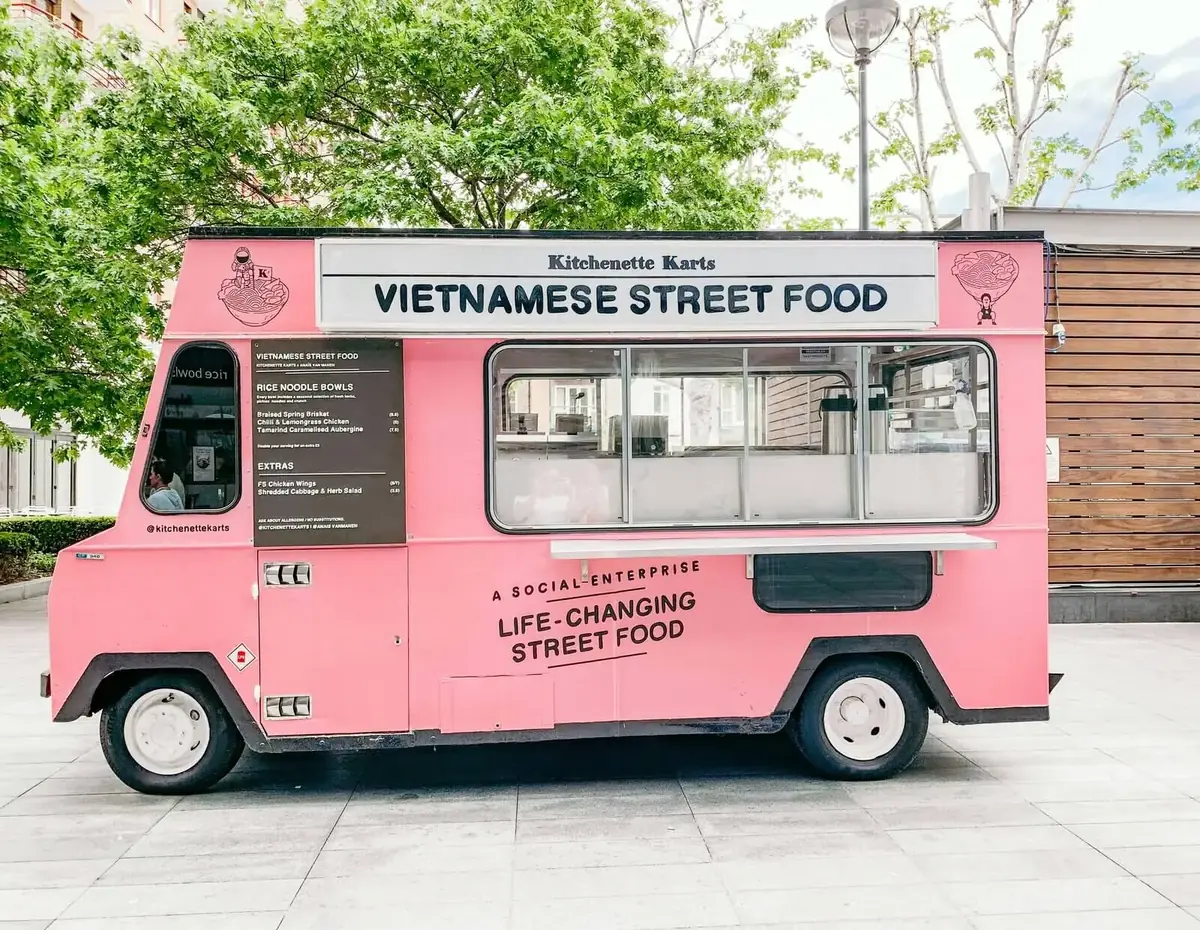
Yes, an iPad can be a simple digital menu board for a food truck: design your menu as images, put them in an album, and let Digital Photo Frame App play them as a slideshow on a stand or mount. It won't replace dedicated menu board software for big chains, but for one truck or a small shop it's cheap and quick.
- Design each menu page as an image (Canva, Keynote or PowerPoint all work) and save them to an album on the iPad.
- Play the album in Digital Photo Frame App and set a long Slide duration, so customers have time to read.
- Turn on Simple Controls and a passcode, so customers can't change it by tapping.
- Keep the iPad plugged in and out of direct sunlight.
I make Digital Photo Frame App mostly for families, but small businesses use it too, for menus, price lists and photos of their work. Here's the setup that works.
Step 1: Design your menu as images
Make each menu page an image in any design tool you know, such as Canva, Keynote or PowerPoint. Use large text and strong contrast so people can read it from a few steps away, and save it in the iPad's shape (landscape or portrait, whichever way you'll mount it). The aspect ratio calculator shows the exact shape of each iPad screen.
Save the images to an album in the Photos app on the iPad. Short videos of your food work too, because the app plays videos in the slideshow.
Step 2: Play the album as a slideshow
Open Digital Photo Frame App, pick the album and save it as a slideshow. In the slideshow settings, set a long Slide duration (a menu page needs far longer than a family photo) and a calm transition, or none.
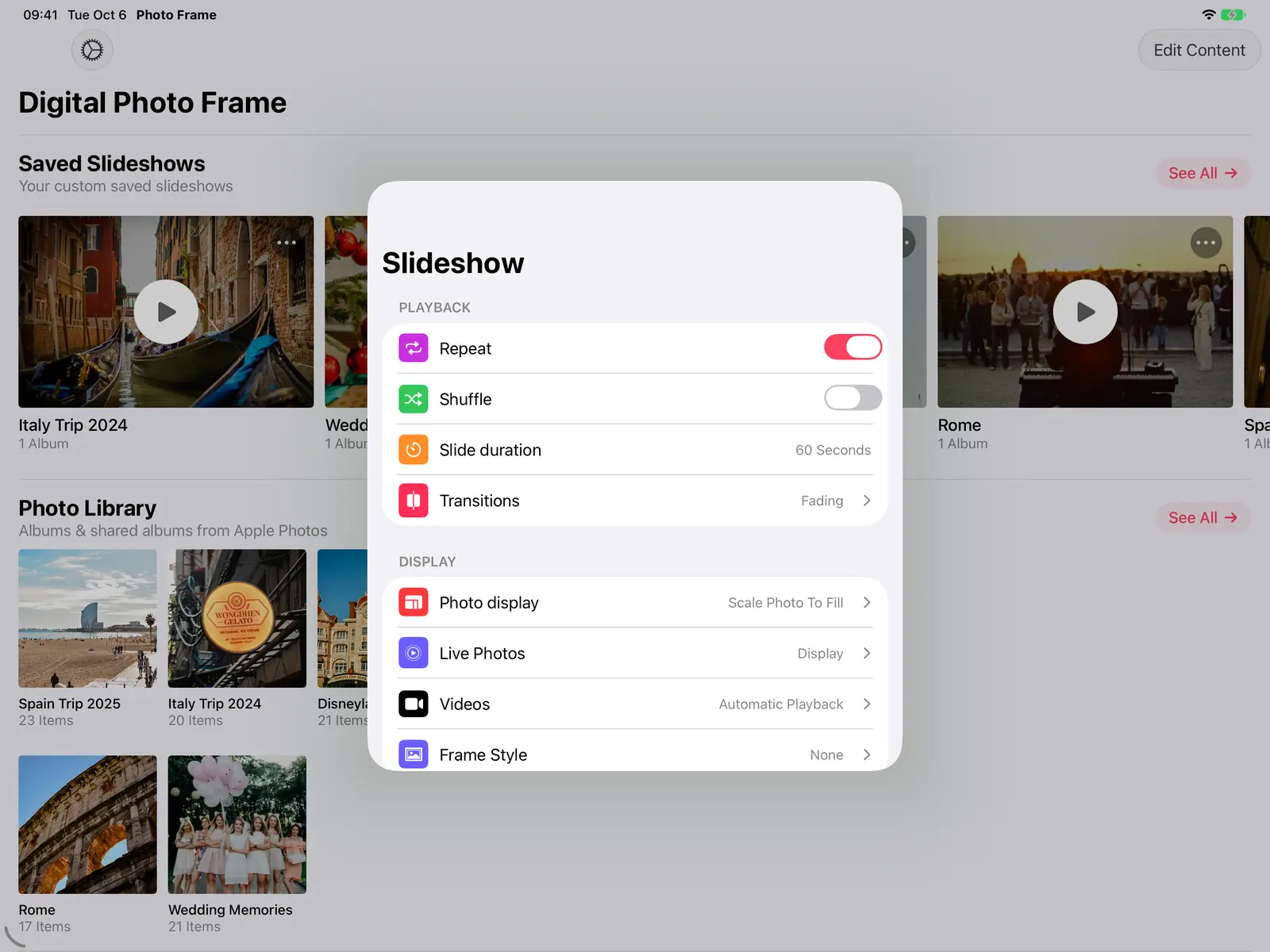
In the saved slideshow's menu, choose Enable Auto-Play, so the menu starts whenever the app opens.
Step 3: Stop customers from changing it
A menu on a counter will get tapped. Two settings help:
- Simple Controls (in Accessibility): a tap only moves to the next page, so nothing gets paused or changed.
- Configure Passcode: a PIN is needed to stop the slideshow or open its settings.
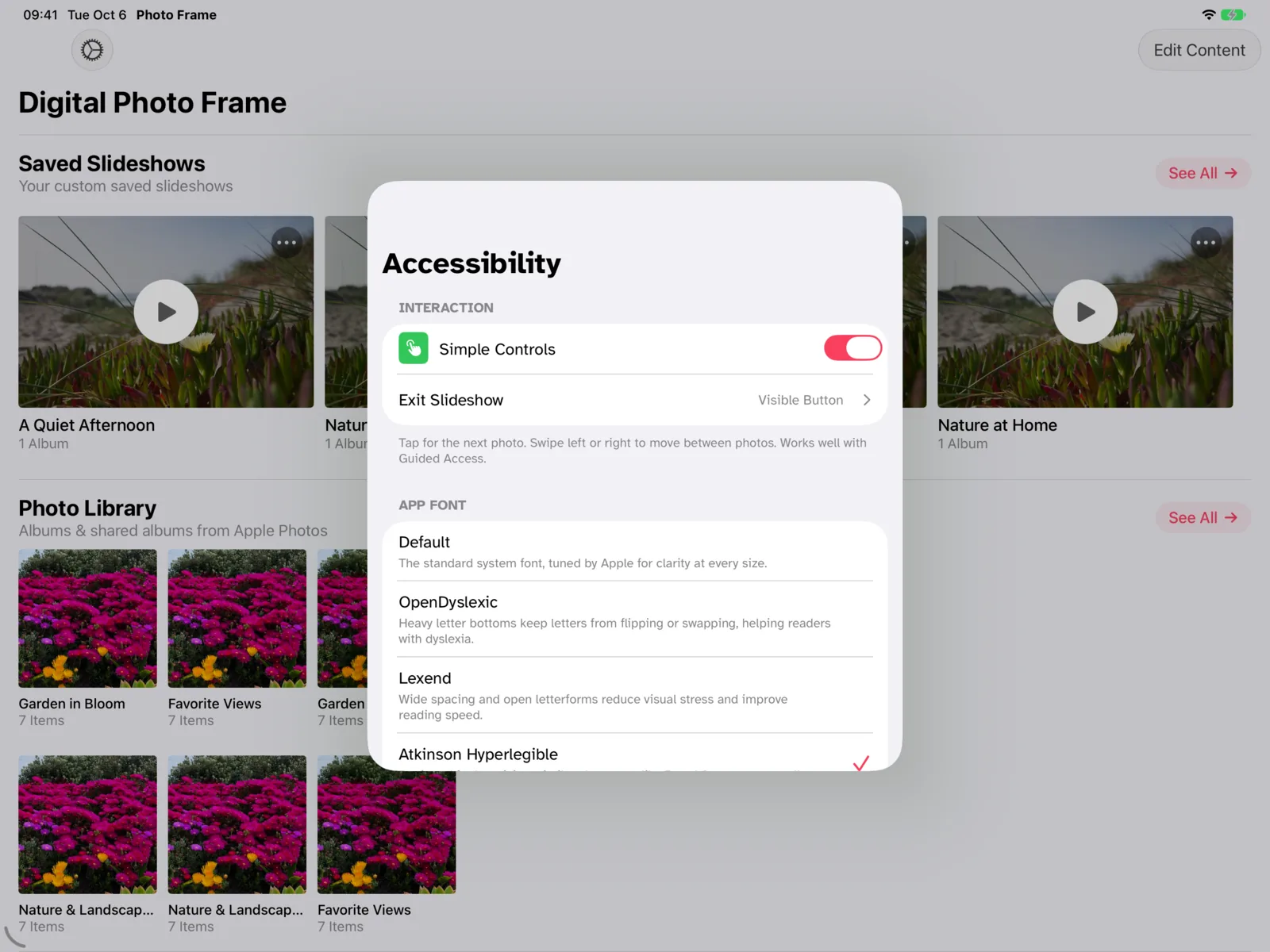
To keep the iPad inside the app entirely, use Apple's Guided Access: see how to lock your iPad into a single app.
Step 4: Mount it
Use a sturdy tablet stand or wall mount where customers look while they queue. Keep the iPad on power, and set Auto-Lock to Never in the iPad's Settings. iPad screens are hard to read in direct sunlight, so a shaded spot works much better.
Updating the menu
When something sells out or prices change, replace the image in the album and play the slideshow again. Daily specials work well as a single extra page you swap in each morning.
When this isn't the right tool
If you need menus synced across several trucks or shops, prices pulled from a till system, or a screen that stays bright in full sun, dedicated menu board software and outdoor displays are the better choice. For a single truck with one iPad, this setup does the job.
Frequently asked questions
Can I use an iPhone instead of an iPad?
Yes, the app also runs on iPhone, but the screen is small for a menu. An iPad is easier to read from a distance.
Can the menu include videos?
Yes. The app plays videos in the slideshow, so a short clip of your food can sit between menu pages.
Does the iPad need internet?
No, not for images saved on the iPad. Internet is only needed if your menu images come from the cloud.
Which iPads work?
Any iPad on iPadOS 15 or later, back to the iPad Air 2 and iPad mini 4. See the iPad page.
Questions about your setup? Write to me.
 Share on Facebook
 Share on X
Keep reading
All posts → Guides Photo Gifts for Grandparents: 10 Ideas
10 honest photo gift ideas for grandparents, from photo books and calendars to frames that keep updating, with effort, …
Guides Photo Gifts for Grandparents: 10 Ideas
10 honest photo gift ideas for grandparents, from photo books and calendars to frames that keep updating, with effort, …
 Guides Large Digital Photo Frame: Should You Use an iPad or TV?
Want a large digital photo frame? Compare an iPad, a TV with Apple TV, and a dedicated frame by screen size, placement,…
Guides Large Digital Photo Frame: Should You Use an iPad or TV?
Want a large digital photo frame? Compare an iPad, a TV with Apple TV, and a dedicated frame by screen size, placement,…
 Guides Immich and NAS Photo Frame for iPad and Apple TV
A self-hosted photo frame for iPad, iPhone, Mac and Apple TV: show photos from Immich, Synology, QNAP, Nextcloud or any…
Guides Immich and NAS Photo Frame for iPad and Apple TV
A self-hosted photo frame for iPad, iPhone, Mac and Apple TV: show photos from Immich, Synology, QNAP, Nextcloud or any…
 Download Now